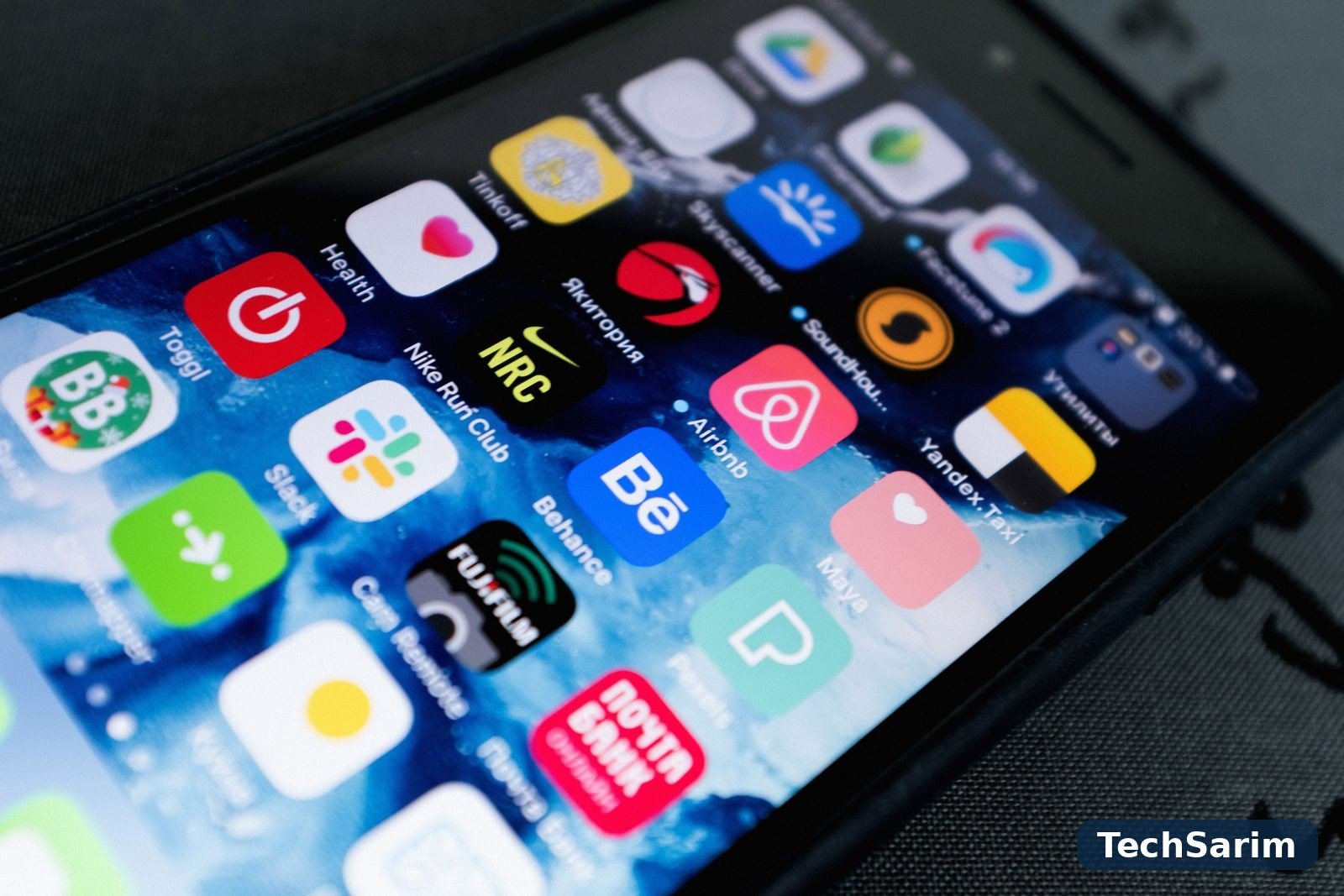

Open the Play Store and you are standing in front of millions of apps, most of which you will never need and some of which you should actively avoid. That abundance is Android’s great strength and its daily annoyance: for every job your phone does, there are forty candidates, half of them mediocre, a few of them wonderful, and a handful quietly harvesting more of your data than the job requires. “Best apps” lists usually make this worse by naming fifty apps nobody will install. This guide does the opposite.
This is a deliberately short list — part of our Smartphones & Mobile Technology coverage — organised by the job each app does rather than by novelty. One strong pick per job, an honest alternative where the default genuinely divides people, and plain language about what is free, what costs money, and what deserves your money. Every app named here is well established, actively maintained, and available through Google Play — the store whose history and scale are summarised on the Google Play Wikipedia page, if you want a sense of just how large the catalogue has become. Install these, skip almost everything else, and your home screen will earn its space.
The best Android apps at a glance
| Job | Our pick | Strong alternative | What it costs |
|---|---|---|---|
| Launcher | Nova Launcher | Niagara Launcher | Free; optional one-off premium |
| Browser | Firefox | Chrome or Samsung Internet | Free |
| Messaging | Signal | WhatsApp or Telegram | Free |
| Photos | Google Photos | Aves Gallery | Free; cloud storage plans optional |
| Files & transfers | Files by Google + LocalSend | Solid Explorer | Free |
| Notes | Google Keep | Notion or Obsidian | Free; optional premium tiers |
| Music & podcasts | Spotify / YouTube Music | Pocket Casts / AntennaPod | Free tiers; optional subscriptions |
| Passwords | Bitwarden | 1Password | Free; inexpensive optional premium |
| Keyboard | Gboard | SwiftKey | Free |
| Automation | MacroDroid | Tasker | Free; optional premium |
One pattern runs through the table and it is worth noticing before the details: most of these jobs are done excellently by free apps. The sections below explain where paying genuinely helps — and where it buys you nothing but a badge.
Launcher and customisation: Nova Launcher
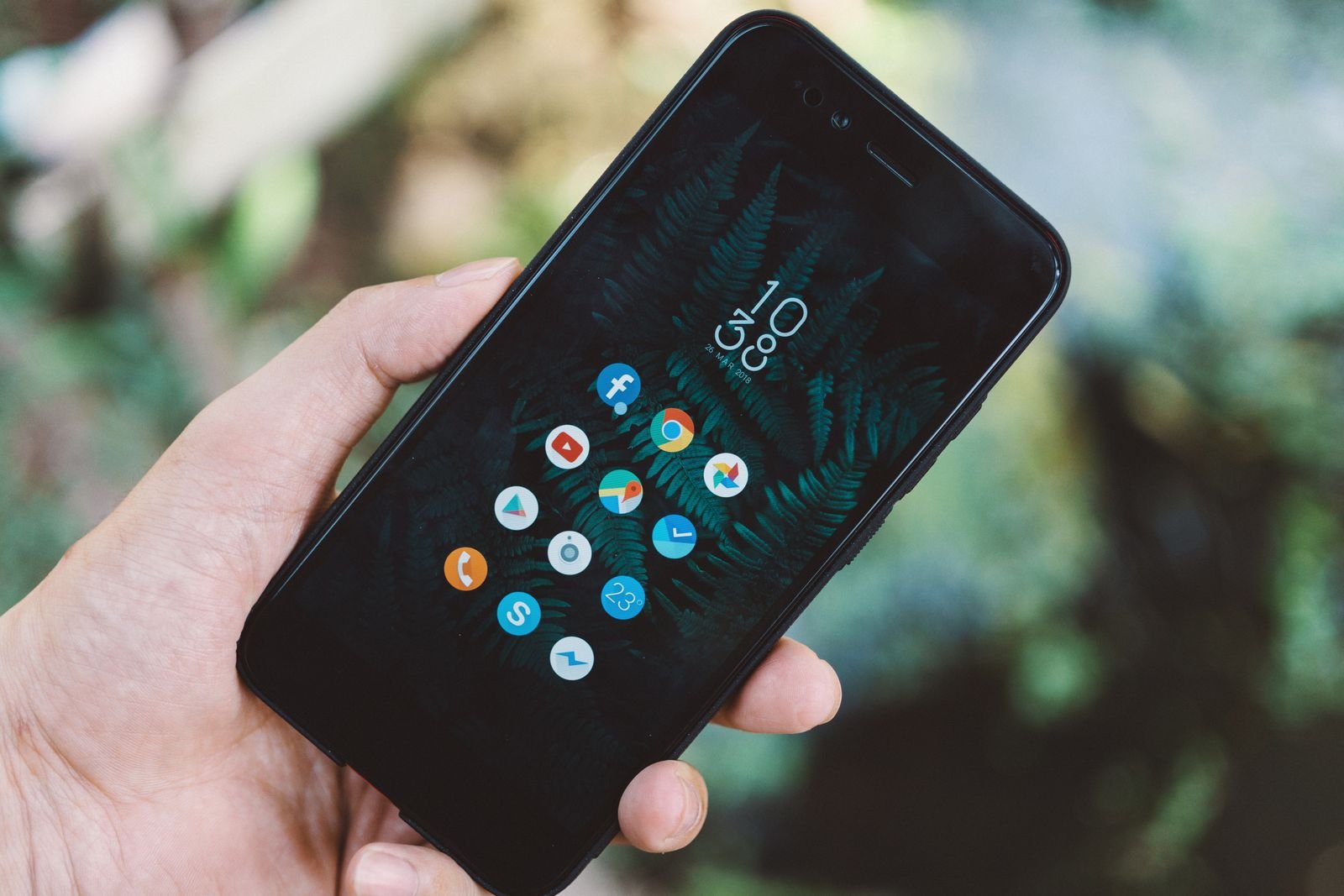
The launcher is the app you see every time you unlock your phone, which makes it the highest-leverage install on this list. The one your phone shipped with is fine; Nova Launcher is better in the ways that matter daily. It lets you resize the icon grid so more (or less) fits per screen, build folders and an app drawer that match how you actually think, add gestures — swipe down anywhere for notifications, double-tap to lock — and back the whole arrangement up so a new phone can be set up to feel like home in minutes. It is fast, stable, and respectful of older hardware.
Niagara Launcher is the alternative for people who find even Nova too busy: it replaces the grid with a single alphabetical list and a wave-shaped favourites strip, designed for one-handed use and minimal distraction. If your complaint about your phone is that it demands attention, Niagara is the calmer answer. Either way, both are free to use properly; Nova’s optional premium unlocks extra gestures and drawer features for a small one-off payment — one of the few in-app purchases in this guide we would call genuinely worth it if you use the gestures daily.
Browser: Firefox, with honest words about Chrome
Most Android phones arrive with Chrome, and Chrome is a good browser: fast, familiar, and synced with your desktop if you live in Google’s world. We still give the pick to Firefox, for three concrete reasons. It supports real extensions on mobile — including a proper ad and tracker blocker — which Chrome on Android still does not match. Its tracking protection is on by default and clearly explained. And it is the only major browser here not built to feed an advertising business, which shows in the defaults.
Two honest qualifications. If your work and passwords already live in Chrome everywhere, switching costs are real and Chrome remains a perfectly respectable choice rather than a mistake. And Samsung owners should not overlook Samsung Internet, which is quietly excellent: a proper bottom toolbar, solid ad-blocker support through extensions, and smooth performance. Brave deserves a mention for people who want blocking built in with no setup at all. Browser choice is partly taste; what is not taste is using the forgotten, unmaintained browser that came preinstalled by a carrier or a budget brand — replace that one today.
Messaging: Signal for privacy, WhatsApp for reach
Messaging is the one category where the “best” app is partly chosen for you, because an app with none of your people in it is useless however good it is. So, honestly: WhatsApp is where much of the world already talks, it is free, and its calls and group chats are reliable; if your family and work are there, use it without guilt. Telegram is the better tool for very large groups, public channels, huge file transfers and using the same account across many devices — with the caveat that its ordinary chats are not end-to-end encrypted by default; only its “secret chats” are.
Our actual recommendation for private conversation is Signal. It is free, run by a non-profit, end-to-end encrypts everything by default — messages, calls, group chats — and collects almost no data about you beyond your phone number. The modern features people expect are all there: voice and video calls, disappearing messages, stories, usernames so you can be reached without sharing your number. And do not forget Google Messages for SMS and RCS: with RCS now broadly supported, it has quietly become a competent, modern messenger for texts, with reactions, replies and better media than old SMS ever allowed.
Photos and gallery: Google Photos, plus a gallery that keeps things local
Google Photos remains the default recommendation, and it earns it: automatic backup, search that actually understands “receipts”, “the dog at the beach” or a person’s face, easy sharing albums, and editing tools that keep getting better. The free side of it is real but bounded — backup draws on your Google account storage, and heavy photographers will eventually be offered a storage plan. That is a fair trade and one of the few subscriptions many people find genuinely useful, but go in with your eyes open: set the backup quality deliberately, and check what is being uploaded before the first big holiday, not after.
For browsing the photos already on your phone, the built-in gallery is often slow or cluttered with promotions, depending on the brand. Aves Gallery is the connoisseur’s alternative: fast, private, works entirely offline, handles unusual formats and video well, and organises by folder the way your files actually are. Samsung’s own Gallery is also perfectly decent — this is one preinstalled app we would not rush to replace. Whichever combination you choose, treat the gallery and the backup as two different jobs, because they are: one shows you the library, the other protects it. Keeping local copies under control, by the way, is half the battle in keeping a phone’s storage healthy — our guide to how to free up storage on Android walks through the cleanup in payoff order.
Files and transfers: Files by Google and LocalSend
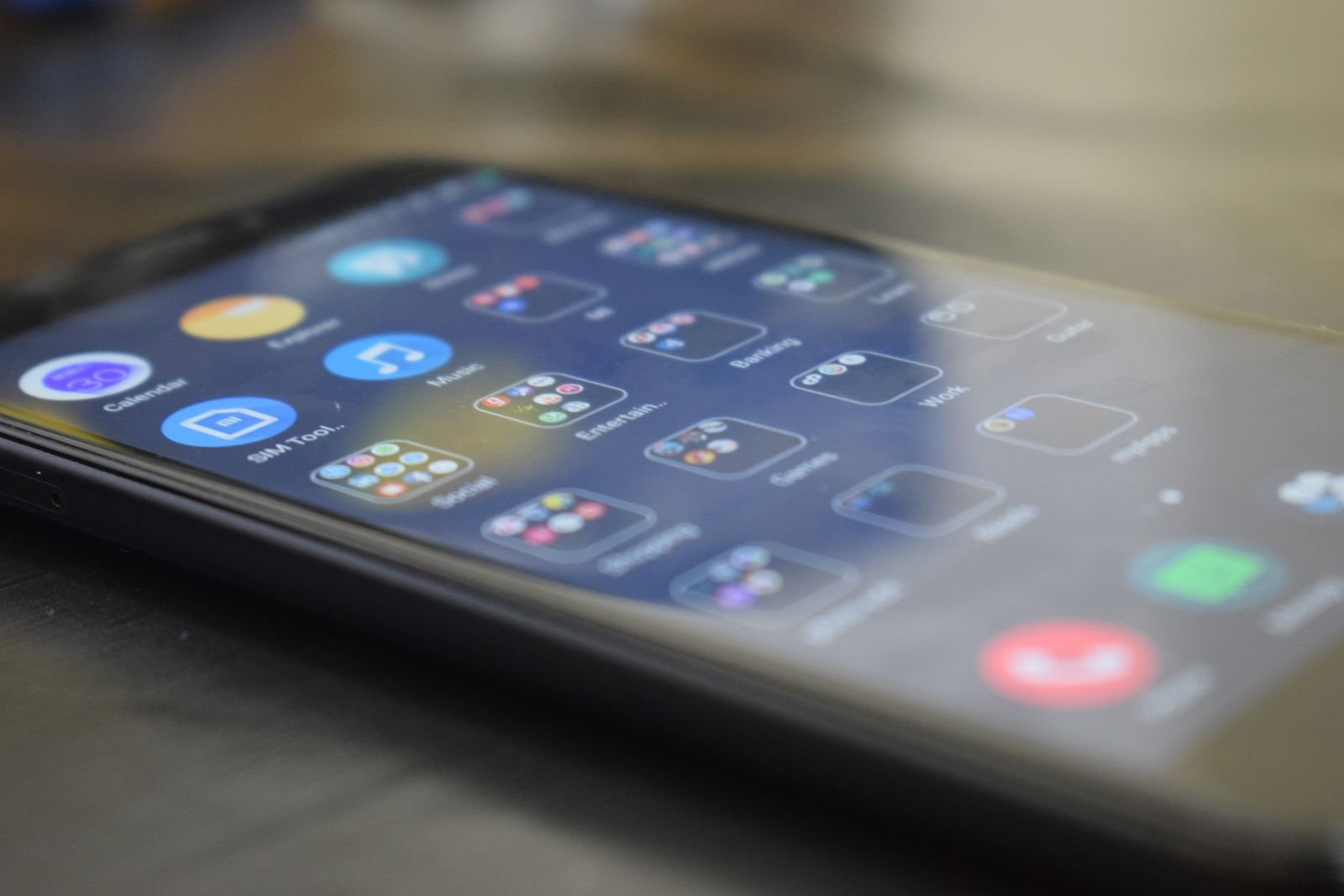
Files by Google is the file manager most people should use, and many phones already have it. It is clean, quick, shows you what is eating your storage in plain categories, and suggests junk worth deleting without the hysterics of “cleaner” apps (more on those below). For moving files between your phone and a computer — or another phone — add LocalSend: it sends files over your local Wi-Fi directly between devices, with no account, no cloud, no size limits and no compression, and it works with Windows, Mac, Linux and iPhone too. Once you have used it, emailing yourself a video feels like posting yourself a letter.
If you manage files seriously — network drives, cloud accounts, archives, dual-pane browsing — Solid Explorer is the power user’s pick, free to try with a modest one-off unlock. But honestly, Files plus LocalSend cover nine readers out of ten completely.
Notes and productivity: Keep for speed, Notion for systems
Google Keep is the right notes app for most people because it removes friction: open, type, done. It syncs everywhere, handles checklists, voice notes and photo notes, colours and labels them lightly, and never asks you to design a system before you can write down “buy milk.” For students and anyone juggling study notes alongside everything else, Keep pairs well with the wider toolkit in our guide to the best AI tools for students.
When notes become a system — projects, linked pages, databases of readings, a second brain — that is Notion’s territory, and it is genuinely powerful for it, at the cost of setup time and a steeper learning curve; its free tier is generous for personal use, with paid tiers for teams and extras. Obsidian is the third philosophy: your notes are plain text files on your own device, endlessly linkable, sync as an optional paid extra. Choose by temperament — Keep for capture, Notion for organising, Obsidian for owning. For tasks specifically, a simple dedicated to-do app such as Todoist or Microsoft To Do (both free with optional premium) beats burying tasks inside any of the three.
Music and podcasts: the streamers, and two podcast specialists
For music, the honest answer is that you probably already have your service, and both major picks are fine: Spotify for its discovery, playlists and the deepest catalogue of user-made mixes, or YouTube Music if you already pay for YouTube Premium or your taste runs to live recordings and covers that only exist as videos. Both have free tiers supported by advertising and subscriptions that remove them. Switching services costs you your library and your algorithm’s years of learning, so this is one category where “best” mostly means “the one you are already on — set it up properly”: download over Wi-Fi only, set streaming quality sensibly, and clear the cache occasionally.
Podcasts deserve their own app rather than a corner of a music service. Pocket Casts is the enthusiast’s pick — excellent queue management, silence trimming, playback-speed control that does not make voices sound haunted, and availability across platforms; it is free with an optional premium tier for extras. AntennaPod is the free-and-open-source purist’s choice: no account, no ads, everything a podcast app needs, nothing it does not. Either will improve your listening life more than the podcast tab of a music app does.
Security and passwords: the two installs that matter most
If this whole article achieves only one thing, let it be these two installs. A password manager ends the era of reused passwords — which is to say, the era of one leaked site unlocking your email, your banking and your life. Bitwarden is our pick: genuinely free for the core job (unlimited passwords, on unlimited devices — a combination rivals mostly charge for), open source, and available everywhere, with an inexpensive optional premium for extras like built-in two-factor code generation and family sharing. 1Password is the polished alternative, subscription-only, with a slightly friendlier interface and excellent family plans. Either is a fine choice; having none is the only wrong answer. Your browser’s built-in password saving is better than nothing, but a dedicated manager works across every app and browser, warns you about reused and breached passwords, and survives you changing phones or browsers.
The second install is an authenticator for two-factor authentication, because codes by text message are the weakest link in most people’s security. Bitwarden’s premium can hold these codes, and dedicated apps such as Google Authenticator or Microsoft Authenticator are free and simple; Aegis is the open-source favourite for Android specifically, with encrypted backups you control. Whichever you choose, save the recovery codes it offers you somewhere safe and offline — the locked-out-of-everything story always starts with a lost phone and no recovery codes. Move your important accounts — email first, then banking and socials — onto authenticator codes, and you have done more for your security than any antivirus app ever will.
Utilities: a better keyboard and automation that grows with you
Two utility categories punch far above their weight. The first is the keyboard, the app you use more than any other. Gboard, Google’s keyboard, is the default recommendation: excellent swipe typing, strong voice typing, built-in search and translation, and clipboard history. SwiftKey is the alternative for people who type in two or more languages — it predicts in both without manual switching — and for anyone whose style Gboard’s predictions never quite learn. Both are free. One warning that applies to all keyboards: a keyboard can technically see everything you type, so only ever install one from a developer you would trust with your passwords — the two above qualify; a random keyboard with cartoon themes and a hundred permissions does not.
The second is automation. MacroDroid is where to start: it builds rules from plain building blocks — when this happens, do that — such as reading texts aloud in the car, silencing the phone at your workplace, or turning on the torch with a shake, all without writing code, free with an optional premium. Tasker is the legendary deep end: almost anything on the phone can trigger almost anything else, plugins extend it further, and the learning curve is real. Start with MacroDroid; graduate to Tasker only if you hit its limits, which most people never do.
Free vs paid: the honest ledger
Here is the summary the app stores will never show you. Of the jobs on this list, the overwhelming majority are done completely by free apps: Firefox, Signal, Files, LocalSend, Keep, AntennaPod, Gboard and Bitwarden’s core ask for nothing. The free tier of the internet’s app economy is genuinely excellent — a pattern we see across categories, from these utilities to the tools in our roundup of the best free AI tools.
Where paying makes sense, it falls into three honest buckets. Pay for storage and services, not features: a Google storage plan or a streaming subscription buys an ongoing service, and that is a fair exchange. Pay small one-offs to developers you rely on: Nova’s premium or Solid Explorer’s unlock are modest, once-only payments that keep excellent independent software alive. Pay for family and polish: 1Password’s family plan and Notion’s team tiers earn their keep when several people depend on them. What not to pay for: subscriptions for trivial utilities — a monthly fee for a flashlight, a calculator or a “premium cleaner” is a tax on not reading this paragraph.
The privacy check every reader should do
Five minutes, once, per app you install. Open the app’s Play Store page and read the Data safety section before installing — it states, in the developer’s own declaration, what data is collected, what is shared with third parties, and whether it is encrypted in transit. After installing, open Settings > Apps > the app > Permissions and apply one rule: a permission should obviously serve the app’s job. A gallery needs your photos; a flashlight does not need your contacts; a notes app does not need your location, precise or otherwise. Deny anything that fails that test — most apps work fine with “only while using the app” or a flat no, and Android lets you grant photos access to selected images only rather than the whole library.
Two more habits. Prefer apps that work without an account when the job is local — a gallery, a file manager, a podcast player gains little from knowing who you are. And every few months, uninstall what you have not opened: every forgotten app is a forgotten set of permissions and a background process you did not agree to. An app you deleted cannot leak anything.
Apps to avoid — and why
Some categories should be skipped entirely, whatever their ratings say. “Cleaner” and “booster” apps are the big one: modern Android manages memory and cache itself, and these apps typically deliver advertising, alarming fake warnings designed to upsell you, and requests for sweeping permissions — while doing nothing the Files app and a restart cannot. Flashlight and simple-utility apps from unknown developers have a long history of quietly collecting location and device data to sell; your phone has a flashlight built into its quick settings already. Clone apps — imitations of famous apps with a slightly altered name or icon — exist to serve ads or worse at people who tapped too fast; check the developer name before installing anything well-known. The same caution applies to battery-saver and antivirus apps from obscure brands: at best they duplicate what Android and Play Protect already do, at worst they are the threat wearing a uniform. The store’s badge systems and download counts are weak signals; the developer’s name, the data safety declaration and a moment’s thought are stronger ones.
Frequently asked questions
How many apps should I actually have installed?
Far fewer than most people do. The dozen or so picks in this guide, plus your banking, travel and personal essentials, cover nearly everything. If you have not opened an app in three months, uninstall it — you can always reinstall it in a minute if the need ever actually arrives.
Are the default Samsung or Pixel apps good enough?
Often, yes. Samsung’s Gallery and Internet browser, and Google’s own Files, Keep and Photos, are all genuinely good. Replace a default only when a pick above solves a problem you actually feel — slowness, clutter, missing features — not because a list told you to.
Is it safe to install apps from outside the Play Store?
Generally, treat sideloading as an advanced move. The Play Store is not perfect, but it screens apps and can revoke bad ones; a random APK from a website has none of that safety net. Stick to the store unless you know exactly what you are doing and exactly who published the file.
Free password managers — can they really be trusted?
Yes, when the developer’s model is transparent. Bitwarden is open source — its code is publicly inspectable — and earns money from optional premium and business plans rather than from your data. That combination (open code, a visible paid tier) is exactly the pattern to look for in any free security tool.
Should I pay for an antivirus app on Android?
For almost everyone, no. Keep the phone updated, install only from the Play Store, and leave Play Protect on; that combination covers the realistic risks. Paid mobile “security suites” mostly add VPNs, cleaners and warnings of doubtful value.
What is the very first app I should install from this list?
The password manager. Every other pick makes your phone nicer; Bitwarden (or 1Password) plus an authenticator makes your whole digital life safer, and it takes twenty minutes to set up properly.
The bottom line
The best Android apps in 2026 are mostly not new, not flashy and not expensive. A launcher that fits your hand (Nova or Niagara), a browser with real blocking (Firefox), Signal for private talk, Google Photos for the library with Aves for browsing it, Files and LocalSend for everything file-shaped, Keep or Notion for notes, your streamer plus Pocket Casts, Gboard for typing, MacroDroid for magic tricks — and above all Bitwarden and an authenticator standing guard over the lot. Install those, run the five-minute privacy check on each, and uninstall a few things you never open while you are at it. Your home screen will be shorter, faster and safer — which is what a home screen is for.