

Screen recording used to be specialist software. Now it is how work gets explained: the bug report is a clip, the training session is a recording, the tutorial, the lecture and the “watch what happens when I click this” are all video. The format even has a name of its own — the screencast — and Windows PCs are expected to produce them the way they produce documents.
The good news is that you do not need to pay for a recorder, and you never really did. The bad news is that “free screen recorder” is one of the most trap-filled searches in software: downloads that stamp your video with a logo, stop at ten minutes, bury the export button behind a subscription, or wrap a decent tool in a junk installer. This guide, part of our Software & Computer Technology coverage, separates the genuinely free recorders from the trial versions wearing free as a costume — naming, for each tool, the three things that actually matter: whether it watermarks, whether it time-limits, and what it cannot do.
What “free” really means in this category
Before the picks, learn the three traps, because every disappointing recorder uses one of them.
The watermark trap. The recorder is free, the recording is free — and your finished video has the company’s logo sitting on it, removable only by paying. This is not a free recorder; it is an advertisement generator that uses your videos as the billboard. Bandicam’s free version is the famous example, named honestly in the table below.
The time-limit trap. Recording stops — or the export stops — after a few minutes unless you upgrade. Ten minutes is the common cut-off, chosen because it is long enough to record a test clip happily and too short for the lecture, lesson or meeting you actually needed.
The funnel trap. The tool is free but the ecosystem is not: the recorder works, then nudges you towards the same company’s paid editor, paid cloud, paid stock library. This one is not dishonest — Clipchamp below works this way, and its free tier is genuinely useful — but you should know which room of the shop you are standing in.
Against those, the real thing exists in two forms. Free and open source (OBS Studio, ShareX): no account, no tiers, no watermark, no limit, funded by communities and donations. And built into Windows (Xbox Game Bar, Snipping Tool): already on your PC, free because you already paid for the operating system, limited in scope rather than in honesty. Several of the open-source names below will look familiar from our roundup of the best free PC software — OBS sits in that kit for exactly the reasons it wins here.
One more piece of honesty: none of these recorders captures streaming services’ protected video — the black screen you get when you try is DRM doing its job, not the recorder failing. Screen recording is for your own content and the things you have the right to capture.
The free screen recorders at a glance
| Recorder | Truly free? | Watermark | Time limit | Captures | Best for |
|---|---|---|---|---|---|
| OBS Studio | Yes — free and open source | None | None | Full screen, windows, webcam and multiple sources at once | Courses, gameplay, streaming — anything serious |
| ShareX | Yes — free and open source | None | None | Screen, region or window; also GIFs and screenshots | Quick clips, bug reports and GIFs |
| Xbox Game Bar | Yes — built into Windows | None | An adjustable cap in Settings | One app or game window only | Game clips and quick single-app captures |
| Clipchamp | Free tier of a paid product | None on free-tier exports | Check the current free-plan session cap | Screen, webcam, or both — with an editor attached | Beginners who want recording and simple editing in one place |
| Snipping Tool | Yes — built into Windows 11 | None | None imposed | A screen region you draw with the mouse | Thirty-second clips and quick how-tos |
| FlashBack Express | Free version | None | None | Screen, webcam and sound | Simple tutorials with no learning curve |
| Bandicam (free version) | Trial-style free version | Yes — logo stamped on the video | 10 minutes per recording | Screen and games | The cautionary example: its free version is an advert for the paid one |
Read the watermark and time-limit columns first; they are where this category hides its prices. Everything else — interface, features, polish — is preference. A recorder that passes those two columns can be recommended; one that fails them is a demo, whatever its download page says.
OBS Studio: the free recorder professionals actually use
If you ask people who record their screens for a living what they use, one answer comes back so consistently it ends arguments: OBS Studio. It is free and open source, runs on Windows, Mac and Linux, carries no watermark, imposes no time limit, and is downloaded from its official site — get it there or from the Microsoft Store, never from a lookalike download portal. The same software that streamers broadcast with is, at heart, a superb recorder, and recording is the simpler half of what it does.
The power comes from its model: you build a scene out of sources — your screen or a window, your webcam in the corner, your microphone, an image, a title — and OBS records the composed result. That is how tutorials get their picture-in-picture face, how gameplay videos get their overlays, and how course creators record a slide deck, their screen and themselves in one file instead of three. You can keep several scenes (intro, screen, screen-plus-face, break screen) and switch between them mid-recording. Quality is yours to set: resolution, frame rate and bitrate are all exposed, and the output goes straight to standard formats such as MP4.
The honest cost is the first hour. OBS opens like a cockpit, because it is one: scenes and sources are a new vocabulary, the Settings window has real depth, and the default configuration is sensible rather than magical. Nothing about it is hard once the model clicks — the walkthrough below clicks it — but if your entire ambition is “record this window for two minutes, once”, OBS is artillery aimed at a sparrow, and the simpler tools below exist for you.
Verdict: the best free screen recorder for PC, full stop, for anyone who will record more than occasionally. Learn it once and the search is over permanently.
ShareX: the quick-clip machine
ShareX is the other open-source giant, and its personality is the opposite of OBS: not a studio, a reflex. It is free and open source, Windows-only, with no watermark and no recording limit — its screen recording is powered by the same FFmpeg engine that sits underneath half the video tools on the internet. One hotkey starts a capture of the full screen, a window or a region you drag; another stops it; the file lands in a folder, or is uploaded and link-copied automatically if you set that up.
That screenshot heritage is its strength. ShareX began as a screenshot tool and still is the best of them — scrolling captures, annotation, instant uploads — with recording as a first-class feature rather than the headline. For bug reports, support tickets, “here is what the error looks like” clips and quick GIFs (it records those directly), nothing in this guide is faster from thought to file.
The honest limits are the mirror of OBS’s strengths. There is no scene composition, no webcam overlay arranged prettily in the corner, and no editor beyond the basics — ShareX captures, it does not produce. Its interface is a dense thicket of menus and options that rewards the user who configures it once and drives it by hotkey ever after. And being Windows-only is a real boundary for mixed households.
Verdict: the fastest route from “this needs showing” to a clean, watermark-free clip or GIF. Pair it with an editor for anything longer than a demonstration.
Xbox Game Bar: already on your PC, for games and single apps
The most overlooked free recorder is the one Microsoft already installed. Xbox Game Bar (Win+G) ships with Windows 10 and 11, costs nothing, stamps nothing, and records the app or game in front of you — press Win+Alt+R and it is capturing. It was built for gameplay clips, complete with a performance overlay and the ability to save the last stretch of play after the fact, but “game” here mostly means “the window you are using”: it will record your browser, your spreadsheet or your presentation software just as happily as a game.
Those strengths come with firm edges, and knowing them is the whole review. Game Bar records one app window — not the desktop itself, not File Explorer, and not a journey across several apps. Windows also caps a single clip’s length at a maximum you choose in Settings, generous enough for gameplay and lessons but a genuine ceiling on an all-day capture. Audio covers the app and your microphone, with less mixing control than the dedicated tools. Within those edges, for a huge share of everyday needs — record this match, this meeting window, this demo — it is already there, already free, and takes eleven seconds to learn.
Verdict: the right first try for game clips and single-app recordings. The moment you need the desktop, multiple windows or a webcam overlay, graduate to OBS.
Clipchamp: recording with an editor attached
Clipchamp is Microsoft’s video editor, and its pitch in this category is integration: a built-in screen and camera recorder that drops the capture straight onto an editing timeline. For a beginner making a first tutorial, that single workflow — record, trim, add titles and music, export — in one friendly app is worth more than any feature list. The free tier is the honest kind of freemium: it exports at up to 1080p without a watermark, which is exactly the line that matters, reserving its paid tier for premium stock content and extras rather than for rescuing your video from a stamp.
The caveats are the funnel ones from the traps section. Microsoft adjusts free tiers over time, and recording sessions on the free plan have carried caps before — check what the current plan says before you rely on it for a two-hour lecture. It also works best signed in with a Microsoft account and inside its own project system, so your recordings begin life as Clipchamp projects rather than as plain files in a folder, which file-first people (ShareX people) will find quietly irritating. Its recording controls are deliberately simple: fine for a face-and-screen explainer, thin for multi-source production.
Verdict: the beginner’s on-ramp. If you want to record and lightly edit in one place and have never done either, start here — and know that OBS is where this road eventually leads.
Snipping Tool: the thirty-second answer built into Windows 11
Windows 11’s Snipping Tool — yes, the screenshot one — records video now. Open it, switch to the video camera icon, drag a rectangle around the part of the screen you want, and it captures that region to a plain MP4 file. No watermark, no time limit imposed, no account, no install: it is simply there, next to the screenshot tool you may already use daily.
Its scope is as small as its price suggests. It records a region, nothing more: no webcam overlay, no scenes, and its audio options have historically lagged the dedicated tools — Microsoft has been adding microphone and system-sound controls in updates, so check what your build offers before recording something where the sound matters.
Verdict: for a quick clip — show a setting, capture an error, demo one dialog — nothing beats it for speed. It is the sticky note of screen recorders: limited, instant, and used ten times more than the fancy stationery.
FlashBack Express and Bandicam: the two lessons
Two names complete the honest picture, one as an alternative and one as a warning.
FlashBack Express is the free version of a long-running commercial recorder, and unusually for this category its free version behaves: no watermark and no time limit on recordings of your screen, webcam and sound, with a deliberately simple interface and a basic editor for trimming the ends. What the paid Pro version adds is the deeper editing and export range. If OBS’s cockpit puts you off and Clipchamp’s ecosystem is not your taste, FlashBack Express is the respectable middle: a recorder a beginner can learn in one sitting that does not stamp or stop their videos.
Bandicam, by contrast, is the trap with a famous name. The software itself is capable and popular — which is exactly why its free version deserves plain words: it stamps the Bandicam logo on your recordings and stops each one at ten minutes unless you buy a licence. That is a trial, and a perfectly legitimate one, but it should be filed in your head next to the other trials, not next to OBS.
Verdict: FlashBack Express if you want simple and honest; Bandicam only with your eyes open and a licence in the plan.
Audio: the half of screen recording everyone forgets
Ask viewers why they abandon tutorial videos and the answer is rarely the picture. It is the sound: a voice too quiet to follow, a microphone echoing in a bare room, game audio swamping the explanation. Every recorder in this guide can capture two streams — your microphone and the system’s sound (the app, the game, the video playing on screen) — and getting their balance right is worth more than any resolution setting.
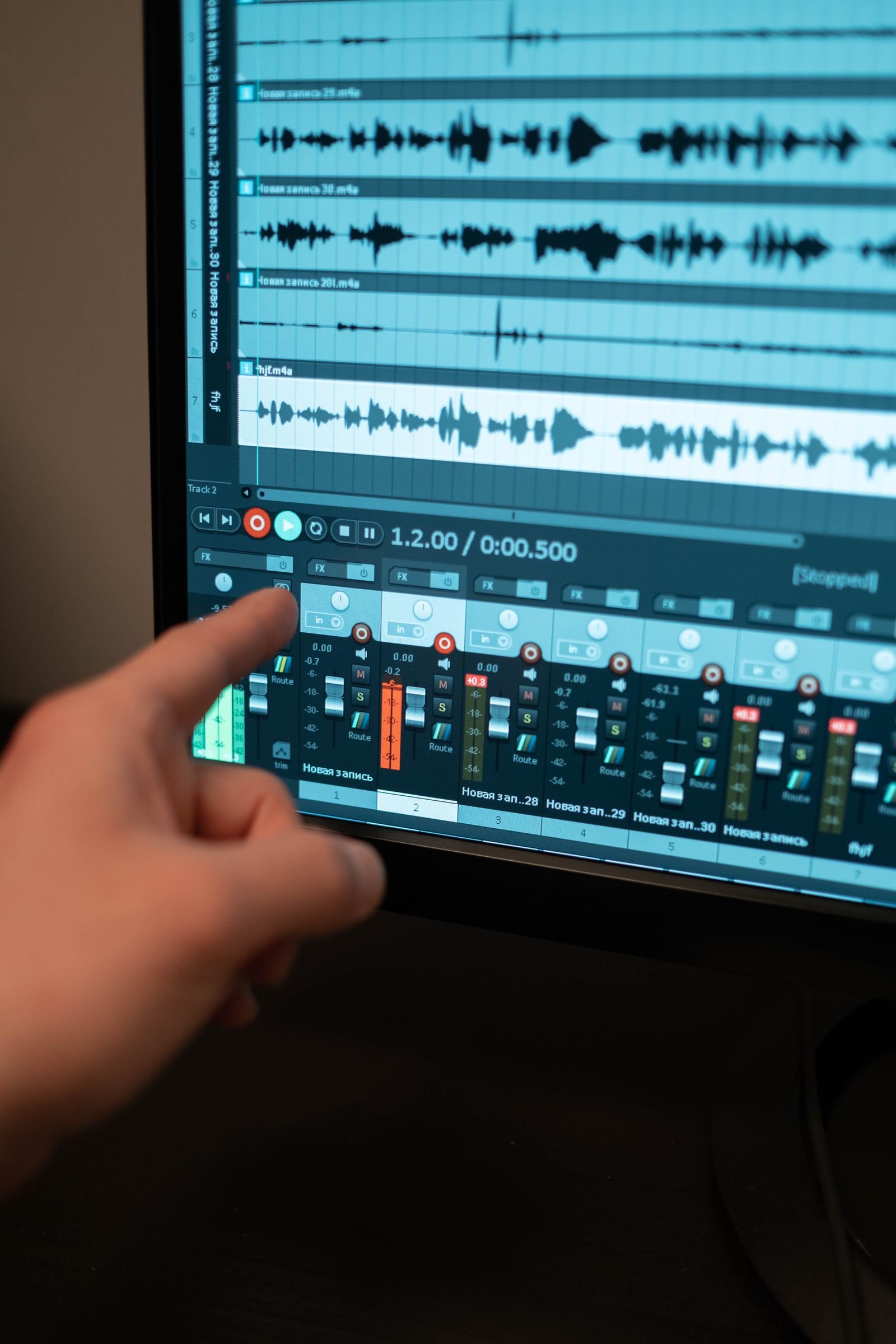
Three habits do most of the work. Use any microphone except the laptop’s built-in one if you can: a headset mic, a phone earbud mic, anything positioned near your mouth rather than across the desk — closeness matters more than price at this level. Record a ten-second test and listen back with the volume you will publish at, checking that your voice sits clearly above the system sound; in OBS, the audio mixer shows both meters, and the spoken rule of thumb is that the two should peak in visibly different leagues, voice on top. Mind the room: soft furnishings, a closed door and distance from a spinning fan do what no noise filter does, though OBS’s built-in noise suppression is a respectable rescue for what is left.
One structural tip for anything important: where your tool allows it, record microphone and system audio as separate tracks (OBS does this in its advanced output settings). Two tracks in the file means you can rebalance, mute a cough or rescue a quiet voice afterwards in the editor; one mixed track means the balance you recorded is the balance you keep, forever.
Your first recording: a setup walkthrough
Here is the complete first session, using OBS, because it is the tool most readers should end up with. Ten minutes of setup buys you a configuration you will reuse for years.
1. Install and let the wizard work. Download OBS from the official site or the Microsoft Store, launch it, and accept the auto-configuration wizard, telling it you want to optimise primarily for recording. The wizard tests your machine and picks sane starting settings — a better beginning than any forum post’s copied numbers.
2. Build one honest scene. In the Sources box, add a Display Capture (your whole screen) or a Window Capture (one app — safer, because notifications and other windows stay invisible). Add your microphone under Audio Mixer if it is not already there. That is a complete recording rig; everything else is garnish.
3. Set the output plainly. In Settings > Output, choose MP4 as the recording format (it plays everywhere and survives a crash better than most), and pick a recordings folder with room in it — video files are large, and an hour at good quality runs to gigabytes, so point it at your biggest drive.
4. Do the ten-second test. Record yourself opening the app, clicking two things and saying one sentence. Stop, open the file, watch and listen to all of it. Ninety percent of recording disasters — wrong window, muted mic, voice buried under system sound, a desktop full of private notifications — announce themselves in this test and in no other place.
5. Record the real thing, then trim, don’t re-record. Small stumbles are edit problems, not recording problems. Once your clip exists, the trimming, titles and polish belong to the editing step — the workflow in our guide to the best video editing software for beginners picks up exactly where this one stops.
Repeat steps 2–4 the first few times and they compress into a minute of pre-flight habit: scene right, meters moving, test watched. Professional recorders are not people with better software; they are people who never skip the test.
Adding your face: the webcam question
Most recorders here can put your webcam in the corner of the frame — OBS and Clipchamp do it properly, FlashBack simply, Game Bar and Snipping Tool not at all. Whether they should is a judgement call worth making deliberately rather than by default.
Your face helps when the video is about trust or teaching: a course, an explainer, a walkthrough where the viewer is following you through something. A small window, roughly a tenth of the frame, in a corner that covers nothing important, with the camera at eye level and the light in front of you rather than behind, is the whole technique. Your face hurts when the screen itself is the content — a bug report, a data demo, a fast gameplay clip — where a talking head is furniture blocking the view.
One honest warning belongs here: record the webcam as part of the scene (OBS’s way) and it is baked into the video, movable never; some creators record camera and screen as separate files and composite them in the editor, which costs effort and buys total freedom. Beginners should bake it in and keep moving; the corner is forgiving.
Settings that actually matter (and the ones that don’t)
Four numbers decide how your recording looks, and only four.
Resolution: record at the screen’s real size, or 1080p. Recording a 1080p screen at 1080p is the natural fit. If your monitor is higher-resolution, you can record at its full size for crispness or scale the output down to 1080p for files a fraction of the size — for tutorials, where viewers watch small and text legibility is everything, matching the display or one step down are both respectable answers.
Frame rate: 30 is the tutorial standard, 60 is the gaming one. Moving a mouse and clicking windows reads perfectly at 30 frames per second and keeps files modest. Fast motion — gameplay, animation, anything you would describe as smooth — wants 60, and roughly doubles the file and the workload. Recording a spreadsheet at 60fps is storage spent on nothing.
Bitrate and quality: prefer the quality-based setting. Where your recorder offers a quality target (“indistinguishable quality”, “high quality”) instead of a raw bitrate number, take it: it spends bits where the picture moves and saves them where it does not, which is exactly a screen recording’s shape. If you must pick numbers, err generous — storage is cheaper than a re-record.
Format: MP4, and remux if offered. MP4 plays everywhere and uploads everywhere. OBS records happily to it directly; if you use its safer MKV mode (which survives a crash intact), its one-click remux converts afterwards. Ignore exotic codecs and any setting with “lossless” in the name — lossless screen video runs to gigabytes per minute, for a difference your viewers’ platform compresses away on upload anyway.
Frequently asked questions
What is the best free screen recorder for PC overall? OBS Studio, for anyone who records regularly: completely free and open source, no watermark, no time limit, and powerful enough — scenes, webcam overlay, separate audio tracks — that professionals use it as their daily tool. Its only cost is a first hour of learning, and the walkthrough above spends it for you.
Which free recorder is best for quick clips? ShareX if you will do it weekly — one hotkey, a clean file, no fuss, GIFs included. For a one-off clip this minute, the Snipping Tool (region recording) or Xbox Game Bar (single app) are already on your PC and take seconds.
Do any of these recorders add a watermark? None of the recommended ones: OBS, ShareX, Game Bar, Snipping Tool, FlashBack Express and Clipchamp’s free tier all leave your video clean. The famous exception is Bandicam’s free version, which stamps its logo and caps recordings at ten minutes — treat it as the trial it is.
Can I record my screen and my face at the same time? Yes — that is OBS’s scene system and Clipchamp’s screen-and-camera mode, and FlashBack Express does a simple version. Xbox Game Bar and Snipping Tool cannot overlay a webcam; for face-plus-screen without learning OBS, Clipchamp is the gentlest route.
Why is my recording a black screen? Two usual causes. Protected content: films and shows from streaming services are DRM-protected and record as black in every recorder — that is the protection working, not a fault. And hardware acceleration quirks in a specific app: turning off that app’s hardware acceleration, or switching from window capture to display capture, fixes most legitimate cases.
How much disk space does screen recording use? More than people expect, and it depends on resolution, frame rate and how much moves. As a rough shape, an hour of 1080p tutorial footage typically lands in the low single-digit gigabytes at sensible quality settings; gameplay at 60fps runs considerably larger. Check the folder after your first long session and let the real number, not a guess, set your habits.
The bottom line
Choose by how often you will record:
- Regularly, or for an audience: learn OBS Studio once. It is the rare category where the free, open-source tool is also the professional standard — no watermark, no limit, no account, and nothing to upgrade to later.
- Quick clips and evidence: ShareX for the hotkey-fast workflow and GIFs; the Snipping Tool and Xbox Game Bar for the clip you need in the next sixty seconds with nothing installed.
- First tutorial, start to finish: Clipchamp, whose recorder-plus-editor free tier skips the two-app juggle — and FlashBack Express if you want the same simplicity outside Microsoft’s ecosystem.
- Never: a “free” recorder whose terms include stamping your video or stopping it at ten minutes. Bandicam’s free version is the polite example; the download portals are full of ruder ones.
And the forward-looking note: as recordings become raw material for everything from courses to the clips that AI tools assemble and caption — the territory of our guide to AI video generator tools — the habit of capturing cleanly, watermark-free and at honest quality pays compound interest. Record it properly once, and every future use of the footage stays open.