

Most privacy advice fails before it begins, because it is written as if you were a dissident evading a state security service. You probably are not. You are an ordinary person whose email address is in a dozen leaked databases, whose browsing is summarised into an advertising profile, whose phone number can be bought from a data broker for less than the price of a coffee, and whose reused passwords are one old breach away from handing a stranger your accounts. The good news hidden inside that gloomy list is that ordinary risks have ordinary fixes — and almost all of them are free, built into tools you already own, and take minutes rather than weekends.
This guide is ordered by what actually threatens you, not by what sounds impressive. It starts with an honest map of who collects what and why, then works through the fixes in the order they repay effort: account security first, because a hijacked email account undoes everything else; tracking second; the apps quietly reporting on you third; and the optional extras — VPNs, encrypted DNS, broker removals — last, with plain statements of what each one does and does not do. Where a popular step is theatre rather than protection, this guide says so.
One reassurance before the detail: privacy is not an all-or-nothing state. Every step below shrinks what is collected about you or who can get into your accounts, and the first four steps deliver most of the benefit. You do not need to finish the list to be better off than you were this morning.
Start with your real risks: a threat model in plain English
Security professionals use the phrase “threat model” to mean a simple question: who might want what from me, and how would they get it? For most people, the honest answer has three entries, and none of them is a hooded genius targeting you personally.
The advertising and tracking industry wants your attention and your profile. It follows you between websites and apps, assembles your interests, location patterns, purchases and demographics, and sells access to that profile to advertisers. It is legal in most places, relentless, and the source of most of the “how did they know?” moments in modern life.
Criminals want your accounts and your money, and they work at industrial scale rather than by hand. Stolen password lists from old breaches are tried automatically against banks, email and shopping sites — a technique called credential stuffing — and phishing messages impersonate delivery firms, banks and employers to harvest the logins the breaches missed. The individual target is whoever reuses a password, which is most people.
Data brokers and curious acquaintances are the third group. Brokers buy and resell personal details — addresses, phone numbers, relatives, property and purchase histories — assembled from public records and commercial sources, and they sell to anyone who pays. Alongside them sit the low-tech snoops: an ex-partner who knows your security answers, a coworker reading the Facebook posts you forgot were public.
Notice what is not on the list for most readers: a government intelligence agency with a specific interest in you, or a stalker with forensic tools. If your circumstances genuinely include those, your reading starts with the Electronic Frontier Foundation’s Surveillance Self-Defense guides, which are the gold standard for higher-risk situations, and the steps here still apply as your foundation. For everyone else, the three groups above define the work — and each has defences that genuinely work.
The privacy checklist at a glance
| Effort | The step | What it mainly stops |
|---|---|---|
| 15 minutes | Unique password + two-factor authentication on your email and banking | Account takeover from old breaches |
| 15 minutes | Turn on your browser’s tracking protection and block third-party cookies | Being followed between websites |
| One hour | Move every account into a password manager, one login at a time | Credential stuffing everywhere else |
| One hour | Audit phone app permissions — location, microphone, contacts, photos | Apps reporting more than they need |
| One hour | Lock down social media visibility and ad personalisation | Brokers, snoops and oversharing |
| An afternoon | Data-broker opt-outs and Google’s “Results about you” | Your address and phone number for sale |
| An afternoon | Switch private chats to end-to-end encrypted messaging | Message content exposure |
| Optional, ongoing | A reputable VPN for untrusted networks | Snooping on public Wi-Fi; your ISP’s view of your browsing |
Everything below expands one row of that table. If you do nothing else, do the first two rows today.
Step one: lock the accounts — passwords and two-factor authentication
Privacy work that ignores account security is decoration. If a stranger can sign in as you, they inherit your email archives, your photos, your saved locations and your password-reset power over every other account you own. So the foundation of online privacy is unglamorous: strong sign-in.
Unique passwords are the whole game. The danger is not a hacker guessing your password; it is a website you used once in 2019 losing its password database, and automated tools trying that same email-and-password pair at your bank, your email and your shopping accounts within hours. Reuse turns one site’s failure into your failure everywhere. The practical way to have a different strong password for every account is a password manager — an encrypted vault that remembers them all and fills them in for you, guarded by one long passphrase you actually memorise. Every major browser and phone now has one built in, and dedicated managers add better sharing and breach alerts. Start with your email account, because email resets everything else; then banking; then work through the rest as you next sign in to each.
Two-factor authentication (2FA) is the second wall. With 2FA on, a stolen password alone is no longer enough — signing in also needs a code from an app on your phone, or increasingly a passkey, the newer sign-in method that uses your device’s fingerprint or face check and cannot be phished or reused at all. Turn 2FA on for email, banking, social media and shopping accounts first. Prefer an authenticator app over text messages where you have the choice: SMS codes can be intercepted by a fraud called SIM swapping, in which a criminal convinces your mobile carrier to move your number to their SIM. App codes and passkeys do not have that weakness. Save the recovery codes the service gives you somewhere safe and offline — they are your way back in if you lose your phone.
Keep malware off the devices themselves. A privacy setup means little on a machine running spyware, which is why basic device protection sits underneath everything in this guide; our roundup of the best antivirus software for PC covers the honest options, including why the protection already built into Windows is enough for many people. Apply the same logic to updates: turn on automatic updates for your operating system, browser and apps, because updates are where yesterday’s holes get closed.
Step two: stop the tracking in your browser
Your browser is where the advertising industry does most of its watching, so it is where you can do the most quiet damage to its business model in the least time.
Understand what cookies actually do now. The classic third-party cookie — a file planted by an advertising network to recognise you across different websites — is dying: Safari and Firefox block most of them by default, and Chrome restricts them increasingly tightly, though it has kept more of the system alive than its rivals. Nothing you need to do there in Safari or Firefox; in Chrome, open Settings → Privacy and security and block third-party cookies. But be clear-eyed about the limit: tracking has partly moved to fingerprinting (identifying your browser by its unusual combination of fonts, screen size and settings) and to first-party systems where the site itself reports on you. Blocking third-party cookies remains worth doing — it removes the laziest, widest tracking — but it is not invisibility, and any tool promising invisibility is selling something.
Turn on the built-in tracking protection and leave it on. Firefox’s Enhanced Tracking Protection and Safari’s Intelligent Tracking Prevention both block known trackers and cross-site cookies with sensible defaults; Edge has a tracking-prevention setting worth setting to Balanced or Strict. Add a reputable content blocker — uBlock Origin is the long-standing free recommendation — and you will also remove most of the ads doing the tracking in the first place. Keep the extension count low, though: every extension can see a great deal of your browsing, so a short list of well-known tools beats a dozen obscure ones.
Mind the operating system too. Your PC and phone have their own advertising and diagnostics switches — ad personalisation, app tracking on iPhone (choose “Ask App Not to Track” and mean it), and Windows’ advertising ID. Our guide to Windows 11 tips and tricks walks through the Windows privacy-relevant settings, including the lock and sign-in options that stop a borrowed laptop becoming an open one.
Choose your search engine knowingly. The big search engines log queries to build profiles; privacy-focused alternatives such as DuckDuckGo, Startpage and Brave Search exist precisely to not do that, with quality that is now close enough that most people stop noticing the switch within a week. Search history is among the most revealing data there is — health worries, money troubles, private plans — so this quiet change punches well above its effort.
Step three: audit what your apps can see
Install an app, tap “Allow” through its setup because you wanted to use it, and you may have handed a torch company your location history, a game your contacts, and a photo filter a standing invitation to your entire camera roll. Permissions are granted in a moment of impatience and then run for years.
Do a deliberate sweep, on Android under Settings → Privacy → Permission manager, and on iPhone under Settings → Privacy & Security. Work permission by permission rather than app by app — Location first (Maps and weather earn it; most other things do not, and “approximate” or “only while using” is enough for nearly all of them), then Microphone, Camera, Contacts and Photos (where “selected photos” beats “all photos” for almost every app). While you are there, look at each phone’s tracking report — Android’s Privacy Dashboard and iOS’s App Privacy Report show which apps actually used those permissions recently, which turns a guessing game into evidence.
Two habits compound the benefit. Delete apps you no longer use — an app you forgot exists cannot be audited, and its permissions and its data collection live on regardless. And delete old accounts, not just apps: every forgotten forum, shop and service account is a stored copy of your details waiting for that site’s breach. A password manager’s list of saved sites doubles as a closure checklist.
Step four: quieten your social media
Social platforms are where the three threat groups meet: advertisers profile you from inside, brokers scrape what is public, and snoops read what you forgot was visible. A twenty-minute settings pass addresses most of it.
Default to friends, not public. Set post visibility to friends or followers, check who can see your friends list, your old posts (Facebook has a “limit past posts” button; use it), and who can find you by phone number or email — brokers and credential stuffers both love a phone-number lookup that confirms an account exists. Turn off face recognition and photo tagging suggestions where offered, and review tags before they appear on your profile rather than after your employer has seen them.
Treat your posts as publications. A boarding-pass photo contains a booking reference; a “first day at the new office” post announces a workplace; holiday photos posted in real time announce an empty house. None of this requires paranoia — posting the holiday album when you get home costs nothing and removes the signal entirely.
Turn the ad dials down. Every major platform has an ad-preferences page where you can see the interests it has assigned you (often hilariously wrong, always instructive), switch off ad personalisation based on off-platform activity, and disconnect the data shared from partner sites. Google’s My Ad Center and your Google Activity controls deserve the same visit: pausing Web & App Activity, Location History and YouTube History stops the single largest collector most people have from keeping the diary at all.
Step five: get your name off the data brokers
Between the advertisers and the criminals sits an industry most people never see: data brokers, companies that assemble dossiers — current and past addresses, phone numbers, email addresses, relatives, estimated income, purchases — from public records, loyalty schemes, warranty cards, app data and each other, then sell lookups to anyone with a card. This is the trade surveyed in the background literature on online privacy, and it is the reason a stranger can find your home address in ninety seconds.
Removing yourself is tedious but mechanical, and it works:
- Start with the free wins. Google’s “Results about you” tool (in the Google app or your Google Account’s privacy section) lets you request removal of search results showing your phone number, email and home address, and alerts you to new ones. Do that first — it takes minutes.
- Then the big brokers. Search your own name plus “people search” and work through the top sites — names differ by country, but the pattern is constant: each has an opt-out page, usually buried, usually requiring email confirmation. US readers carry the most broker exposure; the largest people-search sites all honour opt-outs because state laws increasingly require it. EU and UK readers can use GDPR/UK GDPR erasure requests, which carry legal weight brokers ignore at their peril.
- Be honest about the ceiling. Opt-outs decay — brokers re-list people as new data arrives — so treat it as an annual chore, not a cure. Paid removal services automate the requests and the re-checks; they are a legitimate convenience purchase for people whose time is worth more than the subscription, not magic, and independent testing suggests they remove you from many, but never all, listings.
Even partial removal matters: the goal is not to vanish from the internet, which is not on offer, but to stop being findable in one casual search by a landlord, a date, a scammer or an angry stranger.
Step six: private conversations and encrypted DNS, explained plainly
Messaging is the easy win here. End-to-end encrypted apps — Signal is the standard recommendation, and WhatsApp uses the same underlying protocol — encrypt message content so that only you and the recipient can read it; the company carrying the message cannot. That protects the content of your conversations. What it does not hide is metadata: who you talk to, when, and how often, which platforms still hold to varying degrees. For ordinary private life — family chats, personal conversations, anything you would not read aloud in a café — an encrypted messenger plus disappearing messages for the sensitive threads is proportionate and sufficient.
Email is different, and honesty matters. Ordinary email is not end-to-end encrypted and passes through several companies’ servers in readable form; treat it as a postcard for anything truly sensitive, and move the conversation to an encrypted app instead of hunting for a magic email setting. Creating accounts with email aliases (services such as Apple’s Hide My Email or Firefox Relay generate throwaway addresses that forward to you) is the email improvement that actually pays: every shop and newsletter gets a unique address, breaches point at one alias you can switch off, and your real address stops circulating.
Encrypted DNS closes a quieter leak. Every time your device visits a website it first asks a DNS server — usually run by your internet provider — for the site’s address, and those lookups form a neat log of your browsing. Turning on encrypted DNS (built into modern browsers as “Secure DNS”, and into Android as Private DNS) wraps those lookups in the same encryption as the sites themselves. Your provider can still see that you connected to a given service once the connection is made, so this is a partial measure — but it removes the effortless, itemised log, which is exactly the kind worth removing.
What a VPN adds — and what it doesn’t
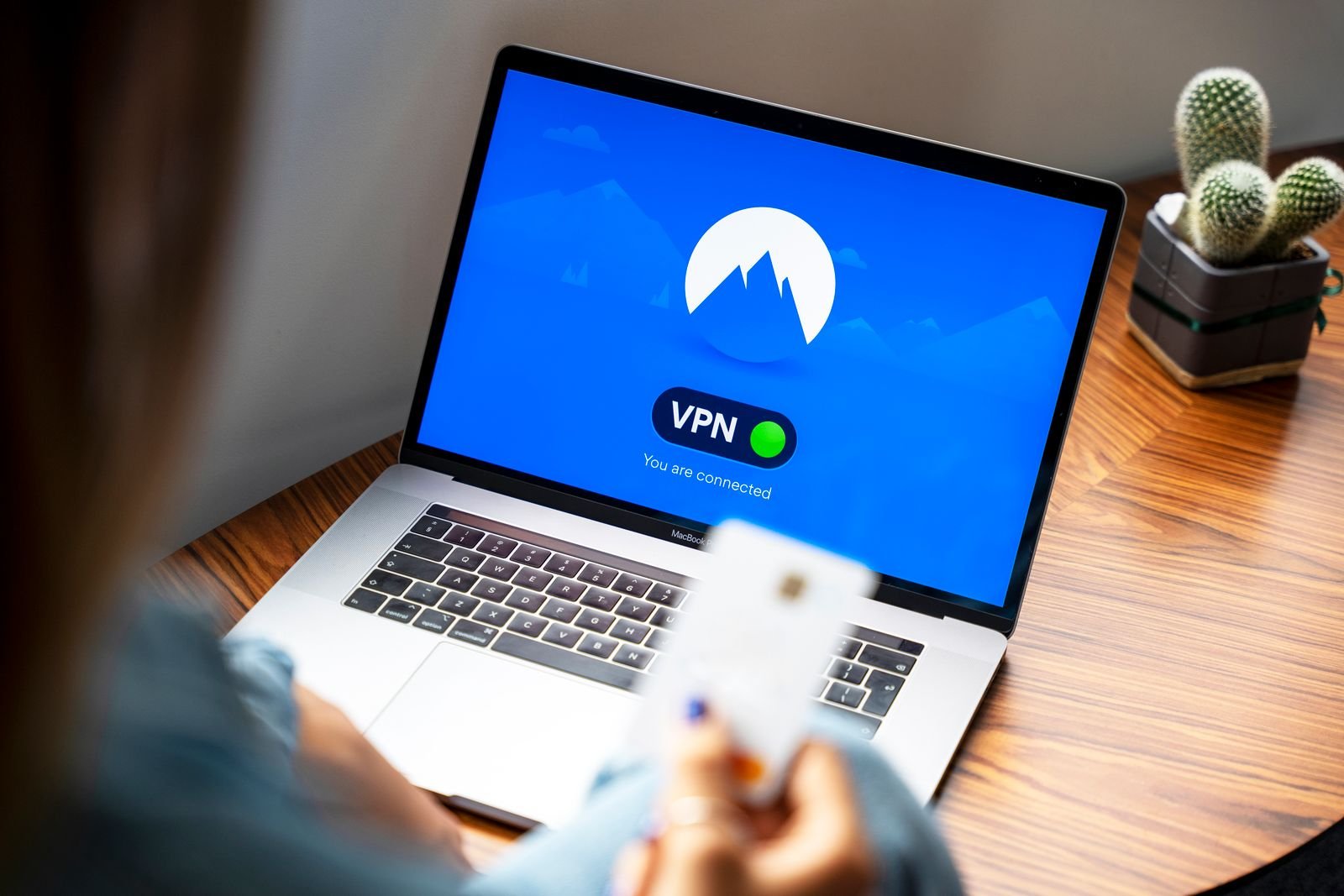
A VPN routes your connection through the provider’s server, encrypting it on the way. That buys three real things: protection on untrusted networks (café, hotel and airport Wi-Fi, where others on the network could otherwise snoop on unencrypted traffic); your internet provider can no longer see which sites you visit, only that you use a VPN; and your apparent location changes to the server’s country, which is why VPNs are also sold for streaming.
Now the honest half, because VPN marketing rarely supplies it. A VPN does not make you anonymous: websites still see your logins, your cookies and your fingerprint, so the tracking described above continues untouched. It does not stop malware, phishing or account theft — those are steps one to three of this guide, not a subscription. And it moves trust rather than removing it: instead of your ISP seeing your traffic, the VPN company can, which is why free VPNs — whose business model must come from somewhere — are a privacy downgrade wearing a privacy costume. Choose a reputable paid provider with a published no-logs policy and independent audits, or skip the VPN entirely and do the earlier steps properly; for most home users the earlier steps matter more. Choosing a provider properly is a subject in its own right, covered across our Cybersecurity & Internet coverage.
Privacy theatre: the steps you can skip
Effort is finite, and some popular rituals spend it for nothing. Incognito/private mode only stops your own browser keeping history — sites, trackers and your ISP see you exactly as before; use it for gift shopping on a shared computer, not for privacy. Deleting cookies every day achieves little now that browsers restrict them automatically, and mostly signs you out of everything. “Privacy cleaner” and booster apps of the kind bolted onto cheap security suites duplicate built-in settings and add a new collector — you — to audit. Taping your webcam addresses a rare, targeted attack while the microphone in the same lid, and the phones on the table, record far more plausible routes to your conversations; check the permission settings instead. And the expensive extreme — ditching your phone, your bank card and your name — protects against threat models almost nobody has, at a cost in ordinary life that guarantees abandonment. Sustainable privacy beats theatrical privacy every time.
Frequently asked questions
Do I really need a password manager, or is a notebook fine? A notebook kept at home is honestly better than reusing passwords — the threat it fails against is a burglar, not a breach. A manager wins on convenience (autofill on every device, breach alerts, sharing without revealing) and is the recommendation for anyone with a phone they carry anyway. What neither excuse survives is reuse: one password everywhere is the single most dangerous habit in this entire guide.
Isn’t two-factor authentication a hassle? Briefly, on first setup, and then mostly never: most services ask for a code only on new devices or after long gaps, and passkeys remove even that. Weigh it against the hassle of recovering a hijacked email account — identity documents, support queues, days of doubt about what was read — and 2FA is the cheapest insurance in computing.
If I block trackers, will websites break? Occasionally a payment widget, an embedded video or a login button sulks when a tracker it leans on is blocked. Browsers’ built-in protections are tuned to avoid this; stricter blockers let you whitelist that one site in two clicks. In practice, most people find the web faster and calmer, because the things being blocked were slowing it down.
Does a VPN make me anonymous online? No, and any provider claiming so is lying to you in its advertising. You remain visible to every site you log into, trackable by cookies and fingerprinting, and identifiable to the VPN company itself. A VPN is a specific tool for untrusted networks and ISP visibility — a good one, used knowingly, not a cloak.
How do I check whether my details were in a breach? Breach-notification services such as Have I Been Pwned let you enter an email address and see which known breaches included it; password managers increasingly build the same check in. If an address appears, change that account’s password (and anywhere you reused it), and treat unexpected messages mentioning real details with extra suspicion — breaches are what make phishing convincing.
How private can I realistically get without changing my life? With the steps in this guide: your accounts become very hard to break into, the tracking industry keeps a thin and decaying profile of you, your address stops being a free lookup, and your private conversations stay private. What remains is the unavoidable core — your bank knows your transactions, your carrier knows your phone exists, the shops you use know what you bought. That is a fair description of a normal, well-defended life online, and it is achievable in a weekend.
The bottom line: your weekend privacy checklist
Saturday morning (one hour). Unique password and two-factor authentication — passkey if offered — on your email account. The same for your bank. Password manager installed; every account you touch from now on gets a generated password as you sign in, so the migration finishes itself within a month.
Saturday afternoon (one hour). Browser tracking protection on, third-party cookies blocked, content blocker installed, privacy-focused search engine set as default. Phone permission sweep: location, microphone, camera, contacts, photos — app by app, with “only while using” as your default answer.
Sunday (one hour). Social media visibility set to friends, ad personalisation trimmed, Google activity history paused. Google “Results about you” requests sent; the top people-search brokers opted out of. Signal or WhatsApp confirmed as your home for private chats; encrypted DNS switched on.
That is the whole programme, and none of it requires new hardware, a subscription or a personality transplant — just a weekend of small, permanent upgrades, most of which you will never have to think about again. For the rest of your defences and the tools that earn their place alongside them, browse the plain-English guides at TechSarim, where every recommendation has to survive the same question this guide started with: what is the real risk, and does this actually fix it?
[…] is also why account security belongs in the same conversation as the wider habits in our guide to how to protect your online privacy: the master key deserves master-key […]
[…] That is the entire case for a password manager, and it sits at the heart of our wider guide to how to protect your online privacy: it is the one tool that makes the secure behaviour the easy behaviour. Everything else in this […]
[…] clothes — which is why an unknown free VPN fails the most basic test in our wider guide to how to protect your online privacy: never hand your traffic to a stranger to escape being […]