

Ask most people which of their accounts matters most and they’ll say their bank. They’re wrong — or at least, they’re answering the wrong question. Your bank has fraud departments, transaction monitoring and a phone number that exists precisely for the worst day. Your Google account has something quieter and more valuable: the keys to nearly everything else. It is the account this guide, part of our Cybersecurity & Internet coverage, will teach you to lock down properly — not with vague advice to “stay safe online”, but with a specific, ordered set of changes, most of which take less time than reading about them.
The honest framing first. Google itself runs serious security: encrypted connections, automated systems that flag impossible sign-ins, and alerts when your password turns up in a known data breach. None of that protects you from the way Google accounts are actually taken over — which is rarely by defeating Google. Attackers defeat you: they phish your password on a lookalike page, buy it in a breach dump because you reused it, or talk their way past a recovery flow you left pointing at an old phone number. Every step below closes one of those real doors, in the order a professional would close them.
The security checklist at a glance
| Step | What it does | Time it takes | Priority |
|---|---|---|---|
| Run Google’s Security Checkup | Finds the problems Google can already see: stale devices, weak settings, risky access | ~5 minutes | Do first |
| Replace the password | A long, unique password stored in a password manager ends the breach-dump threat | ~10 minutes | Essential |
| Turn on 2-Step Verification | A stolen password alone stops being enough to get in | ~10 minutes | Essential |
| Add a passkey | Phishing-resistant sign-in that is faster than typing a password | ~5 minutes | Essential |
| Fix recovery email and phone | Keeps the “I forgot my password” door pointed at you, not at a number you lost in 2019 | ~5 minutes | Essential |
| Audit third-party access | Removes old apps and sites that can still read your account | ~10 minutes | High |
| Review devices and recent activity | Shows every signed-in device and session; lets you evict strangers | ~5 minutes | High |
| Enrol in Advanced Protection | Maximum-strength settings for people who are genuine targets | ~15 minutes + a security key | Only if you’re at elevated risk |
Nothing on that list costs money except, optionally, a hardware security key. Nothing requires expertise beyond following menus. What it requires is doing the steps in full rather than stopping after the password change and calling it done — the half-secured account is the commonest failure mode of all.
Why this account is the master key
Start with Gmail. For most people it is not just an inbox; it is the reset hub for their entire digital life. Your bank, your shopping accounts, your social media, your cloud storage, your domain registrar — when any of them asks “forgot your password?”, the reset link goes to your email. Whoever controls your Gmail can therefore reset their way into account after account, methodically, usually before you notice anything is wrong. Email compromise is not one account lost. It is the opening move in losing all of them.
Then add what else rides on the same login. Google Photos holds a decade of your life in pictures. Google Drive holds documents, scans, tax records and backups. Chrome, if you sync it, holds your saved passwords and browsing history. YouTube, Maps location history, your Android phone’s backup, your Google Pay cards — one credential guards all of it, which makes that credential the single most valuable password you own. This is also why account security belongs in the same conversation as the wider habits in our guide to how to protect your online privacy: the master key deserves master-key treatment.
The good news is that Google gives you unusually good tools for this — better than most services offer. The bad news is that nearly all of them are opt-in, sitting unvisited in settings pages most users never open. The next sections open them, one at a time.
Step one: run Google’s Security Checkup
Before changing anything, find out what Google already knows is wrong. Go to your Google Account page and open the Security section — near the top you’ll find the Security Checkup, a guided review that walks through your current state and flags issues in plain language.
Work through everything it raises. It will show you your recent security activity, the devices signed in to your account, your current sign-in and recovery settings, and which third-party apps have access. Items marked with warnings deserve action now; items in good standing deserve a nod and a move on. Google expands or adjusts the checkup over time, so treat this guide’s sections as the permanent version of the same ideas: even if a menu label differs slightly on your screen, the underlying settings — password, second step, recovery, devices, third-party access — are the ones that matter, and each gets its own step below.
Do this step even if you feel confident. The checkup’s real value is surprise: the tablet you signed into once on holiday three years ago, the recovery phone number from two SIM cards ago, the app you granted access to in 2021 and forgot by lunch. Almost everyone finds at least one thing they didn’t know was true about their own account.
Step two: a password worthy of the master key
If your Google password is used anywhere else — any other site, any variation, any “same password but with a 1 on the end” — it needs replacing, today, before anything else on this list. Password reuse is the single most exploited habit in account security, because breaches are constant and automated: when any site you use leaks its password database, software tries those email-and-password pairs against Gmail and every other major service within hours. Your Google password being “strong” does not save you if the identical string guarded a forum account with terrible security.
The replacement should be long, unique to Google, and impossible to remember — deliberately. Four or five random words strung together, or twenty-plus generated characters, both work; what matters is that no human chose it from their own life, because human-chosen passwords follow patterns attackers model well. Store it in a password manager, which removes the only real objection (“I’ll forget it”) — forgetting it is the point. It lives in the vault, the vault is guarded by the one strong password you do memorise, and your Google password becomes a string you may never type at all once the passkey in step four exists.
Two honest qualifications. First, changing the password does not sign out every existing session everywhere in every case — the device review in step six handles that, which is why the steps are ordered rather than optional. Second, never “improve” the new password by making it meaningful: a pet’s name with the vowels swapped is a pattern, not a secret.
Step three: 2-Step Verification, honestly ranked
With the password replaced, add the second step. 2-Step Verification — Google’s name for two-factor authentication — means signing in requires the password plus proof from something you physically have. A stolen password, bought in a breach or typed into a phishing page, stops being sufficient. This one setting defeats the large majority of real-world account takeovers, and turning it on is the highest-value ten minutes in this entire guide.
Google offers several second steps, and they are not equal. Here they are, honestly ranked:
Google prompts — good, and the easiest. A notification appears on your signed-in phone: “Are you trying to sign in?” Tap Yes. It’s fast, it shows you the device and location asking, and it can’t be intercepted in transit the way a texted code can. Its weakness is human: tired people tap Yes. Only ever approve a prompt that arrives while you are signing in, and treat any prompt that appears uninvited as an alarm — it means someone has your password.
Authenticator app codes — strong. A free authenticator app (Google Authenticator, Microsoft Authenticator, Authy and others) generates six-digit codes that change every thirty seconds, generated on the device itself rather than sent over any network. Nothing to intercept, nothing to SIM-swap. The codes can still be phished in real time by a sophisticated fake page, which is the one gap the next option closes.
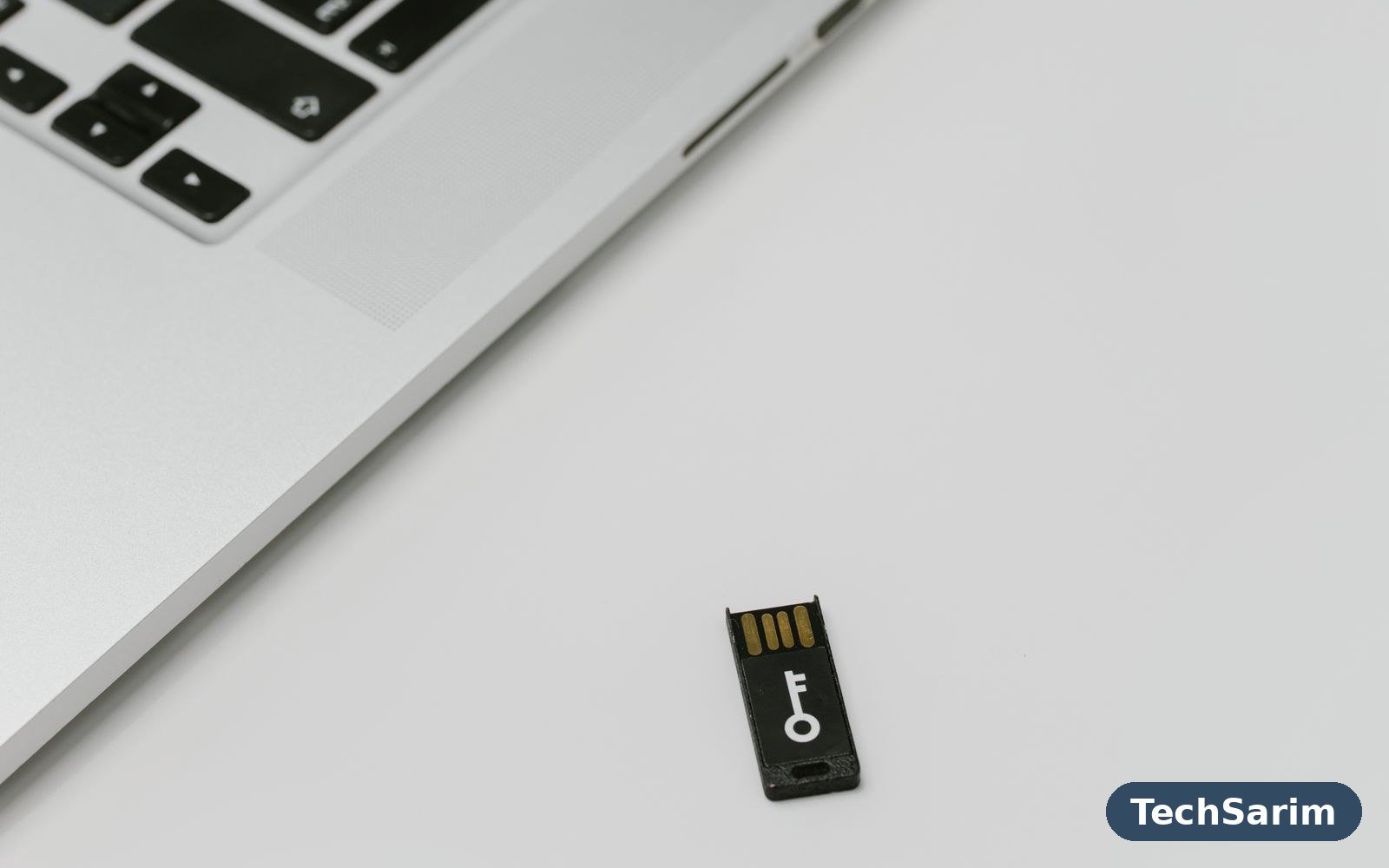
Passkeys and physical security keys — strongest. Covered fully in the next step: these use cryptography bound to the real Google sign-in, so a fake page simply cannot use them. A physical USB or NFC security key is the classic form; the passkey is its modern, built-in descendant.
Text message (SMS) codes — better than nothing, weakest of the four. A code by text beats no second step at all, comfortably. But SMS can be redirected by SIM-swap fraud — where a criminal convinces your mobile carrier to move your number to their SIM — and can be intercepted or phished like any typed code. If SMS is the only option you’ll actually use, use it. The moment you’re willing to spend five more minutes, upgrade to prompts or an authenticator app and demote SMS to a backup.
Set up at least two second steps while you’re here — a prompt-capable phone plus an authenticator app, say — because the second step you lose access to becomes the lockout you regret. Then generate Google’s printable backup codes, the list of one-time codes for emergencies, and store them somewhere physically safe. Not in a photo on the phone they’d be rescuing you from losing.
Step four: passkeys explained, without the jargon
Passkeys are the biggest genuine improvement in sign-in security in years, and they arrive wrapped in marketing language that explains almost nothing. Here is the plain version. A passkey is a cryptographic key pair your device creates for your account: one half lives on Google’s side, the matching half stays on your phone or computer, unlocked by the fingerprint, face or PIN you already use. When you sign in, your device proves it holds the private half — without ever sending it anywhere — and you’re in. No password to type, nothing to phish, nothing to reuse.
That last property is the point. A password can be typed into a fake page; a passkey cannot, because your device checks it’s talking to the real Google sign-in before it will respond. The entire phishing industry — the fake “your account will be suspended” pages, the convincing login clones — simply stops working against passkey sign-ins. Google has supported passkeys for personal accounts since 2023 and increasingly offers to create one for you during sign-in or in your account’s security settings; accept the offer, or go and create one deliberately under the passkeys section of your security settings.
Practical notes, honestly stated. Passkeys sync through your phone’s ecosystem — your Apple ID account on iPhone, your Google account on Android, your password manager if it supports them — so a new phone inherits them when you sign into the same ecosystem. Keep your password and 2-Step Verification switched on alongside: passkeys become your everyday sign-in, the older methods remain as fallback routes, and Google treats passkey sign-in as satisfying both factors at once. If you share a computer with family, remember a passkey unlocks with your device biometric — your phone stays the key, which is exactly the right shape.
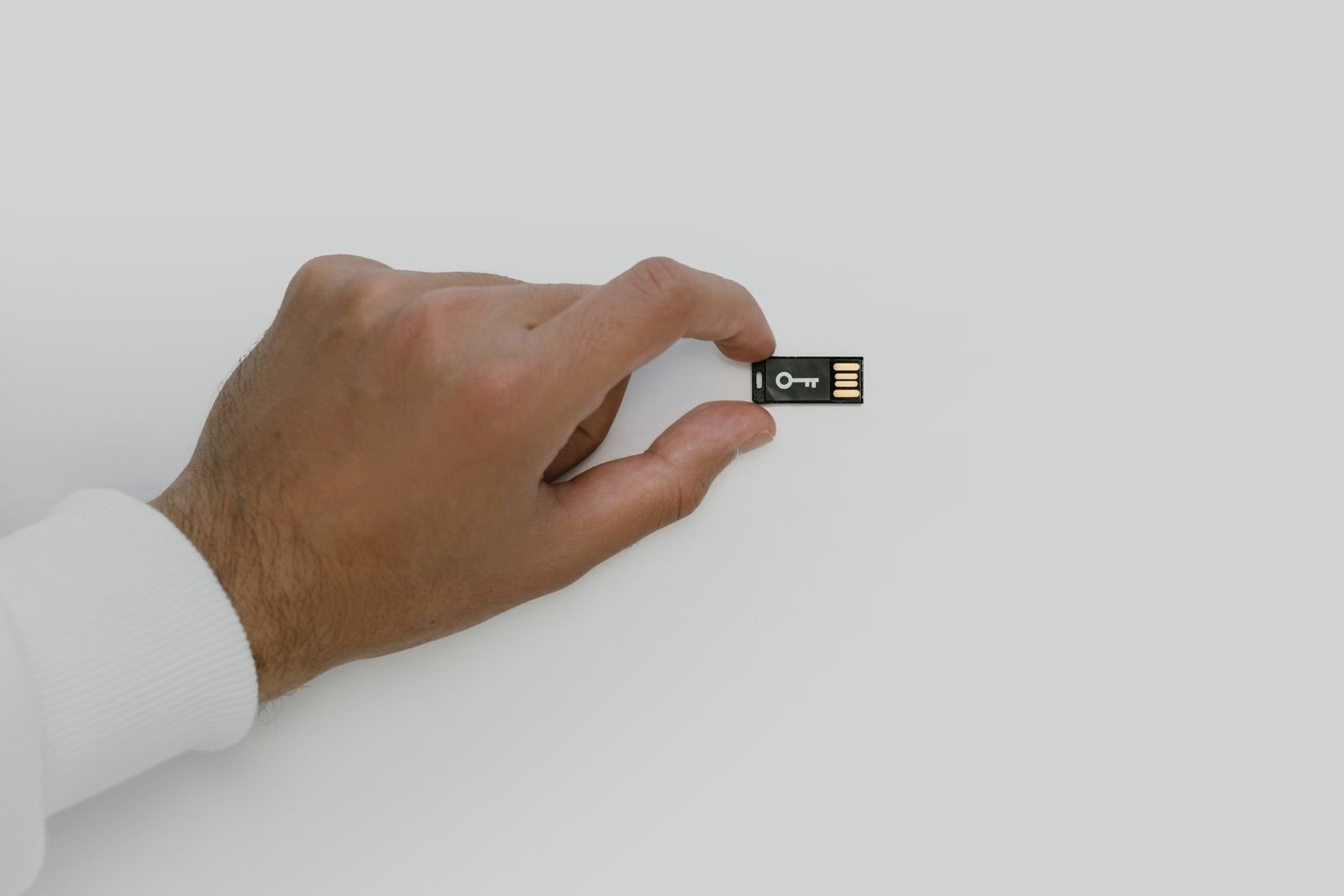
For the strongest available form of this idea, a physical security key — a small USB or NFC device you tap when signing in — keeps the private half on dedicated hardware that never leaves your keyring. It’s the option journalists, executives and the genuinely cautious graduate to, and it leads directly to the programme in step seven.
Step five: recovery email and phone hygiene
Every security system eventually meets the forgotten password, and recovery settings decide whose hands the reset keys fall into. Review yours under your account’s personal info and security sections, and apply three rules.
Your recovery email must be at least as secure as this account. If your Google account’s recovery address is an old mailbox with a weak, reused password and no two-factor protection, you have built a side door and left it on the latch — an attacker resets that mailbox, then uses it to reset Google. Ideally the recovery address is a second account secured with the same rigour as this one. At minimum, secure it right after finishing here.
Your recovery phone must be a number you currently control. Numbers get recycled: the SIM you abandoned in 2019 may now belong to a stranger, and if it’s still your recovery number, account recovery codes go to them. Update it to your current mobile, and re-check it whenever you change numbers — put it on the same mental list as telling your bank.
Audit the details like an attacker would. Scroll the recovery and personal-info fields asking one question: if a stranger read this page, what could they use? Old addresses, outdated backup emails from a former employer, a recovery question era relic — remove anything stale. Recovery flows are deliberately friction-light, which is a kindness when you’re locked out and a vulnerability when the settings behind them are years out of date.
Five minutes here closes the door that bypasses every other step in this guide. It’s unglamorous. That’s precisely why attackers check it first.
Step six: audit third-party access and every signed-in device
Two lists in your account quietly accumulate risk for years, and both deserve a clear-out.
Third-party access. Under your security settings you’ll find every app and website you’ve ever signed into with Google or granted account access. The list is usually longer than your memory of it: the photo printer from 2020, the quiz site, the old phone game, the PDF tool you used once. Each entry is a standing permission — some can read your email or Drive — held by a company whose own security you know nothing about. Remove everything you don’t actively use and recognise. For the ones you keep, prefer “Sign in with Google” (which shares basic profile info) over grants that can read mail or files, and re-grant something later if you genuinely miss it. You almost never miss it.
Your devices and sessions. The devices list shows everything currently signed in: phones, computers, tablets, TVs. Work down it and sign out anything you don’t recognise, anything you no longer own, and anything whose “last active” date surprises you. Then check the recent security activity panel for sign-ins from places you’ve never been — Google flags some of these itself, but your eyes know your life better than its models do. An unrecognised device or location is not a curiosity; treat it as the opening of the compromised-account procedure below.
A note on hygiene while you’re evicting things: the devices you keep signed in are part of this account’s security too. A malware-riddled old laptop with your Google session on it is a signed-in door, which is why keeping machines clean matters — our roundup of the best antivirus software for PC exists for exactly that layer of the problem.
Advanced Protection: the maximum setting, and who it is actually for
Google’s Advanced Protection Program is the strongest configuration a personal Google account can have, built for people whose accounts are worth real effort to attack: journalists, activists, political staff, business leaders, and anyone who has already been targeted. Enrolling changes the account’s rules in ways that are deliberately stricter than the defaults: sign-in requires a passkey or a physical security key — no fallback to texted codes; downloads of potentially harmful file types in Chrome are blocked or heavily warned; only approved apps can access Gmail and Drive data; and account recovery becomes slower and more deliberate, so a smooth-talking stranger can’t rush it through.
That friction is the honest trade. Recovery taking longer is a feature when you’re the target and an annoyance when you’re not, and some third-party mail and calendar apps simply stop working. So the verdict is genuinely selective: if your work makes you newsworthy, politically exposed or a known target, enrol — you’ll need a passkey and ideally two security keys (one carried, one stored safely as backup). If you’re a typical home user, the steps above already put you beyond the reach of the opportunistic attacks that account for nearly all takeovers; Advanced Protection adds the most where the threat is personal, not random. Don’t let the existence of a maximum setting make a well-secured standard account feel inadequate. It isn’t.
If your account is already compromised
Signs vary — password suddenly wrong, sent mail you didn’t write, security alerts about sign-ins from other continents, friends asking about strange messages from you — but the response doesn’t. Move in this order, and move now.
1. Regain access first. Use Google’s account recovery flow from a device and network you’ve used before (familiarity genuinely helps the automated checks). If you can still sign in at all, skip to step two immediately.
2. Change the password from a clean device. If your own computer might carry malware, use a different, trusted device for the reset — then scan and clean your machine before signing back in on it, or you’ll hand the new password to whatever stole the old one.
3. Evict everyone. In the devices list, sign out all other sessions. An attacker who is still signed in can watch you change settings and undo them.
4. Run the Security Checkup with hostile eyes. Check what the intruder touched: recovery email and phone (they often change these first, to lock you out), mail filters and forwarding addresses in Gmail settings — a classic move is a filter that silently forwards your mail or deletes password-reset messages — and third-party access grants they may have added for persistent access.
5. Then do this whole guide. Password, 2-Step Verification, passkey, recovery hygiene — all of it, in order, because a compromised account is proof the old settings weren’t enough. And change the passwords of important accounts that used the same or a similar password, starting with anything financial, because the breach rarely ends with one account.
One more discipline for the aftermath: be suspicious of where you sign in for a while. Recovery work done on café or hotel Wi-Fi invites exactly the onlookers you least want; on networks you don’t control, a reputable VPN adds a sensible layer — we compare the options in our guide to the best VPN services. Speed matters here, but so does not doing it twice.
Frequently asked questions
Is 2-Step Verification enough on its own? It’s the single most protective setting, but “enough” depends on the rest of the house: a unique password, correct recovery details and a passkey alongside it make the account genuinely hard to take. 2-Step Verification guarding a reused password with a stale recovery number is a strong lock on a door with the key under the mat.
Are passkeys really safer than passwords? Yes, in the specific way that matters most: they can’t be phished, because your device verifies it’s talking to the real Google sign-in before responding, and there’s no secret to leak from a breached database — Google’s half of the pair is useless without your device. Keep your password and second step enabled as fallbacks, and keep your device itself locked.
What’s wrong with SMS codes, really? They’re the weakest second step because phone numbers can be hijacked via SIM-swap fraud and codes can be intercepted or phished like any typed number. They’re still far better than no second step. Use prompts or an authenticator app as your main method and keep SMS as a backup if you like.
Will I get locked out if I lose my phone? Not if you prepared while setting things up: a second second-step (authenticator app or a second device), printed backup codes stored somewhere safe, and up-to-date recovery email and phone give you several ways back in. Lockouts happen to people who set up exactly one method and lose it — redundancy is the entire fix.
Should everyone turn on Advanced Protection? No — it’s designed for people at elevated, personal risk, and its stricter recovery and app restrictions are a real cost for everyone else. The standard steps in this guide stop the opportunistic attacks behind nearly all ordinary takeovers. If your job or profile makes you a deliberate target, that’s when Advanced Protection earns its friction.
How often should I repeat the checkup? Run the Security Checkup every few months, and repeat the device and third-party review whenever you get a new phone, sell an old one, or receive any security alert. Five minutes, a few times a year, is the entire maintenance bill for a well-secured account.
The bottom line
Securing a Google account is not a product you install; it’s an afternoon of settings, done once, in the right order. Run the Security Checkup and act on what it finds. Replace the password with a long, unique one kept in a password manager. Turn on 2-Step Verification — prompts or an authenticator app, not SMS alone — and add a passkey as your everyday sign-in. Fix the recovery email and phone so the reset door opens for you and nobody else. Clear out third-party access and old devices. That sequence turns the account that guards your email, photos, files and half your digital life from a single point of failure into something an attacker looks at and moves past. For the rest of the layered defence — devices, software, networks and habits — browse the rest of our Cybersecurity & Internet coverage, where every guide is written to the same standard as this one: the few changes that matter, in the order that works.