
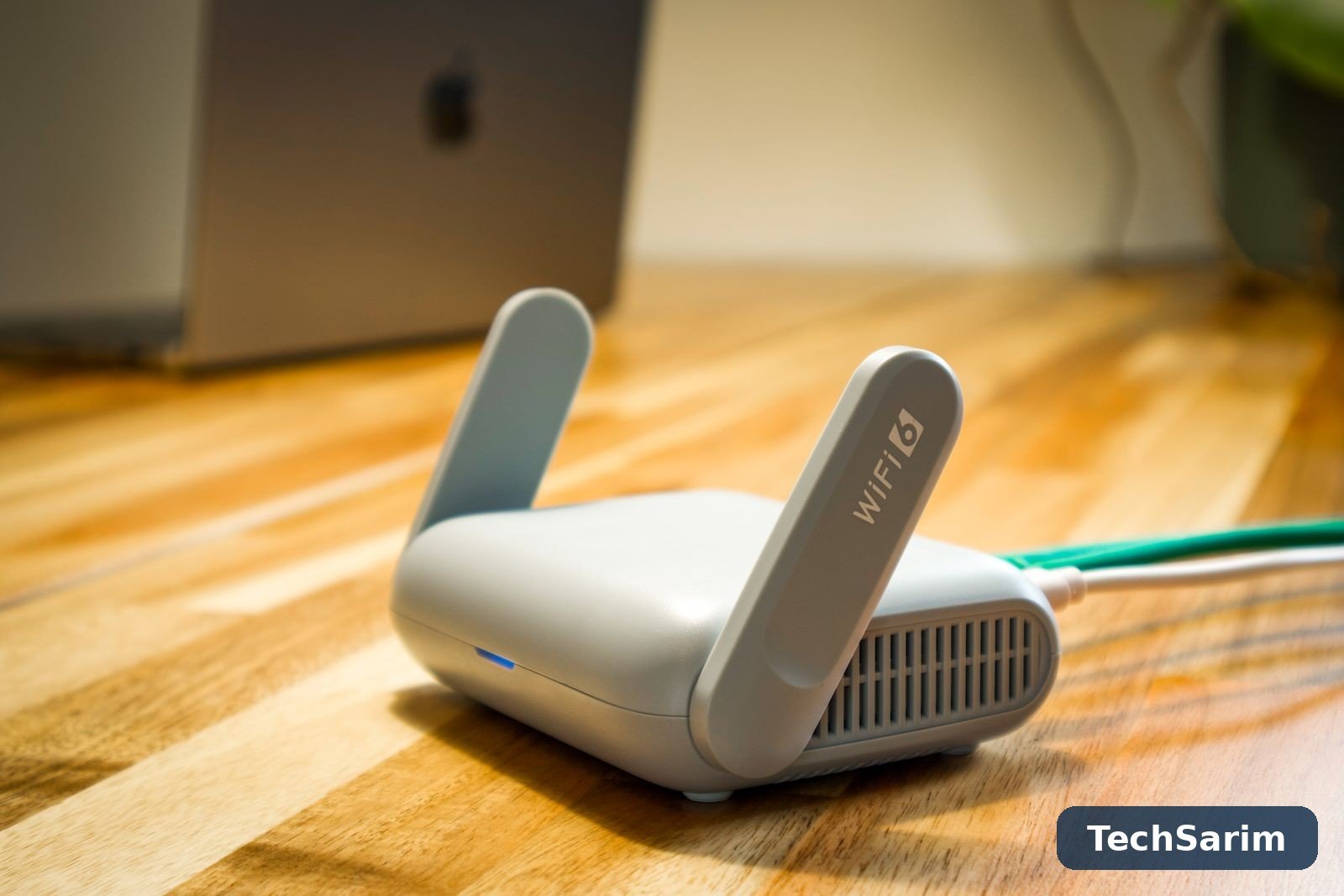

Slow WiFi has a particular talent for ruining the exact moment you needed it: the video call that freezes on your face, the film that drops to a blur twenty minutes in, the download that was supposed to take a minute and takes twenty. The instinct is to blame the router, reboot it, and — when that buys a day of relief — repeat forever. This guide, part of our Cybersecurity & Internet coverage, takes the slower but shorter route: work out what is actually slow, fix that, and stop. Because “slow WiFi” is at least four different problems wearing one name — a weak signal, a congested channel, an overloaded old router, or an internet connection that was never fast to begin with — and each one has a different fix. Applying the wrong fix is worse than useless; it is how people end up buying a premium router to solve a problem that lived in a wall.
The honest framing first. Most slow-WiFi problems are free to fix: position, settings, and one overloaded band account for the majority of cases we would bet on. Some are not fixable with settings at all, because the hardware predates your household’s demands or the plan you pay for cannot carry the house at 7 p.m. This guide tells you which situation you are in before it tells you to spend anything — and its first step costs nothing but ten minutes and an Ethernet cable.
Start with the diagnosis: is it your WiFi or your internet connection?
Every fix in this guide depends on one distinction that most troubleshooting skips: the difference between your internet connection (the service arriving at your home) and your WiFi (the wireless hop between the router and your devices). They fail independently, they feel identical from the sofa, and they have completely different owners — one is your provider’s problem, the other is yours.
Separate them with a test that takes ten minutes:
- Test wirelessly, where you actually sit. Run a speed test on your phone or laptop in the room where things feel slow. Note the download speed, upload speed and ping. Repeat it standing next to the router.
- Test wired. Plug a laptop directly into the router with an Ethernet cable, switch the laptop’s WiFi off so it cannot cheat, and run the same test.
- Compare the three numbers. They tell you where the fault lives:
- Wired is fast, wireless near the router is fast, wireless in your room is slow → your signal is dying on the way to you. Placement, band and coverage fixes — most of this guide.
- Wired is fast, wireless is slow everywhere, even beside the router → the router itself or its settings: congestion, an ancient standard, dying hardware.
- Wired is slow too → your WiFi is innocent. The fault is the line, the modem, or the plan — skip to the provider sections near the end.
Two habits make the test trustworthy. Run it at the time of day the problem happens — a connection that is healthy at 10 a.m. and collapses at 7 p.m. is telling you about congestion, either in your home or on your provider’s network, and a mid-morning test will swear everything is fine. And repeat each test two or three times; single speed tests are weather vanes, not measurements. Screenshots with times on them are worth keeping, for reasons the last section of this guide will make clear.

Match the symptom to the likely cause
Once you know which third of the system is at fault, the symptom itself usually names the cause. Work down this table before changing anything at random — random changes are how a fixable setup turns into a mysterious one.
| Symptom | Likely cause | First fix |
|---|---|---|
| Fast near the router, dead two rooms away | Signal blocked by walls, floors, metal, water | Move the router central and high; use the 2.4 GHz band for that room; then consider mesh |
| Everything slows down at the same evening hour | Household peak load, provider congestion, or a neighbour-heavy channel | Test wired at that hour; change channel; check what your own devices are doing |
| One device is slow, everything else is fine | That device: old WiFi chip, bad driver, or it is stuck on a weak band | Update its drivers; forget and rejoin the network; check which band it uses |
| Video calls stutter but downloads are quick | High ping or jitter, often from a busy upload or a saturated router | Pause cloud backups during calls; enable QoS/SQM if the router offers it |
| Speeds collapse when the microwave runs | 2.4 GHz interference — microwaves leak into the same band | Move that device to 5 GHz; move the router away from the kitchen |
| WiFi drops out entirely, then returns | Router overheating, failing, or rebooting; or failing firmware | Ventilate it, update firmware, watch whether the drop pattern repeats daily |
| Slow only since a new gadget arrived | A legacy device dragging the network, or something uploading constantly | Check the router’s client list; test with the new device off |
| Upload is nearly zero while download is fine | A device saturating upload — cloud sync, backups, or malware | Find the uploader in the router’s traffic view; scan the suspect device |
That last row deserves a sentence of its own, because it is the one people miss: home connections usually have far less upload than download, so a single device quietly pushing backups, camera footage or — in the worst case — malware traffic can strangle everyone else’s calls and streams. If a device on your network behaves like it has a second job, scan it properly; our roundup of the best antivirus software for PC covers the tools worth trusting for that job.
Move the router: the free fix almost everyone skips
Routers get installed where the line enters the house or where the installer could reach — a corner of the living room, inside a TV cabinet, on the floor behind the sofa — and then are blamed for performing exactly as physics requires. WiFi radiates outward in a rough sphere, weakened by everything it passes through. Drywall costs a little signal; brick and concrete cost a lot; metal, mirrors, foil-backed insulation and water (fish tanks, water heaters, a fridge) cost the most.
The placement rules are dull and they work:
- Central beats convenient. The closer the router sits to the middle of the home — and to where you actually use WiFi — the less any room depends on signal surviving three walls.
- High beats low. On a shelf or wall mount, roughly at or above head height, the signal clears furniture instead of ploughing through it. The classic router-on-the-floor position is the worst legal one.
- Out in the open. Not in a cabinet, not behind the TV, not inside a metal rack. If it has antennas, point them upward; on a two-storey home, one antenna angled can help the floor above or below, since signal radiates sideways from a vertical antenna more than along it.
- Away from interference. Microwaves, baby monitors, Bluetooth hubs and cordless phone bases all crowd the 2.4 GHz band; a router sharing a shelf with them starts every day in a shouting match.
Test after moving it — the same room, the same device, the same speed test as your diagnosis. A move that costs nothing and doubles the speed in the problem room is not a rare outcome; it is the commonest result in this entire guide, and it is why placement comes before purchases.
Use the right band: 2.4 GHz vs 5 GHz, without the mystique
Nearly every modern router broadcasts two networks, often merged under one name: 2.4 GHz and 5 GHz. They are not “slow” and “fast” versions of the same thing; they are a trade between reach and speed, and half of all home WiFi misery is devices sitting on the wrong side of it.
2.4 GHz travels further and passes walls better, but it is slower and far more crowded — it has only a handful of truly separate channels, and it shares the air with every neighbour’s router plus a zoo of household gadgets. 5 GHz is much faster and much less crowded, with many more channels, but its signal fades quickly through walls and floors; a room or two away, it can drop below the 2.4 GHz network it was supposed to beat. (Newer routers add a third option, 6 GHz, covered in the standards section below — even faster, even shorter-legged.)
Practical rules that follow from that trade:
- Same room or next room as the router → 5 GHz. Desks, TVs and consoles that live near the router belong here.
- Far end of the house, upstairs, garden office → 2.4 GHz, where its reach wins even though its top speed is lower. A stable 40 Mbps beats a 5 GHz connection that flaps between 200 and nothing.
- If your router merges both bands under one name (“band steering” or “smart connect”), it decides for each device — usually well, sometimes stubbornly wrong. If one device is persistently slow or keeps landing on the wrong band, splitting the bands into two separately named networks and choosing manually is a legitimate, reversible experiment.
- Smart-home gadgets — bulbs, plugs, cameras — mostly speak 2.4 GHz only. They belong there; just know that a camera uploading all day on 2.4 GHz is sharing that crowded band with your laptop if your laptop is on it too.
Clear the airwaves: channels and congestion
WiFi channels are lanes within each band, and in a block of flats or a dense street, your router is sharing its lane with dozens of others — every one of them taking turns to talk. Routers left on “auto” usually pick a channel once, at first boot, and can sit on the worst lane in the building for years.
On 2.4 GHz, only channels 1, 6 and 11 are fully separate from each other (in most regions; a few countries differ slightly), so those three are the only sensible choices — a router set to channel 3 overlaps both neighbours and gets noise from each. On 5 GHz there are many more channels and they are wider, so congestion is rarer; leaving it on auto is usually fine.
Changing the channel lives in the router’s settings — typically a web page at an address printed on the router’s label (often 192.168.0.1 or 192.168.1.1) or a companion app. Free WiFi analyser apps for phones will show you which channels your neighbours occupy, which turns the choice from a guess into a look at the actual traffic. Pick the emptiest of 1, 6 or 11, apply, and re-run your speed test in the problem room. While you are inside the router’s settings, two security chores are worth the same visit: change the router’s default admin password if you never have, and make sure encryption is set to WPA2 or WPA3 rather than anything older. Those two minutes matter more than most settings — the reasoning sits in our guide to how to protect your online privacy, and the router is the front door it is talking about.
A realistic expectation: in a detached house, channel changes do little, because there is nobody to collide with. In a flat, they can be the single biggest fix in this guide.
Reboot it properly — and know a reboot from a reset
Turning the router off and on again is a cliché because it works: routers are small computers, and small computers that run for months accumulate stuck processes, memory leaks and half-dead connections. A proper reboot is slightly more specific than poking the button. Unplug the router (and the modem or fibre box, if separate), wait a full 30 seconds — that pause lets the provider’s side see the session end cleanly — then power the modem up first, give it a minute or two to connect, and power the router up after it. If your problem has a rhythm — fine for three days after every reboot, then decaying again — that rhythm is itself the diagnosis: something is accumulating. Firmware, heat, or a failing unit; the next two sections cover all three.
Do not confuse the reboot with the small recessed reset button, which wipes the router back to factory settings — name, password, provider login and all. A reset is sometimes the right move (a corrupted configuration, a second-hand router, a forgotten admin password), but it is a rebuild-from-scratch job that ends with you re-entering your broadband details, so it belongs near the end of the troubleshooting list, not the beginning. If you do reset, photograph or write down the current settings first.
Update the firmware, and check the router isn’t cooking
Firmware is the router’s own software, and out-of-date firmware causes a recognisable family of problems: random dropouts, speeds that degrade over weeks, devices that refuse to connect, and — the serious one — known security holes sitting open on your front door. Updating is usually a button inside the router’s settings or app (“Firmware update”, “Router update” or similar), sometimes automatic on ISP-supplied routers. Two honest caveats: the update itself takes the network down for a few minutes, so do it when nobody is mid-call; and if your router’s manufacturer has stopped publishing updates entirely — check the date of the latest one — that is no longer a maintenance detail. An unsupported router is a replacement argument on security grounds alone.
Heat is the other silent killer. Routers stuffed into cabinets, stacked under other warm boxes or left in sunlit windows throttle and glitch exactly like an overheating laptop. The vents should be clear, the unit should feel warm rather than hot, and it should never share a closed box with the rest of the entertainment stack. A router that drops WiFi every sunny afternoon is not haunted; it is hot.
How old is your router? Wi-Fi 5, 6, 6E and 7 in plain terms
If the router came free from your provider several years ago, its age may be the whole story. Each generation of the Wi-Fi standard raised both the ceiling and — more importantly for real homes — the ability to juggle many devices at once. In plain terms:
- Wi-Fi 4 (802.11n, roughly pre-2014 hardware): 2.4 GHz-centric, real-world speeds typically in the tens of Mbps. If your router is this old, stop troubleshooting it — it is the bottleneck for any modern plan, and replacement is the fix.
- Wi-Fi 5 (802.11ac): added proper 5 GHz speed; real-world results of a few hundred Mbps near the router are typical. Still serviceable for modest plans and small households.
- Wi-Fi 6 (802.11ax): similar headline speeds, but far better behaviour with dozens of devices competing — the generation where a busy smart home stops falling over. The sensible default replacement today.
- Wi-Fi 6E: Wi-Fi 6 plus the 6 GHz band — wide, empty air for short-range, high-speed links, if your devices support it.
- Wi-Fi 7: the newest generation, faster again and better at combining bands, but only worth its price if your phones and laptops are equally new; a Wi-Fi 7 router serving Wi-Fi 5 devices performs like a Wi-Fi 5 router for them.
Two honest limits on all of this. First, the number on the box is a laboratory maximum shared across every device you own; real per-device speeds are a fraction of it, and that is normal, not a fault. Second, an upgrade only helps up to the speed of the line coming into your home — pairing a flagship router with a 50 Mbps plan gives you beautifully distributed 50 Mbps. Match the router to the plan and the house, not to the marketing.
Extenders vs mesh: the honest version
When the diagnosis says “the signal simply does not reach”, the market offers two answers, and they are not equal.
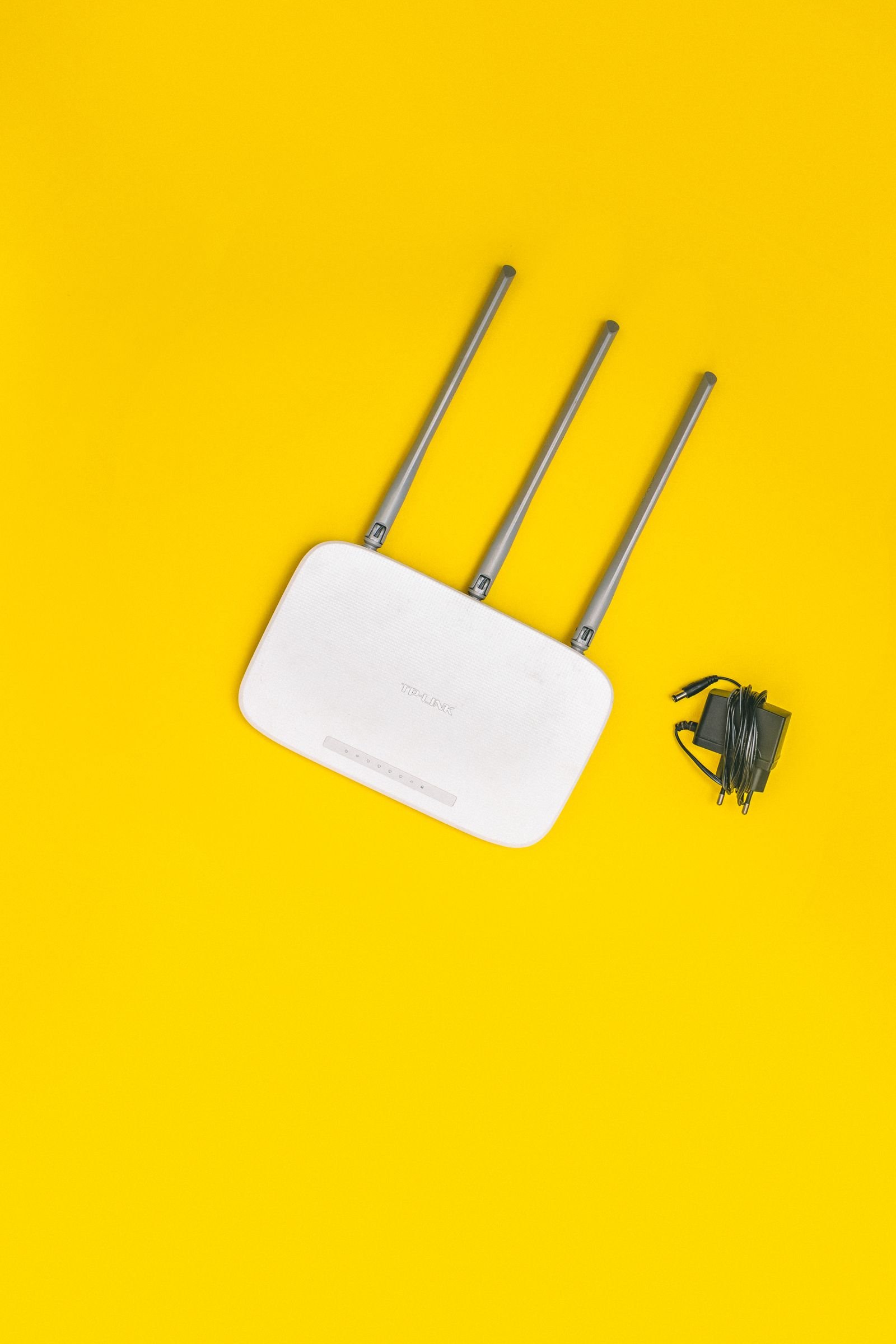
Extenders (repeaters) are cheap and simple: plug one in halfway to the dead zone and it rebroadcasts your network. The catches are structural. A basic extender can only talk or listen at one moment, so it typically halves the speed of everything connected through it; it often broadcasts a second network name, so devices cling to the weak original signal instead of switching; and placed too far from the router it faithfully repeats a bad signal. They earn their money in one narrow job — coaxing coverage into one awkward room for light use, like a printer or a smart TV.
Mesh systems (typically two or three matching units, one wired to the modem and the others placed around the home) are built properly for the job: one network name, devices handed between nodes as you move, and dedicated or smarter sharing of the links between nodes so speeds hold up far better than through an extender. They cost several times more, and in a small flat they are money spent solving a problem placement would have fixed — but in a larger home, a home with thick walls, or a home spread over floors, mesh is the honest recommendation and the extender is a false economy.
The unfashionable third option deserves its sentence: a cable. Anything that does not move — desktop, TV, console, office dock — is faster, steadier and completely immune to everything in this article when it is plugged in, and wiring the stationary things also frees the air for the devices that genuinely need it. Where a long cable run is impractical, powerline adapters (networking over the mains wiring) are a middle path: highly dependent on your home’s wiring, brilliant in some houses and dismal in others, so buy them from somewhere with a returns policy.
Check the plan you are actually paying for
Sometimes the diagnosis ends somewhere uncomfortable: the WiFi is fine, the router is fine, and the connection itself is simply small. Two checks keep you honest. First, compare your wired test result with the speed your plan promises — providers usually advertise “up to” figures, and a wired result well below them, repeatedly and at different times, is their problem to answer for (next section). Second, compare your household’s needs with reality: the FCC’s Broadband Speed Guide puts rough minimums on common activities — a few Mbps per HD stream, around 25 Mbps for a 4K stream, small numbers for calls and browsing — and the arithmetic explains many “slow” homes: four people streaming, gaming and backing up phones at 7 p.m. can saturate a modest plan with every device working perfectly. No router setting fixes arithmetic; a faster plan, or staggering the heavy jobs (backups overnight, downloads scheduled), does.
One more trap: speed tests measure your connection to a nearby test server, not to the specific service you find slow. If every test is fast but one app crawls, the fault is that service or the route to it — not your WiFi, and not something a new router will change.
When to call your provider — and what to bring to the call
Providers’ support scripts start from the assumption that the problem is your equipment, because it usually is. Your diagnosis lets you skip that script — politely, with evidence. Call when:
- Your wired speed tests are consistently far below the plan you pay for, at several times of day.
- The connection drops entirely — lights on the modem changing, service vanishing for minutes — rather than merely slowing.
- Speeds collapse every evening in a pattern your own household’s usage cannot explain.
- The modem or line box shows errors, damage, or a new hum, heat or smell.
Bring the evidence: dated, timed screenshots of wired tests, the times the dropouts happened, and what you have already tried (rebooted in the correct order, tested wired, tested with a different cable). That combination gets you past the first script to an engineer or a line test remarkably often. Note the reference number they give you; if the fault drags on, a written log of dates and reference numbers is what turns a complaint into an escalation. And if the call reveals your router is provider-supplied and years out of date, ask for a current one before buying your own — many providers will swap ageing kit free when it is framed as a fault rather than a favour.
Frequently asked questions
Will a more expensive router fix my slow WiFi? Only if the router is the diagnosed problem — an ancient standard, a failing unit, or a single box asked to cover too much house. Expensive routers do nothing for a slow line, a bad position reproduced faithfully in the same corner, or congestion on your provider’s network. Diagnose first; the fix is frequently free.
Why is my WiFi fast in the morning and slow every evening? Three suspects, in order: your own household (everyone home, streaming and syncing at once), your channel (neighbours home doing the same on the same lane), and your provider’s local network (the whole street home at once). A wired test at the slow hour separates the third from the first two, and the table near the top separates those.
Does a VPN slow WiFi down? A VPN adds encryption work and a detour to everything you do, so some slowdown is real — on a fast connection with a good provider it is usually modest, on an old router doing the encrypting itself it can be heavy. It is a trade you make for the privacy benefits, and it should be a small one; our testing notes in the guide to the best VPN services explain what “small” looks like. If switching the VPN off transforms your speed, the VPN or the router running it is the bottleneck, not your WiFi.
Should I split my network into separate 2.4 and 5 GHz names? If band steering keeps making a decision you disagree with — one device stranded on the wrong band — yes, splitting them is a clean, reversible fix, and it also helps older smart-home gadgets that get confused by merged networks. If everything currently lands sensibly, leave the merged network alone.
How often should I replace my router? Roughly every four to five years, or whenever one of these arrives first: the manufacturer stops issuing firmware updates, your plan’s speed outgrows the router’s standard, or your household’s device count doubles. A router is a security device as much as a convenience, and age shows in it as risk before it shows as slowness.
Is it worth running a cable instead of fixing the WiFi? For anything that lives in one place and cares about speed or stability — a work desk, a TV, a games console — yes, and it is not even a close call. Ethernet removes that device from every problem in this article permanently, and leaves more air for the phones and laptops that have no choice.
The bottom line
Fix slow WiFi in the order this guide is written, and you will usually stop early: diagnose before you touch anything, because the wired-versus-wireless test divides the whole problem in ten minutes; move the router before you spend anything, because position is the commonest cause and the fix is free; put each device on the band that suits its distance; clear your channel if the neighbours share it; reboot properly, update the firmware and let the router breathe. Only then spend — on a current-standard router if yours predates your plan, on mesh if the house defeats any single box, or on a faster plan if the honest arithmetic says the connection itself is the ceiling. And keep the screenshots from your first diagnosis: if the wired numbers were the slow ones, they are your ticket past your provider’s script — and if they were not, you now own a network you understand, which is the real fix underneath all the others.
[…] is a router biography, not a bulb defect. If your network already struggles, read our guide on how to fix slow WiFi before buying a single gadget: router placement and a mesh system fix more smart homes than any […]