

“My internet is slow” is the most common tech complaint in the world, and the most commonly misdiagnosed. People buy a faster plan when their router was the problem. They buy a new router when their plan was the problem. They install a “speed booster” app — there is no such thing, and we will come back to that — when the actual problem was a cloud backup quietly uploading family photos at full throttle in the next room.
The way out is not a trick. It is a method: measure honestly, find which link in the chain is actually the weak one, fix that, and measure again. Your connection passes through a plan, a line into your home, a modem, a router, and then either a cable or the air to reach your device. Exactly one of those is usually the bottleneck. This guide, part of our Cybersecurity & Internet coverage, walks the chain in order — and tells you plainly which popular fixes barely do anything, so you can spend your money and your Saturday afternoon only where they count.
The fixes at a glance
| Fix | Typical impact | Effort | Cost |
|---|---|---|---|
| Measure wired vs wireless to find the real bottleneck | Tells you where the problem actually is | 10 minutes | Free |
| Restart the modem and router properly | Fixes a surprising share of “it got slow over months” cases | 5 minutes | Free |
| Plug fixed devices (PC, TV, console) in with Ethernet | Often the single biggest real-world gain | 30 minutes | Price of a cable |
| Move the router to a central, raised, open spot | Moderate to large on Wi-Fi | 15 minutes | Free |
| Switch busy devices to the 5 GHz band | Moderate, especially in flats with many neighbours | 10 minutes | Free |
| Pause or schedule cloud backups, updates and game downloads | Large when something is saturating the line | 10 minutes | Free |
| Turn on QoS / SQM on the router | Big for calls and gaming during busy times, small for raw speed | 20 minutes | Free |
| Replace an ancient router (Wi-Fi 4 / early Wi-Fi 5) | Large if the old one caps your plan | 1 hour | One-off purchase |
| Change DNS provider | Small — faster lookups, not faster downloads | 5 minutes | Free |
| Upgrade your plan | Only helps if the plan itself is the bottleneck | A phone call | Monthly |
Notice what the table is really saying: most of the list is free, and the two items that cost money only work in specific situations. The sections below explain how to tell which situation you are in.
Measure properly, or you will fix the wrong thing
Every honest speed guide starts here, because a speed test taken badly is worse than no test at all — it sends you shopping for the wrong cure. Three rules make a measurement mean something.
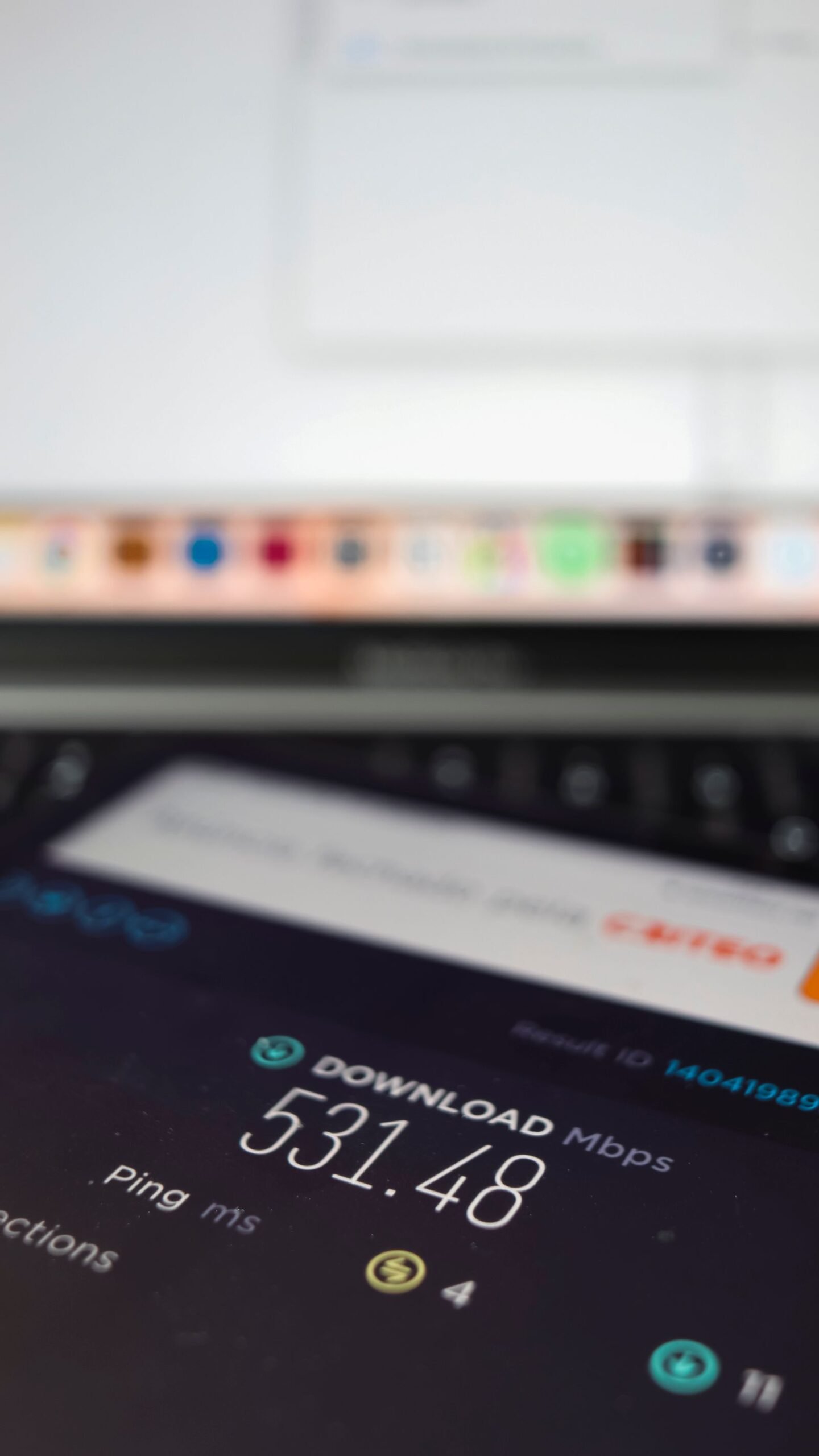
First, test wired before you test wireless. Plug a laptop directly into the router with an Ethernet cable, run a test on a well-known speed test site, and write the number down. That figure is close to what your provider is actually delivering to your home. Then unplug, stand where you normally sit, and test again over Wi-Fi. The gap between those two numbers is the most useful diagnostic in this entire article. If the wired result is far below what you pay for, the problem is your plan, your line or your modem — no router upgrade or app will fix it, and you have evidence for the support call. If the wired result is close to your plan speed but the wireless result is much lower, your plan is fine and the problem lives inside your home network.
Second, test more than once, at more than one time of day. A single result is a snapshot of a moving target. Cable networks in particular slow down in the evening when the whole street is streaming; a connection that tests beautifully at 10 a.m. and badly at 8 p.m. is telling you something real about congestion. Test two or three times, ideally once at your busiest hour.
Third, read all three numbers, not just the big one. Download speed is the headline, but upload speed is what your video calls, cloud backups and file sending live on — and on many cable and DSL plans it is a small fraction of the download figure. Ping (latency) is the delay before anything happens; it is what makes a connection feel responsive or sluggish, and it is what online games actually care about. A connection can post an impressive download number and still feel terrible if the ping is high or jumps around.
And a word about the number on your bill. Plans are sold as “up to” a speed, which is a ceiling under ideal conditions, not a promise for a rainy Tuesday evening. Getting 80–90% of the headline figure on a wired test at a quiet time is generally a healthy connection. Getting half of it, wired, repeatedly, is a fault worth reporting.
What speed do you actually need?
Before upgrading anything, it is worth knowing what “enough” looks like, because the households that feel slow are often not short of speed — they are short of speed at the moment everyone wants it at once.
Individual activities need less than marketing suggests. The FCC’s Broadband Speed Guide puts everyday browsing and email at around 1 Mbps, HD video streaming at roughly 5–8 Mbps per stream, and 4K streaming at about 25 Mbps. A video call needs only a few Mbps, but it needs them steadily, in both directions. Online gaming downloads are enormous, yet the gameplay itself uses very little bandwidth — it is latency-sensitive, not speed-hungry.
So the maths is about simultaneous use. One person streaming HD while another browses and a phone backs up photos might genuinely need only 25–50 Mbps in total. A busy household — two 4K streams, someone on a video call, a game downloading in the background — can push past 200 Mbps at peak moments. The honest conclusion cuts both ways: if your household’s realistic peak is around 60 Mbps, a gigabit plan will not feel faster than a 100 Mbps plan in daily use. And if four people regularly collide at 7 p.m., no router setting will manufacture bandwidth your plan does not have.
Wired beats wireless, and it is not close
If your wired test was good and your wireless test was not, the cheapest large improvement available is a cable. Ethernet is unfashionable and unbeatable: it does not care about walls, neighbours, microwave ovens or distance within the home, and it delivers your plan’s full speed with the lowest, steadiest latency your connection can offer.
You do not need to wire everything. Wire the fixed, hungry devices — the desktop PC, the main TV or streaming box, the games console, a home-office computer that lives on video calls. Every device you move off Wi-Fi also frees airtime for the phones and tablets that genuinely have to be wireless. A basic Cat5e or Cat6 cable handles gigabit speeds comfortably; anything sold as fancier is unnecessary for home runs. If running a cable across the house is impractical, powerline adapters (which send networking over your mains wiring) are a reasonable halfway house — speeds vary a lot with the age and layout of your wiring, so buy from somewhere with easy returns, and treat mesh Wi-Fi, covered in the router section, as the other main alternative.
One more suspect belongs in this section: the device itself. An old laptop with a tired hard drive and a browser carrying forty tabs can make a fast connection feel slow, because the bottleneck is the machine rendering the page, not the network fetching it. If one device feels slow while everything else flies, work through our guide on how to speed up a slow laptop before blaming the router.
Router and modem basics that actually move the needle
The router is where most home networks quietly underperform, and most of the fixes are settings and placement rather than shopping.
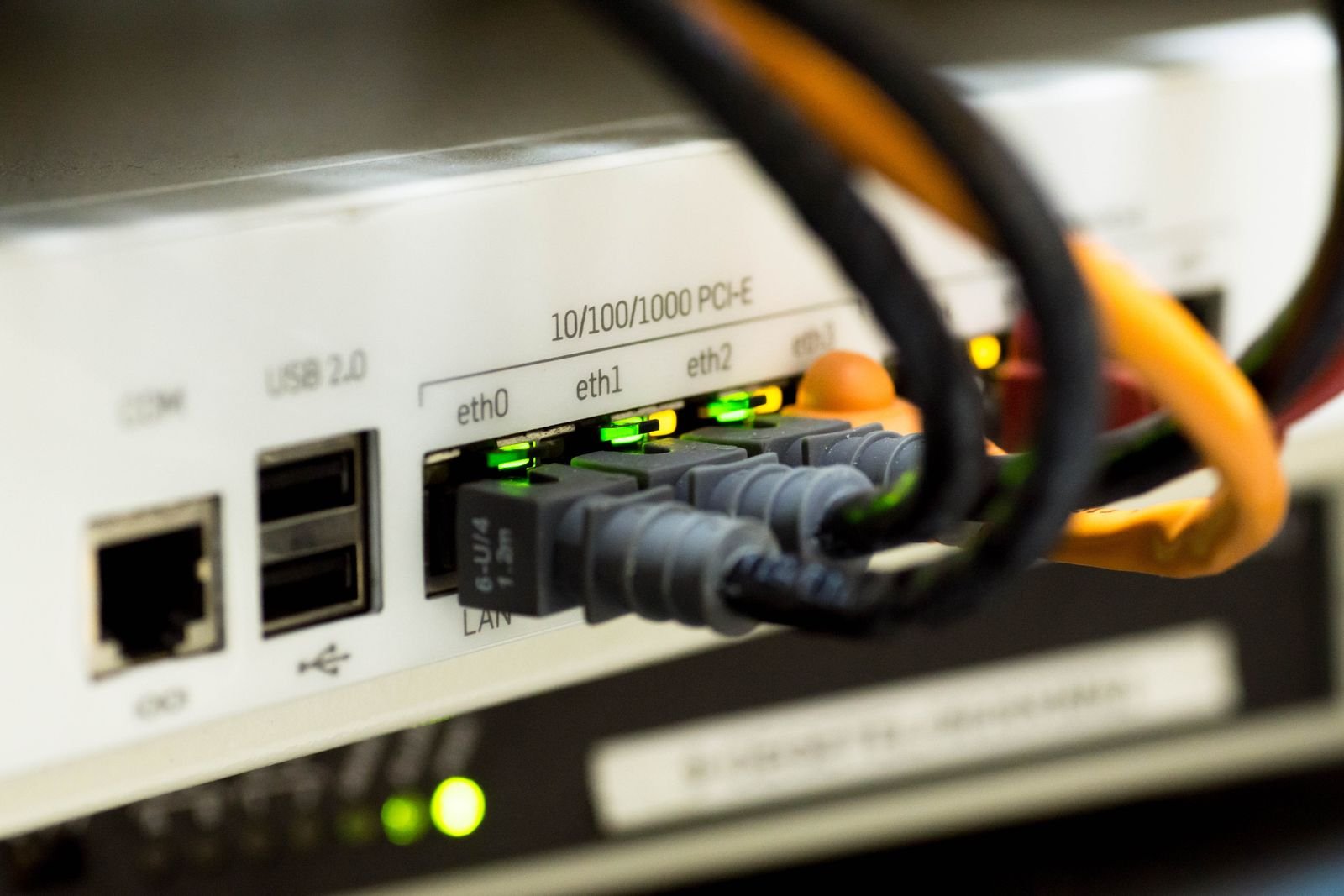
Placement first. Wi-Fi weakens with distance and is absorbed or blocked by walls, floors, metal, water (including fish tanks and the human-filled rooms it passes through) and other electronics. A router shoved in a corner cupboard on the floor is broadcasting into the worst possible environment. Central in the home, raised up, out in the open is the boring, effective answer — moving a router a few metres regularly does more than any software tweak in this guide.
Use the right band. Most routers broadcast two networks: 2.4 GHz, which travels further through walls but is slower and crowded, and 5 GHz, which is much faster but shorter-ranged. A common failure is every device clinging to 2.4 GHz. Put nearby, speed-hungry devices on 5 GHz and leave 2.4 GHz for distant rooms and smart-home gadgets. Newer Wi-Fi 6 and 6E routers add a 6 GHz band and handle busy households better overall — worth it if you are replacing a router anyway, not a magic upgrade if your current one already delivers your plan speed.
Restart properly, occasionally. Unplug the modem and router, wait thirty seconds, plug the modem in first and let it fully connect, then the router. This clears memory leaks and stuck states that accumulate over months of uptime, and it genuinely resolves a whole class of “it used to be fine” complaints. If you find yourself needing to do it weekly, though, that is a symptom — ageing hardware or a line fault — not a routine.
Update the firmware. Router firmware updates fix bugs, improve stability and sometimes performance, and many routers can now update themselves if you enable automatic updates in their settings. While you are in those settings, check nothing ancient is still enabled — an old router limited to Wi-Fi 4 (802.11n) can cap a modern plan at a fraction of its speed no matter where you put it. If your router is the free one your provider supplied many years ago, replacing it (or adding a mesh system for a larger home, which spreads several access points so no room is far from one) is usually the highest-impact purchase in home networking.
DNS: the five-minute tweak with honest limits
DNS is the internet’s phone book: it turns names like a website’s address into the numbers computers actually connect to. Every page load starts with one or more of these lookups, and if your provider’s DNS servers are slow or flaky, the web feels hesitant — pages pause before they start loading, even though they load quickly once started.
Switching to a reputable public DNS service (the well-known ones are run by Cloudflare and Google, among others) takes five minutes in your router’s settings, applies to every device at once, and often shaves a little of that hesitation away. It can also fix a specific, confusing fault where some sites load and others mysteriously fail.
Now the honest limit, because DNS is surrounded by folklore: changing DNS does not increase your bandwidth. Your downloads, streams and speed-test results will be essentially identical, because DNS is only involved in the lookup at the start, not in moving the data. Anyone promising that a DNS change will “double your speed” is selling something. Do it for responsiveness and reliability; expect a modest improvement in feel, not a transformation. Encrypted DNS options (you will see DoH or DoT in settings) are mainly a privacy feature — they stop your provider casually logging which sites you look up — and are covered as part of the wider privacy picture elsewhere in this category.
Background hogs and QoS: the busy-hour problem
Sometimes the speed test is fine at noon and dreadful at seven, and the culprit is inside your own house. Modern software assumes bandwidth is free and behaves accordingly: cloud storage syncing a camera roll, a games console pulling a 90 GB update, an operating system downloading its next version, a backup running on its evening schedule, someone in the next room uploading video. On plans with modest upload speeds — and upload is the narrow direction on most cable and DSL connections — a single enthusiastic backup can saturate the link completely, at which point everything else, including the download acknowledgements your connection depends on, queues behind it. The internet does not feel “a bit slower”; it falls over.
The fix is scheduling and honesty: set backups and big updates to run overnight, pause syncing during work hours, and check the router’s connected-devices or traffic page when things feel wrong — the hog is usually visible there. Many routers also offer to prioritise a work laptop or console; use it.
That prioritisation, done properly, is QoS (Quality of Service) — and its smarter modern form, SQM, deserves a clear explanation because it is widely misunderstood. QoS does not make your connection faster; nothing can exceed your plan. What it does is manage the queue. Without it, one big download can fill the router’s buffers and add hundreds of milliseconds of delay to everything else — the phenomenon called bufferbloat — so a video call stutters while a download races. A good SQM setting (often labelled with the algorithms Cake or FQ-CoDel) keeps latency low under load: downloads run a touch below maximum so calls and games stay smooth. If your problem is “fine until someone downloads something”, this is your fix, and it is worth far more than its modest effect on speed-test numbers suggests.
Fibre, cable, DSL and 5G home internet, in plain terms
If your wired test shows the plan itself is the limit, the remaining question is what kind of connection you can buy — because the technology matters more than the headline number. Broadband is the umbrella term for always-on, high-speed access, but the four common flavours behave very differently.
Full fibre (fibre to the home) runs light through glass all the way to your house. It offers the fastest speeds, upload speeds that match or approach download speeds, and the lowest, steadiest latency. If it is available at your address, it is almost always the best option, and mid-tier fibre plans outperform premium plans on lesser technologies.
Cable (the TV cable network) is fast for downloads and widely available, but uploads are typically much slower, and because bandwidth is shared with your neighbours, evening slowdowns are a real pattern rather than a myth.
DSL runs over old telephone copper lines. Speeds fall sharply with distance from the street cabinet or exchange, uploads are slow, and what is advertised and what a long line delivers can be two different worlds. If DSL is your only wired option, the measured wired number — not the brochure — is your truth.
5G home internet uses the mobile network, with a router that takes a SIM. Where signal is strong it can comfortably beat DSL and rival cable, with no engineer visit. Its weakness is variability: speeds move with signal strength, weather, network load and exactly where in the house the router sits. It is a genuinely good option in the right spot and a frustrating one in the wrong spot, so trial periods matter.
Should you pay for a faster plan? The upgrade maths
Providers would love you to treat “slow” as “buy the next tier”. Sometimes they are right. Here is the honest test: if your wired speed test, at a quiet time, delivers close to what you already pay for, and your household’s realistic peak demand (from the needs section above) is near or above that figure, upgrading will help — it raises the ceiling everyone shares. If your wired test is far below your current plan’s figure, upgrading buys you a bigger ceiling you still will not reach; fix the line, modem or home network first. And if your problem is one room, one device or busy-hour stuttering on calls, that is coverage, wiring or QoS — money spent on a faster plan will leave the actual problem untouched.
Also check the tier you are on before shopping for a new one: households routinely discover they are paying for an entry plan chosen a decade ago, or equally, paying for a gigabit tier whose speed their old router cannot pass on. Match the plan to measured demand and hardware that can deliver it, in that order.
“Speed booster” apps and other money pits
A short section that may save you the most money of all. There is no app that can increase the speed your provider delivers — the claim is physically empty, because your connection’s ceiling is set by your line and plan, not by software on your phone. “Internet booster” and “speed optimiser” apps at best clear caches and close background apps (things your device already manages), and at worst are advertising vehicles bundled with the kind of junk software worth removing. Registry “tweaks” and magic DNS numbers promising to unlock hidden speed belong in the same bin.
Two honest exceptions, in the opposite direction. A VPN reduces your speed — your traffic takes a detour through an extra server and is encrypted on the way, which typically costs a noticeable slice of your bandwidth and adds latency. That is a fair price for what a VPN is actually for, as our guide to the best VPN services explains — but if you are chasing speed, test with the VPN off, and never buy one marketed as a speed booster. And if a device itself is the bottleneck, no network fix of any kind will rescue it; the fix is at the machine, not the router.
Frequently asked questions
Why is my speed test fine but everything still feels slow? Because feel is mostly latency and consistency, not peak download speed. High ping, bufferbloat when the line is busy, a slow DNS lookup before each page, or one background upload saturating your connection will all make a “fast” line feel sluggish. Test wired versus wireless, test at your busiest hour, and check what else is using the connection.
Will a new router make my internet faster? Only if the old router is the bottleneck — for example, an ancient Wi-Fi 4 router capping a fast plan, or poor coverage in the rooms you use. A new router cannot exceed your plan speed on a wired test. Check with a wired measurement first; if that already matches your plan, better Wi-Fi hardware and placement can still be a real upgrade for wireless devices.
Does changing DNS really speed up the internet? It speeds up lookups, not downloads. Pages may start loading a little sooner and flaky site-loading problems may disappear, but your bandwidth, streaming quality and speed-test results will barely move. Worth doing, honestly labelled.
Why is my internet slower in the evening? Usually a combination of your own household being busiest then and, on cable networks especially, your neighbours being busiest too. If the drop is severe and consistent, QoS helps the in-home half of the problem, and a pattern of wired tests at different times is exactly the evidence a provider’s support team needs for the rest.
Is 5 GHz Wi-Fi always better than 2.4 GHz? For speed at reasonable range, yes — it is faster and less crowded. But 2.4 GHz reaches further through walls, so distant rooms and smart-home devices often genuinely do better on it. The right answer is both: each device on the band that suits where it sits.
How much speed does a household of four need? It depends on simultaneous use rather than headcount. Two 4K streams, a video call and general browsing at once suggest something in the region of 100–200 Mbps for comfort; a lighter mix — HD streaming, calls, browsing — is well served by 50 Mbps or so. Measure your peak-hour experience before paying for more.
The bottom line
Improving internet speed is diagnosis, not shopping. Measure wired, then wireless, and the gap tells you whether to argue with your provider or fix your home network. Wire the devices that do not move. Put the router somewhere sensible, on the right bands, with current firmware. Schedule the hogs, turn on QoS if busy-hour calls stutter, and treat DNS as a small, honest improvement rather than a miracle. Only then — with measurements in hand — decide whether the plan itself deserves more money, and which technology at your address is worth paying for. That order of operations is the whole secret, and it is the standard we aim for across TechSarim: fix the real bottleneck, skip the folklore, and keep the receipts.
[…] congestion, and some quietly deprioritise free traffic. Any VPN costs you some speed; our guide to how to improve internet speed explains how to measure the difference properly rather than […]