
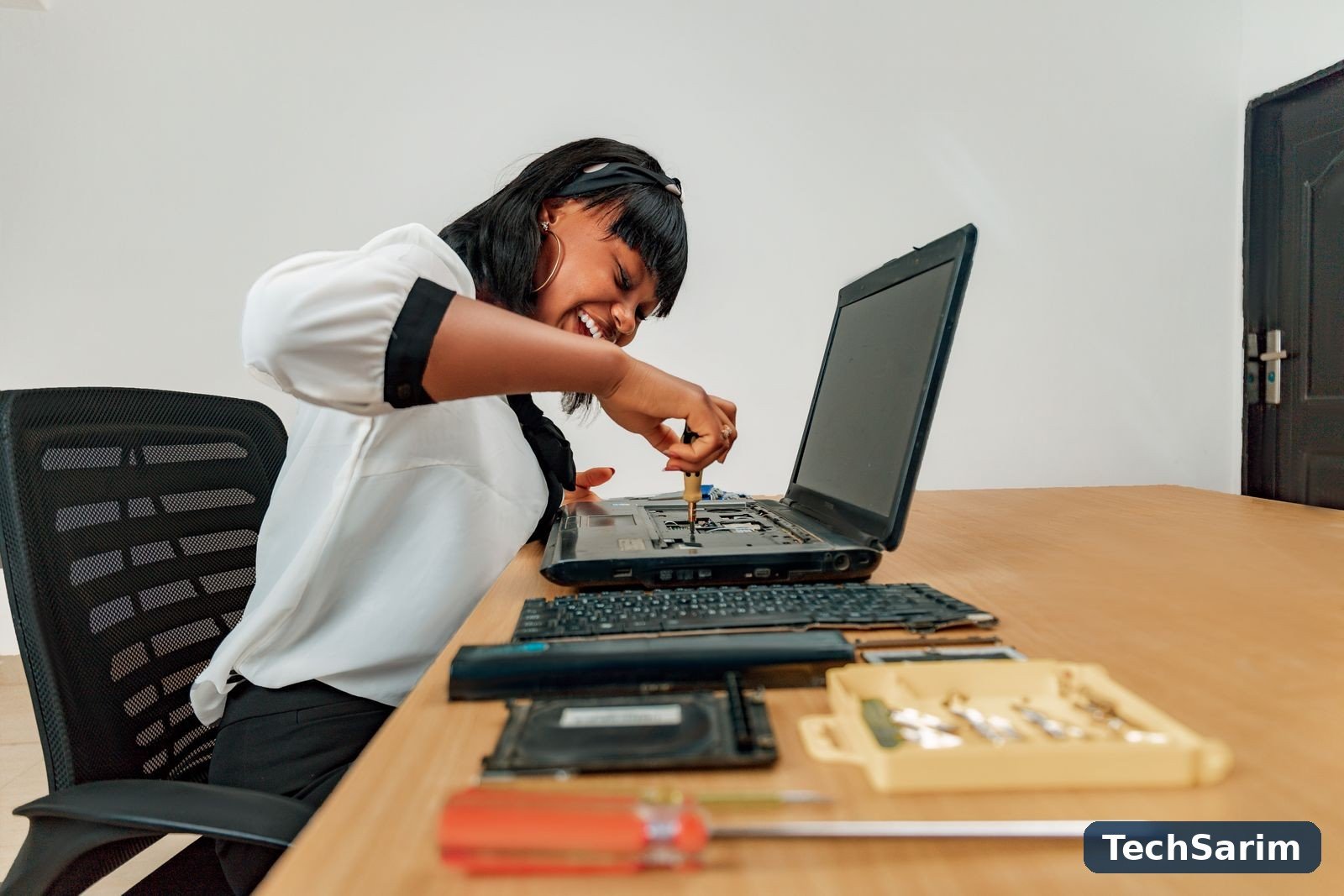

A slow laptop rarely dies all at once. It fades. Boot takes a little longer each year, the fan speaks up a little more often, opening a browser tab becomes a small act of patience. Then one morning you press the power button, go to make tea, and come back to a machine that is still thinking about starting — and you start pricing replacements.
Hold on before you do. Laptops almost never slow down because their processors have worn out; processors do not get tired. They slow down because of a short, knowable list of causes — too much software starting at once, a nearly full drive, heat that cannot escape, and, on older machines, two hardware bottlenecks that are genuinely cheap to fix. This guide, part of our Software & Computer Technology coverage, works through all of it in the order you should attempt it: a five-minute diagnosis first, free software fixes next, then the two upgrades that actually transform an old machine, and finally the honest verdict on when to stop fixing and start shopping.
First, find out what is actually slow
“Slow” is a symptom, not a diagnosis, and the right fix depends entirely on which part of the machine is struggling. Windows gives you the instrument panel for free: open Task Manager (Ctrl+Shift+Esc), click “More details”, and look at the Processes tab while the laptop is doing whatever feels slow. Four columns tell four different stories.
Disk pinned at or near 100%. The classic signature of an ageing mechanical hard drive being asked to do modern work — or of a drive so full it cannot breathe. This points at the storage fixes below and, ultimately, the SSD upgrade, which is the single most dramatic fix in this guide.
Memory near full with modest apps open. Your RAM is too small for your habits, and the machine is borrowing space from the (much slower) disk to compensate. Browsers are the usual appetite. This points at startup discipline, browser habits — and, if your laptop allows it, a RAM upgrade.
CPU constantly high, one process to blame. Something specific is eating the machine: a stuck update, a misbehaving app, occasionally malware. Note the process name before you close anything; a named culprit is a solvable problem.
Everything looks idle, yet the laptop is hot and sluggish. Heat. Modern processors protect themselves by slowing down — thermal throttling — when cooling fails. If the fan is loud, the base is hot and performance craters after ten minutes of use, skip ahead to the cooling section; software tweaks will not fix a machine that cannot breathe.
Spend five minutes here and the rest of this guide becomes a shortlist instead of a lottery. Note what you find, then work the fixes in order — free before paid, software before screwdrivers.
The fixes at a glance
| # | Fix | Time | Cost | Typical impact |
|---|---|---|---|---|
| 1 | Restart properly (not sleep) | 2 minutes | Free | Low, but surprisingly often the whole fix |
| 2 | Disable startup programs | 10 minutes | Free | High — faster boots, calmer idle |
| 3 | Free up disk space | 30 minutes | Free | High, especially on a nearly full drive |
| 4 | Uninstall bloatware and unused apps | 20 minutes | Free | Medium |
| 5 | Scan for malware | 30–60 minutes | Free | Medium–high if something is found |
| 6 | Update Windows and drivers | 30 minutes | Free | Medium |
| 7 | Trim background apps and visual effects | 15 minutes | Free | Low–medium |
| 8 | Tame the browser | 15 minutes | Free | Medium — browsers are RAM-hungry |
| 9 | Clean vents and fans | 20 minutes | Free (a can of air helps) | Medium–high on hot, loud laptops |
| 10 | Check power mode and temperatures | 10 minutes | Free | Medium |
| 11 | Replace the hard drive with an SSD | 1–2 hours | Roughly the cost of a mid-range peripheral | Very high — the transformation fix |
| 12 | Add RAM (to 8GB or 16GB) | 30 minutes | Roughly the cost of a modest accessory | High if the machine is RAM-starved |
| 13 | Check the battery’s health | 10 minutes | Free to check | Low, but explains some mysteries |
| 14 | Reset Windows, keeping your files | 1–2 hours | Free | High when the system is years deep in clutter |
| 15 | Clean-install Windows | Half a day | Free | The highest software-side fix there is |
Fifteen fixes, and the pattern matters more than any single row: the first ten cost nothing but time, and on a typical five-year-old laptop they recover a large share of the lost speed. The two paid rows — 11 and 12 — are not “nice extras”; on the machines they suit, they outperform everything else combined. Everything after them is either a diagnosis or a last resort.
The free fixes: software first
1. Restart properly. Not sleep, not closing the lid — an actual restart. Sleep accumulates half-finished updates, memory leaks and processes that have quietly wedged themselves; a full restart clears all three and lets pending updates complete. If your laptop “never really gets switched off”, this embarrassingly simple step is worth doing before anything else on this page. Many “my laptop fixed itself overnight” stories are exactly this.
2. Disable startup programs. This is the highest-value ten minutes in the guide. Every app you have ever installed has applied for permission to start with Windows, and most were granted it: chat apps, game launchers, printer helpers, updaters for software you open twice a year. In Task Manager’s Startup tab (Startup apps in Windows 11’s Settings), disable everything you do not genuinely need in the first minute after boot. Nothing is being uninstalled — the app still opens normally when you click it; it simply stops queuing ahead of you. On a typical cluttered laptop this alone cuts the “boot, then wait” ritual dramatically, and it lowers the machine’s idle appetite all day long.
3. Free up disk space. A drive that is nearly full is a slow drive, and the fuller it is, the slower it gets — mechanical drives especially, which also fragment and hunt for space at the edges. Aim to keep at least 10–15% of the drive free as working room. Windows helps more than it used to: Storage Sense (Settings > System > Storage) can empty temporary files and the recycle bin on a schedule, and the same screen shows you, honestly, what is eating the space — it is almost never your documents; it is old downloads, caches, game installs and forgotten video. Move archives and media libraries to an external drive, uninstall the games from two years ago, and let the cleanup tools from our roundup of the best free PC software handle the temporary-file layer. One warning: never “clean” by deleting folders at random from the Windows or Program Files directories — use Settings’ own uninstall and cleanup routes, which know what is safe.
4. Uninstall bloatware and unused apps. New laptops arrive with trial suites and sponsored extras; old laptops accumulate one-job tools from one-job emergencies. Settings > Apps lists everything with its size; sort, and be honest about what has not been opened in a year. Two categories deserve special attention. Duplicate security suites — a laptop running two real-time antivirus products is running a permanent argument with itself, and Windows Security alone is genuinely capable. And “PC cleaner” or “driver booster” utilities bought in a panic: at best they duplicate what Windows does free, at worst they nag, upsell and occasionally break things. Uninstalling is reversible — you can always reinstall the one you miss.
5. Scan for malware. A machine that became slow suddenly, runs hot at idle, or shows browser behaviour you did not ask for deserves a proper scan rather than a shrug. Run a full scan with Windows Security, then a second-opinion scan with a respected free scanner (Malwarebytes Free is the standard recommendation, and appears in our free software roundup for exactly this role). Most slow laptops are not infected — they are merely cluttered — but the ones that are will not respond to any other fix in this guide until the infection is gone, which is why the scan sits early in the order.
6. Update Windows and your drivers. Being months behind on updates can mean missing performance fixes, storage-driver improvements and security patches that stop background nasties. Let Windows Update run to completion — including a restart if it asks — and then check your laptop maker’s support page for BIOS and chipset updates, which occasionally fix fan, sleep and throttling behaviour outright. Microsoft’s Windows support pages are the safe reference for the update routes on your exact version. One honest caveat: a major feature update on a very old machine can feel heavier for a few days while it re-indexes; judge it after a week, not an hour.
7. Trim background apps and visual effects. In Settings, stop apps you never use from running in the background, and in “Adjust the appearance and performance of Windows”, choose “Adjust for best performance” — or hand-pick, keeping font smoothing and thumbnails while dropping animations and shadows. On a strong machine this is cosmetic; on a struggling one, the interface itself is part of the load, and trimming it returns a responsiveness you can feel in the menus before you open anything else.
8. Tame the browser. For most people the laptop is the browser, and modern browsers are memory-hungry by design — every tab is a small program kept alive. Three habits pay: audit your extensions and remove all but the essentials (extensions are the startup-programs problem wearing a different hat); use the browser’s built-in sleeping-tabs feature so idle tabs stop consuming memory; and if you live with thirty tabs open on a machine with little RAM, accept that a bookmark folder is the honest version of that workflow. You will meet the browser again in the RAM section — it is the app that most often makes the upgrade case.
Cool it down: dust, vents and thermal throttling
Laptops breathe through vents the width of a coin, and they live where dust lives. Over years, the cooling fan and its fin stack accumulate a felt of dust that no setting can compensate for: the processor heats up, and — doing exactly what it was designed to do — slows itself down to survive. The symptoms are distinctive: a laptop that is fast for ten minutes and sluggish after, a fan that runs loud during tasks it once handled quietly, a base too hot to rest on your legs.
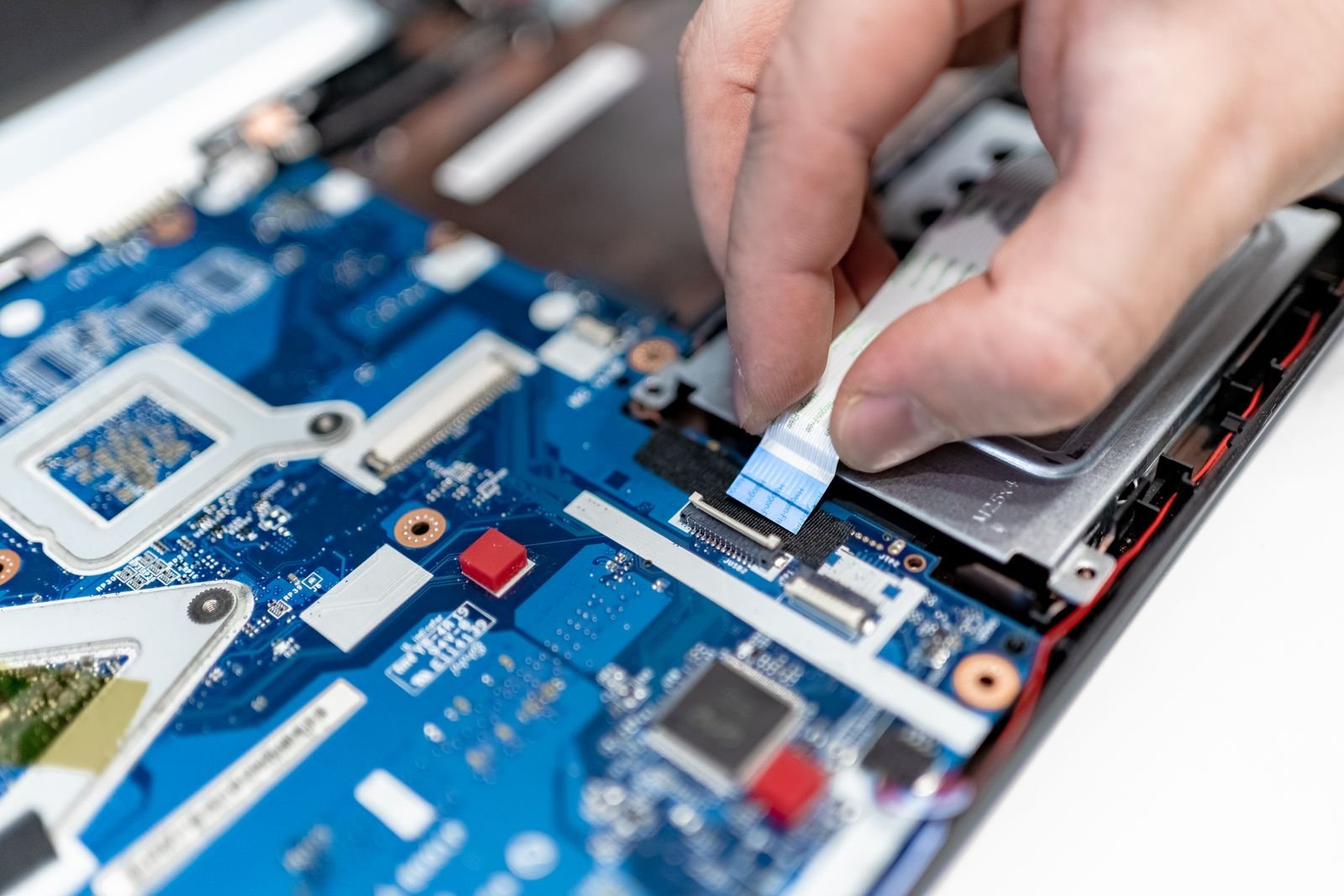
9. Clean the vents and fans. Start outside: with the machine off, blow short bursts of compressed air through the exhaust vents and intake grilles to dislodge what you can. Hold or block the fan from overspinning if your model exposes it, and never vacuum a laptop’s internals — static is a real risk. If you are comfortable opening the base panel (many older laptops make this genuinely easy, with the fan visible once the cover is off), a soft brush lifts the dust mat from the fins properly. If opening it feels beyond you, a repair shop will do a clean-and-repaste service for a modest fee, and on a heat-strangled machine it is money well spent.
10. Check temperatures and power mode. Free tools will report processor temperatures; a laptop idling hot or hitting its ceiling under light load after cleaning may need fresh thermal paste where the cooler meets the chip — a shop job for most people, and a normal service item on a five-plus-year-old machine, not an exotic repair. While you are there, check the obvious: Windows’ power mode set to a battery-saver profile will cap performance even on the charger, and using the laptop on a bed or sofa blocks the intakes no cleaning can help. A hard, flat surface — or a cheap stand — is a performance upgrade.
The two upgrades that actually matter: SSD and RAM
Everything above is housekeeping. This section is renovation, and it applies to one specific, very common machine: a laptop that still has a mechanical hard drive, or too little RAM, or both — which describes a huge share of the laptops sold in the last decade. If yours is one, these two upgrades, in this order, are why articles like this one exist.
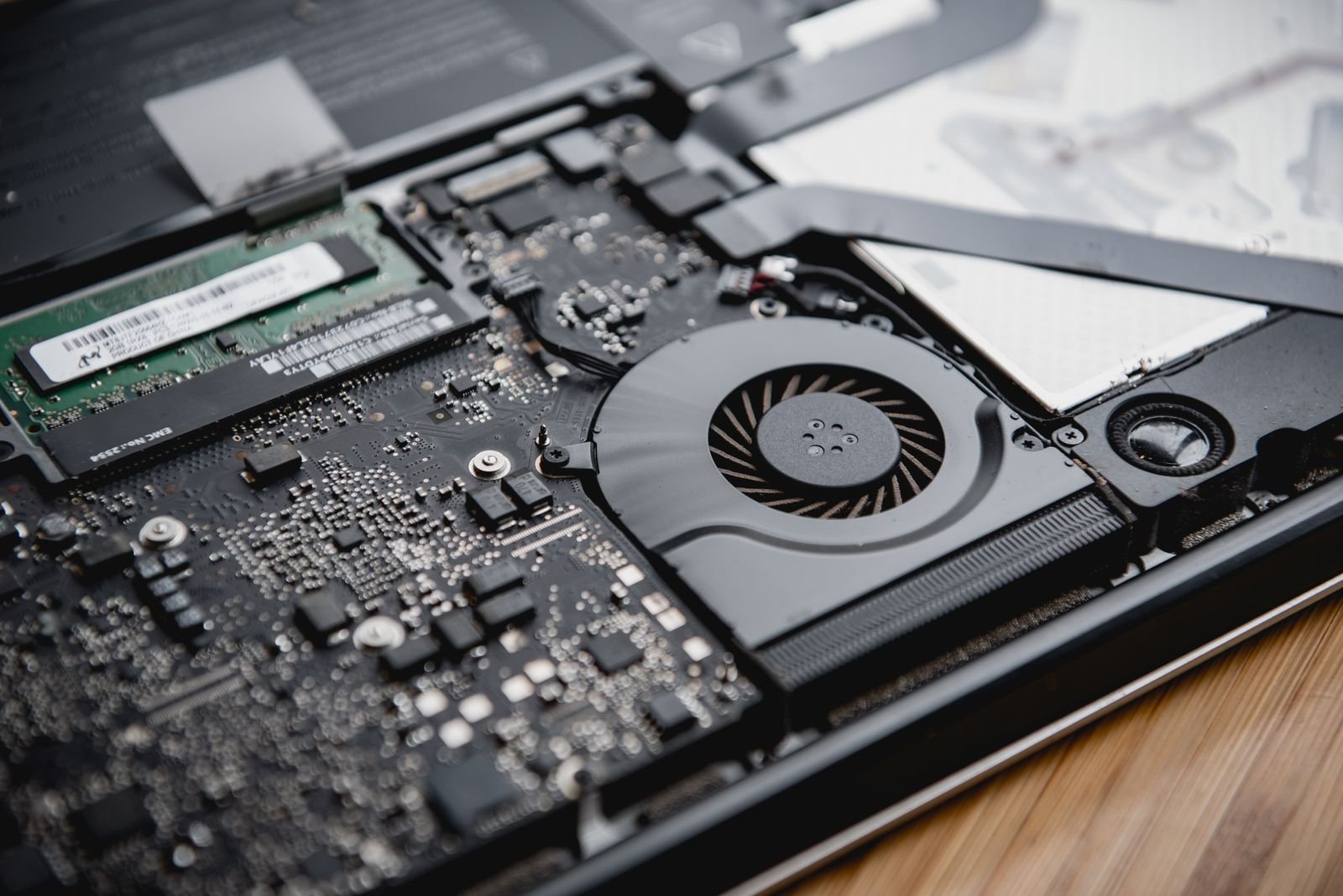
11. Replace the hard drive with an SSD. A solid-state drive has no moving parts; it reads and writes data electronically rather than swinging a mechanical arm across spinning platters. The practical difference on an old laptop is not incremental, it is categorical: boot times fall from minutes to seconds, apps open when clicked rather than shortly after, and the “disk at 100%” paralysis from the diagnosis section simply stops being a feature of your day. If your laptop has a hard drive, this is the fix — everything else in this guide is secondary to it. Costs are modest by upgrade standards: mainstream SSDs in the common 500GB–1TB sizes typically sit in a rough band of tens of dollars rather than hundreds. The work itself is a clone (copy your existing drive to the new one with the maker’s free software) or a clean install, plus a screwdriver; many people have a shop do it in an hour, which is still good value. Two checks before buying: confirm your laptop’s drive bay type (most older machines take a standard 2.5-inch SATA SSD, the easiest swap in computing), and if your machine is young enough to have an M.2 slot, use it.
12. Add RAM — if the machine is starved and the slots allow it. RAM is the workspace; when it fills, Windows borrows the desk of the much slower drive, and everything stutters at once. The diagnosis tells you if this is your problem: memory near full during your ordinary work. As a rough map of the modern landscape, 4GB is below the floor for comfortable use, 8GB is the workable standard, and 16GB is where browsers, office suites and creative apps stop competing. The heaviest everyday appetites are exactly the ones you would guess: dozens of browser tabs, big spreadsheets, video calls with screen sharing, and photo or video work — anyone editing images seriously, as our guide to the best photo editing software makes clear, feels RAM limits before anything else. Laptop RAM in the common sizes is typically a modest, tens-of-dollars purchase. The honest limits matter, though: many thin modern laptops have their RAM soldered down and cannot be upgraded at all, and some older machines cap out at 8GB. Check your exact model’s specifications — the maker’s support page, or a memory vendor’s compatibility checker — before ordering anything, and if your machine is soldered, take comfort that fix 11 still applies in full.
Do both upgrades where the machine allows and the combined effect, on a laptop that was struggling, is routinely described by owners as “like a new computer” — because in the two dimensions those users actually felt, it is.
The last resorts: battery checks and starting clean
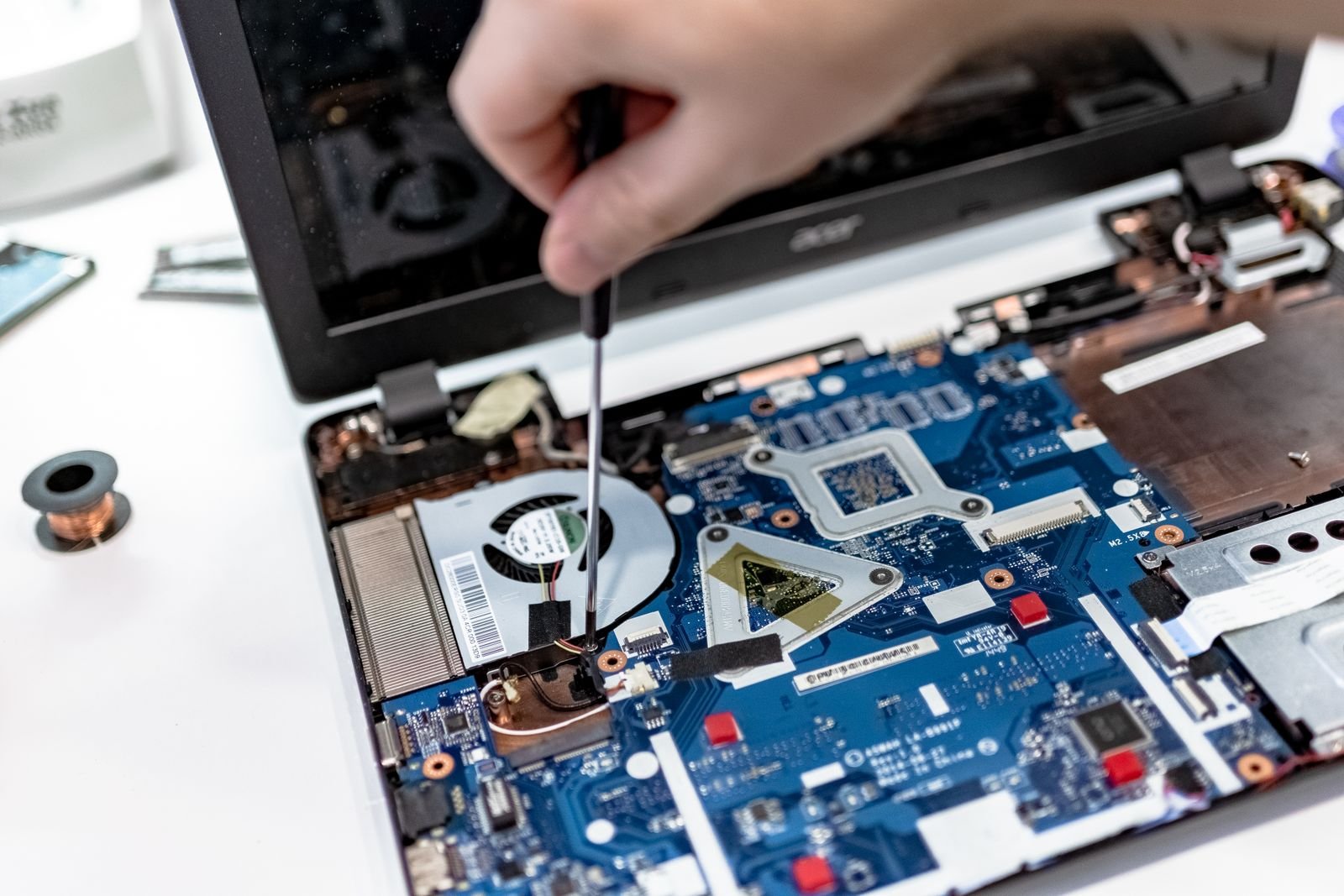
13. Check the battery’s health. A worn battery makes a laptop unpleasant in ways that masquerade as slowness: some models reduce performance when the battery can no longer deliver what the charger alone should, and a battery at the end of its life can cause shutdowns that look like crashes. Windows can generate a battery health report (search for “battery report”) showing design capacity versus current capacity; if the battery holds a fraction of what it once did, a replacement — where the design allows one — restores both runtime and, on affected models, steadiness.
14. Reset Windows, keeping your files. If years of clutter, half-uninstalls and inherited settings have left the system itself tangled, “Reset this PC” with the “Keep my files” option reinstalls Windows while preserving your documents, then lets you reinstall only the apps you actually use. It is the honest halfway house: most of the benefit of a fresh start, a fraction of the effort. Your apps will need reinstalling, so list what matters before you begin.
15. Clean-install Windows. The full version: wipe, install fresh, restore your files from backup, install a deliberate shortlist of apps. On a machine that has never had one, this is the single most effective software step available, and combined with an SSD it gives an old laptop its best possible second life. It is also real work — half a day including backups and re-setup — so it earns its place at the end of the list, not the start. Non-negotiable preamble: back up everything first, twice if the files matter, and make sure you have your account details and licences written down before the wipe, not after.
Fixes that are not worth your time or money
An honest guide has to name the other list — the fixes the internet will try to sell you once you search this topic.
Registry cleaners. The registry does not need “cleaning” in any way that produces speed, and aggressive cleaners occasionally remove things Windows needed. The promised gains are folklore; the risks are real. Skip.
RAM “optimiser” and “booster” apps. These force memory free by pushing data out of RAM — which Windows then has to fetch back from the slower disk. The number on their dashboard improves; the laptop does not. Windows manages memory better than they do. Skip.
Defragmenting an SSD. Defragmentation exists for mechanical drives, and Windows already runs it on a schedule where it helps. On an SSD it is at best pointless wear — and Windows knows the difference, applying gentle optimisation instead. Never run a third-party defrag on an SSD.
Speed-test screenshots and miracle tweaks. One-line “registry hacks” and services “tweaks” that circulate in forums mostly disable things you either need or will miss, for gains nobody can measure outside a screenshot. If a tweak’s benefit cannot be described in a sentence, it does not have one.
Habits that keep it fast
Speed regained can be speed kept. A light monthly routine — restart weekly rather than sleeping forever, glance at the startup list after installing anything new, keep the disk’s free space above that tenth, let updates finish — holds most of the gains from the big clean-up. The tool layer helps too: a file-search utility and a decent launcher, of the kind covered in our guide to the best productivity apps for Windows, make a revived laptop feel fast in the hundred small interactions that make up a day. And keep the honest perspective from the diagnosis section pinned somewhere: when it slows again, ask Task Manager which column is complaining before reaching for any fix at all.
Frequently asked questions
What is the single best way to speed up an old laptop? If it still has a mechanical hard drive, replace it with an SSD — nothing else in this guide comes close for machines with spinning disks. If it already has an SSD, the answer is the free stack: startup clean-up, disk space, updates, and checking whether RAM or heat is the real bottleneck.
Will adding RAM always make my laptop faster? No — only if RAM is actually the bottleneck, which Task Manager will show you as memory running near full during ordinary work. A machine with 16GB that feels slow has a different problem, and more RAM will not touch it. A machine with 4GB and a browser habit almost certainly will benefit.
How much do the upgrades cost, roughly? At typical street prices, a mainstream 500GB–1TB SSD and a laptop RAM stick in common sizes each tend to fall in the tens-of-dollars range rather than the hundreds — the pair often costs less than the deposit on a new laptop. Prices move with capacity and market conditions, so treat any figure (including ours) as a shape, not a quote.
Can I upgrade the processor or graphics in my laptop? Almost always, no — in the overwhelming majority of laptops both are soldered to the main board. This is precisely why the SSD and RAM upgrades matter: they are the two meaningful hardware levers most laptops actually offer.
Is it worth fixing a really old laptop? If it can take an SSD and reach 8GB of RAM, and its screen, keyboard and battery are sound, very often yes for everyday work — browsing, documents, streaming, study. If it cannot take those upgrades, is stuck on an unsupported version of Windows, or has failing hardware beyond the drive, the money is usually better saved towards a replacement.
My laptop is fast when it starts, then slows down. Why? That pattern usually points at heat: as the machine warms, a clogged cooling system forces the processor to throttle. Work through the cooling section — vents, dust, surface, power mode — before anything else.
The bottom line
Work the list in order and an old laptop usually tells you its story quickly: the diagnosis names the bottleneck, the free fixes clear the accumulated weight, and the two honest upgrades — an SSD first, RAM where it is starved — do the transforming. Protect the result with a few light habits and ignore the miracle cures; a laptop maintained this way gives back years of service. And when the machine genuinely cannot take the upgrades, or its problems are the screen, board and battery rather than the drive and the clutter, believe it — that is the point at which a replacement stops being an indulgence and becomes the economical answer. Either way, you will have made the decision from evidence, and the laptop will have been given every fair chance to earn its place.
[…] engines at once. They will fight, your PC will lose, and if a slow machine is your symptom, our guide to speeding up a slow laptop will help you tell a software fight from an actual […]
[…] fetching it. If one device feels slow while everything else flies, work through our guide on how to speed up a slow laptop before blaming the […]