


Walk into a laptop shop, or open a product page online, and you meet a wall: Core 5, 16GB, 512GB NVMe, 45% NTSC, 63Wh, up to 18 hours. It reads like the label on industrial equipment, and it is designed — not maliciously, but effectively — to make you give up comparing and buy the one with the biggest discount badge. This guide exists to dismantle that wall. It is part of our Tech Gadgets & Product Reviews coverage, and its promise is simple: by the end, you will be able to read any laptop listing and know which numbers matter for you, which are decoration, and which are traps wearing a spec sheet’s clothing.
The method matters more than any single recommendation in it. We will not start with processors and gigabytes, because nobody’s life contains a gigabyte. We will start with the job — what you will actually do with the machine on an ordinary Tuesday — because every spec is simply a prediction about how well a laptop does a job. Then we will translate the specs anyway, one by one, in plain English: what each number means, what the marketing does to it, and the rule a beginner can safely follow. Finally, the traps — old models sold as new, “up to” claims, bundled extras that aren’t — and a checklist to keep open on your phone while you shop.
One framing note. Laptops cannot be upgraded the way desktops once could: on most modern machines the memory and storage are soldered in at the factory, so what you buy is what you retire, typically five or more years later. Buy slightly ahead of yourself.
Start with the job, not the specs
Every laptop purchase goes wrong in the same place: the buyer shops for numbers before deciding what the machine is for. The fix takes two minutes. Find yourself in the five profiles below — most people are mainly one — and let the profile, not the shelf talker, set your requirements.
The home and family user. Browsing, email, video calls, phone photos piling up, documents now and then, evening streaming. The lightest workload there is, and the most often oversold: you don’t need a powerful processor — you need a decent screen, storage for the photos, and a machine that won’t feel ancient in four years. A mid-range chip, 16GB of memory and a 512GB SSD will carry this job further than most people expect.
The student. Notes, research, essays, a dozen tabs, video lectures, a machine carried in a bag daily. Battery and weight matter more than raw power — a laptop that dies at 3pm or bends the shoulder loses to a slower one that does neither. Our guide to the best laptops for students goes deeper here.
The office and remote worker. Documents, spreadsheets, presentations, back-to-back video meetings. Reliability and a good keyboard outrank everything — this profile lives in its machine eight hours a day, so the parts touched constantly deserve more of the budget than the processor.
The creator. Photo and video editing, design, maybe music production. The first profile that genuinely needs muscle: a stronger processor, more memory (16GB is the floor, not the target), a colour-accurate screen, fast storage. Creators are punished most by cheap screens — a display that lies about colour makes every other component irrelevant.
The gamer. Games are the most demanding mainstream job a laptop does, and the only profile for which a dedicated graphics card is non-negotiable. Gaming rewrites the other rules — weight and battery worsen as performance rises, and the machine runs noisier and hotter. That trade is fine, as long as it was chosen, not discovered.
Every spec on the sheet, translated
Here is the wall of jargon on one table — the term as printed, what it actually means, and the beginner’s rule for each. The sections after it go deeper, but this table plus the final checklist is honestly enough to buy well.
| The jargon | What it means in plain English | The beginner’s rule |
|---|---|---|
| Processor / CPU (Core 5, Ryzen 7, M4…) | The brain — does the thinking for everything that isn’t graphics | A current or last-generation mid-range chip; generation beats tier |
| Cores and GHz | How many workers the brain has, and how fast each runs | More cores help multitasking; GHz alone can’t compare different chips |
| RAM / memory (8GB, 16GB, 32GB) | The desk space it thinks on — everything open right now lives here | 16GB is the standard; it usually can’t be added later |
| Storage (256GB, 512GB, 1TB) | The filing cabinet — where files and programs live permanently | Must be an SSD. 512GB comfortable; 256GB fills fast |
| SSD vs HDD | SSD is storage on chips — fast. HDD is a spinning disk — slow | Never buy a main drive that’s an HDD or eMMC |
| Graphics / GPU | Draws the screen; built into the processor (“integrated”) or separate (“dedicated”) | Integrated suits everyone except gamers and serious video editors |
| Screen size (13″, 14″, 15.6″, 16″) | The display’s diagonal — and roughly the laptop’s size | 14″ is the portable sweet spot; 15–16″ for a desk |
| Resolution (1920×1080, “Full HD”) | How many dots make the picture — more, sharper | Full HD is the floor; below it looks fuzzy |
| Brightness (nits) | How bright the screen gets — decides use near a window | ~300 nits or more; 250 washes out in daylight |
| Battery (“up to 15 hours”, Wh) | Runtime unplugged. Watt-hours (Wh) is the honest tank size | Expect less than “up to”; compare Wh |
| Ports (USB-C, USB-A, HDMI…) | The side sockets — what plugs in without an adapter | Two USB-C, one USB-A, one HDMI avoids dongle life |
| Weight (kg / lbs) | What your shoulder thinks of it | Under ~1.3kg travels happily; over ~2kg lives on a desk |
The processor: the brain, and why its birthday matters
The processor — CPU — is the part doing the actual computing: opening programs, crunching spreadsheets, keeping forty tabs civilised. You’ll meet three families. Intel’s are called Core 3, Core 5, Core 7 and Core 9 (older listings say i3, i5, i7, i9 — same ladder, older labels). AMD’s are Ryzen 3, 5, 7 and 9. Apple’s are the M-series, found only in Macs, and famously quick and cool-running.
Within a family, the number is a tier: 3 is the economy shelf, 5 is the mainstream, 7 is performance, 9 is the flagship most people should admire and not buy. Here is the part beginners miss: the generation matters as much as the tier. Processors are redesigned every year or so, and each generation is faster and more battery-friendly than the last. A brand-new Core 5 will match or beat a three-year-old Core 7 at most everyday jobs while sipping less power. So the first question about any laptop is not “which chip?” but “which year’s chip?” — which is why shops discount old-generation machines cheerfully, a trap we return to below.
Cores and gigahertz deserve honest deflation. Cores are parallel workers: more genuinely help when you do many things at once. Gigahertz is a clock speed, and comparing it between different chips is like comparing cars by engine revs — it tells you something spins fast, not how fast you’ll arrive. Ignore both as shopping tools. The working rule: a mid-tier chip (Core 5 / Ryzen 5 / any Apple M) from the current or previous generation suits home users, students and office workers. Creators should step up a tier; gamers should fund graphics first, because in games the graphics chip is usually the bottleneck.
RAM: the desk, not the filing cabinet
RAM — memory — is the most misunderstood line on the sheet, so let us fix it with the standard analogy, because it happens to be exact. Storage is the filing cabinet: everything you own, kept permanently. RAM is the desk: only what you’re working on right now sits on it. Open a program and it moves from cabinet to desk; close it and the desk clears. A small desk doesn’t limit what you own — it limits how much you can have open before you’re stacking papers on the floor, which is what a laptop does when RAM runs out: it shuffles things to storage and back, and everything slows with it.
The sizes: 8GB is a small desk — survivable for light use, cramped the moment a video call, a document and twenty tabs coincide, and a false economy on a machine meant to last years. 16GB is the comfortable standard and the correct default for almost every beginner reading this. 32GB is for creators editing large projects and people running virtual machines — if you don’t know whether you need it, you don’t.
The catch, and it is the most important sentence in this section: on most modern laptops the RAM is soldered down and can never be upgraded. The old advice — buy cheap now, add memory later — is dead. Whatever number is on the box is the number you retire the machine with, which is why 16GB today beats 8GB plus good intentions.
Storage: the spec that decides whether the laptop feels fast
If one component decides whether a laptop feels quick or broken, it is this one. Storage comes in two species. The HDD stores files on spinning metal platters, like a tiny record player, and is slow in the way that ruins everything — the laptop waits on it constantly. The SSD stores on chips — nothing to spin, nothing to wait for. We compared the two in depth in our SSD vs HDD explainer; the short version is that the argument ended years ago. A new laptop whose main drive is an HDD — or its slower cousin, eMMC flash, still found in the cheapest machines — should be treated as defective at any price.
Size, then. 256GB is the floor: the operating system and programs take a generous bite before your first photo lands, and the remainder fills faster than anyone predicts. 512GB is the comfortable size for most people. 1TB and above is for creators, gamers (modern games are enormous) and photo hoarders. Note the asymmetry: storage can be relieved later with an external drive or cloud space; RAM cannot. If a budget forces a choice, protect the RAM first.
The screen — and the keyboard and trackpad you will live with
Beginners shop for brains and cabinets; veterans shop for screens, because the screen is the part you interact with every second of every session. Three numbers define it. Size first: 13–14 inches is the portable class; 15–16 inches is the desk class, kinder to spreadsheets, split-screen work and older eyes, at the cost of weight. Resolution second: Full HD — 1920×1080 — is the minimum for crisp text; cheaper 1366×768 panels still exist, look visibly fuzzy, and warn of everything else the manufacturer cut. Brightness third, and most often hidden: measured in nits, it decides whether the screen survives a bright room. Around 300 nits is the honest minimum; 250-nit bargain panels wash out in daylight, and no processor tier compensates for not being able to see.
Panel type in one sentence: IPS (and its cousins) keeps colours steady at an angle, while older TN panels shift and fade — another bargain-bin tell. Beyond the classic clamshell, the modern laptop has sprouted sub-species — ultrabooks (the same thing, thinner) and 2-in-1 convertibles whose screens fold back into a tablet shape. A 2-in-1 genuinely suits students who annotate PDFs; for everyone else it’s a hinge doing a job it will rarely be asked to do.
Then the parts your hands grade daily. Keyboards vary enormously and spec sheets say nothing useful about them, so — if you can — type two sentences on any laptop before buying: keys should travel a little, resist a little, and not flex the whole deck. The trackpad should be large and click evenly in its corners. A slower processor will never annoy you the way a mushy keyboard will, twice a day, for years.
Graphics: the spec most beginners can safely skip
The GPU draws everything you see — windows, videos, games. It comes in two arrangements. Integrated graphics are built into the processor itself and have quietly become good: every modern integrated GPU handles office work, streaming, video calls and light photo editing without breaking stride. Dedicated graphics are a separate, powerful chip with its own memory — names like NVIDIA GeForce RTX or AMD Radeon RX — bought for three jobs: modern games at good settings, serious video editing and rendering, or 3D and AI work.
The beginner’s rule is refreshingly cheap: if you are not in one of those three groups, do not pay for a dedicated GPU. It adds cost, weight, heat and fan noise, and cuts battery life, in exchange for performance you will never request. The trap runs the other way too — gamers are sometimes sold a strong processor paired with a feeble graphics chip, which looks mighty on the summary line and disappoints in every game — in games the GPU does the heavy lifting. If gaming is your profile, the graphics chip is where the money goes first.
Ports, battery and weight: the unglamorous deciders
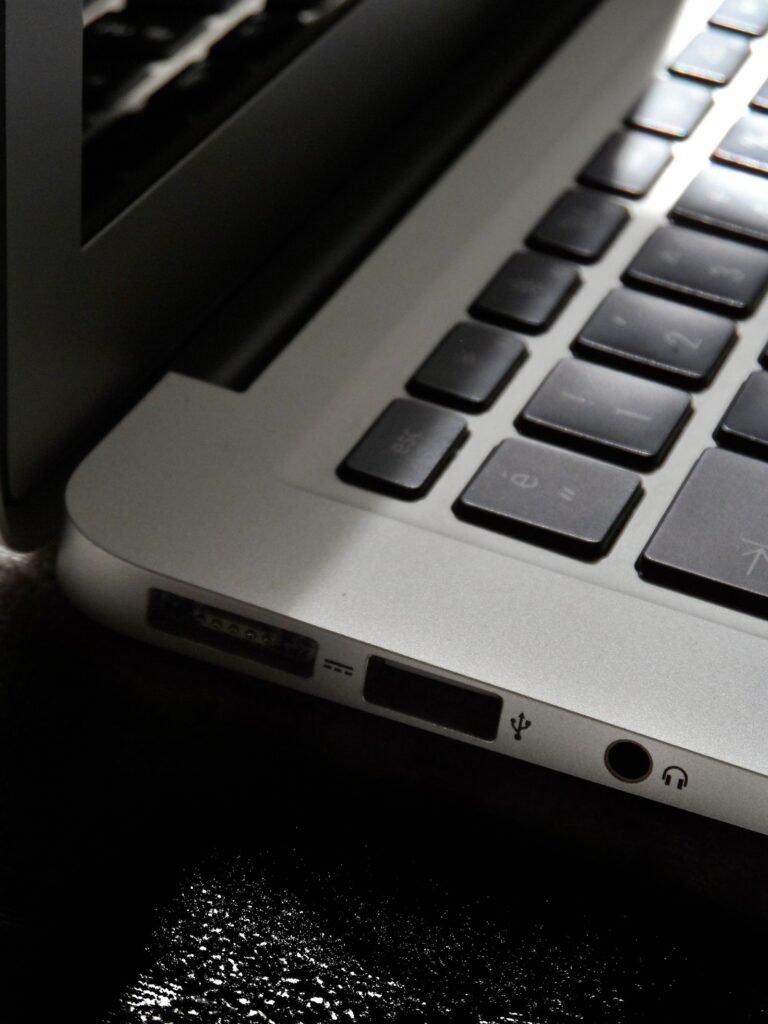
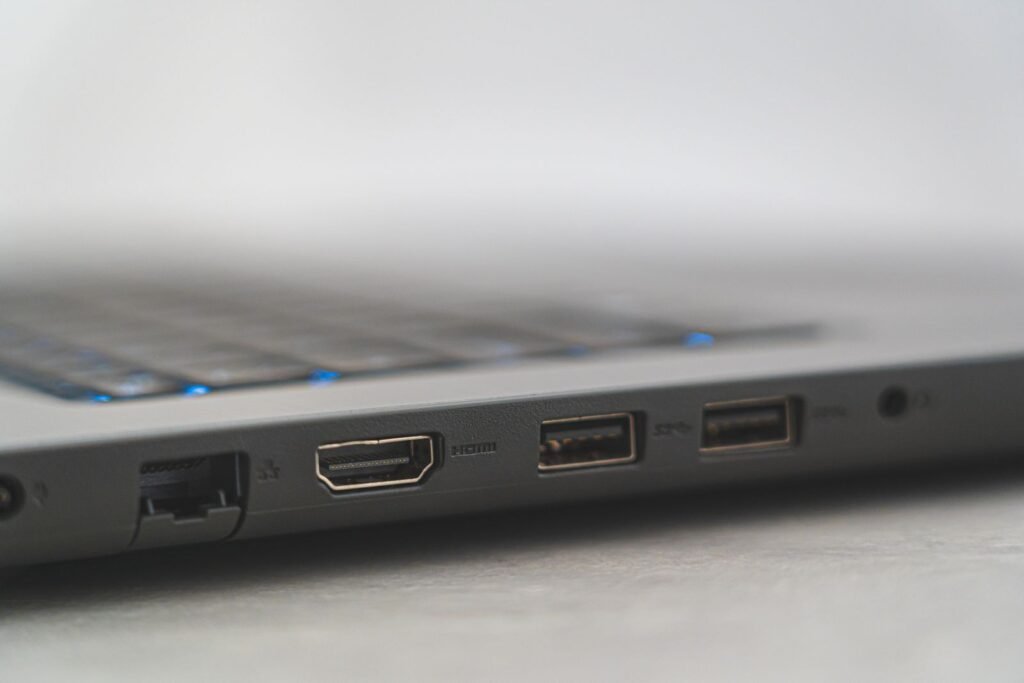
Nobody falls in love with a laptop for its sockets, yet ports decide daily happiness out of all proportion to their glamour. The cast: USB-C, the small oval port that now does everything — charging, data, video to a monitor; USB-A, the older rectangle your mouse receiver, printer and flash drives still use; HDMI, for a TV or projector without an adapter; and the headphone jack, absent on some thin machines, mourned at every airport. A friendly mix is two USB-C ports, one USB-A and an HDMI. Fewer means dongle life — and if you buy a port-poor machine, buy the hub the same day, not after the first emergency.
Battery claims need a translator. The quoted “up to” hours are measured in gentle lab conditions no human session resembles, and real mixed use lands noticeably below the headline on every brand, always. The honest comparison number is capacity in watt-hours (Wh) — typically 40 to 70 on mainstream machines: bigger tank, longer day, all else equal. Judge by Wh and reviews, never by “up to”.
Weight is the simplest spec and the most lied-to by optimism. Under about 1.3kg, a laptop disappears into a bag. Around 1.5kg is normal and fine. Beyond 2kg — gaming and large creator machines — it will mostly stay on one desk, and should be bought as a desk machine.
Windows, Mac or Chromebook: the three-way decision
Underneath every laptop is an operating system, and this choice can’t be undone, so it deserves a decision tree rather than a spec comparison. Answer three questions in order.
Question one: is there a specific program you must run? Not a category — a program. A particular piece of work software, an exam platform, an old printer’s driver, a favourite game. If it exists only on Windows, you buy Windows; if your world is built on Apple’s apps, you buy a Mac. This question ends the debate for many buyers, and no battery life compensates for a machine that can’t run the one program your job requires.
Question two: what phone is in your pocket, and where do your files already live? An iPhone pairs with a Mac in ways that feel like one device — messages, calls, photos and copied text flow between them. Long-time Windows users with years of files and habits will find a Windows laptop simply continues their life. Familiarity is a feature; relearning an operating system is a tax paid daily for months.
Question three: is everything you do inside a web browser? If the honest answer is yes — email, documents in Google Docs or Office online, streaming, browsing — a Chromebook enters the conversation: cheaper, quick to start, simple to maintain and long on battery. The caveats are real: Chromebooks lean on the internet, run Android apps unevenly, and cannot install conventional Windows or Mac programs — the moment question one produces a name, the Chromebook exits.
And the Mac question, honestly put: MacBooks cost more at the door and offer no cheap tier, fewer ports and zero upgrades — in exchange for excellent screens, keyboards, battery life and the longest useful lifespan in the business. A Windows laptop at the same money offers more storage and more choice. Either is defensible; buying by logo isn’t. Home and office users thrive on both; students should check course software; gamers should buy Windows, full stop — the games and graphics chips live there.
The traps: how beginners get sold the wrong laptop
Specs are only half the defence; the retail game has its own moves. Know these by name.
Last year’s model at this year’s excitement. The commonest trap of all. A laptop can look fresh — new box, current listing, big discount — while hiding a processor two or three generations old, because model names barely change year to year. The defence is one question: which generation is the chip? A discounted one-year-old model is often the smartest buy on the shelf; a three-year-old model dressed as current is not, at almost any discount. Related check: older stock sometimes misses current software requirements — Microsoft publishes the official Windows 11 specifications, and a bargain machine that can’t properly run current Windows has an expiry date.
“Up to”, the two hardest-working words in retail. Up to 18 hours of battery (in a lab, at half brightness, doing almost nothing). Up to 5.1GHz (for a split second, on one core, when cold). Up to 1TB (on a pricier configuration than the headline). Read every “up to” as “the best this machine ever did once, under conditions you will never meet”, and hunt for the typical figure instead — Wh for battery; generation and tier for processors.
The bundle that isn’t. “Free” antivirus that converts to a subscription in 60 days. An office suite that’s a one-month trial, after which it rents itself to you monthly. Extended warranties sold with a shiver of fear at the till — occasionally worth it for a machine carried daily, never worth buying under queue pressure. Add up what the bundle becomes over three years first — and remember most bundled software has a capable free alternative, as our roundup of the best free PC software shows. The same applies after you buy: run every system update, turn on the built-in backup, and remove the trial programs it arrived with.
The great screen on the summary, the poor screen on the desk. Bargain machines protect their headline specs (processor! storage!) by quietly fitting a dim, low-resolution panel. If a listing shouts about the CPU and whispers nothing about brightness or panel type, you have learned something. A mid-tier chip with a genuinely good screen is the configuration beginners enjoy most and retailers advertise least.

The beginner’s checklist
Screenshot this — the whole guide, compressed into the order you should do things in.
- Write down your profile — which of the five jobs is yours, and the one program, if any, you can’t live without.
- Settle the operating system with the three questions: must-run program, phone and habits, browser-only or not.
- Check the processor’s generation before its tier — a current or last year’s mid-range chip (Core 5 / Ryzen 5 / Apple M) is the default.
- Fix the RAM at 16GB. It can’t be upgraded later. Let other things flex before this does.
- Confirm an SSD, 512GB if you can — never an HDD, never eMMC; 256GB only with a real overflow plan.
- Grade the screen properly — Full HD minimum, around 300 nits, IPS-type panel. This is what you’ll live with.
- Skip the dedicated GPU unless you game, edit video seriously or do 3D work — and if you do, fund the GPU before the CPU.
- Count the ports — two USB-C, one USB-A, one HDMI is the comfort set. Otherwise budget for a hub today.
- Compare batteries by watt-hours; treat every “up to” as fiction.
- Lift it, and type on it if you possibly can. Weight and keyboard are five-year commitments no spec sheet can grade.
- Refuse the bundle politely — trials now, subscriptions later is the design. Buy software deliberately, afterwards, mostly free.
When to buy: the calendar is a spec too
The same laptop costs meaningfully different amounts depending on the month. Two habits harvest most of the difference. First, the calendar: back-to-school season in late summer brings the year’s best mainstream discounts, Black Friday in late November the deepest cuts on slightly older models, and January clears what December didn’t. New launches quietly discount the outgoing generation — often the smartest purchase on the shelf. Second, the discipline: decide your target configuration before the sale starts, because sales are engineered to move you sideways into a machine with a bigger badge of savings and a dimmer screen. A discount on the wrong laptop is not a saving.
Frequently asked questions
How much should a beginner spend on a laptop?
Less than the shop hopes, more than the cheapest shelf offers. The bargain basement is where slow storage, dim screens and old processors live, producing laptops that feel elderly within two years. The mainstream middle — current mid-range chip, 16GB of RAM, 512GB SSD — is the sweet spot: machines there typically serve five years or more, making them cheaper per year than cheap ones replaced twice.
Is 8GB of RAM enough in 2026?
For the lightest use it works today. The problem is tomorrow: memory can’t be upgraded in most modern laptops, software only gets hungrier, and 8GB already stutters under a video call plus a browserful of tabs. On a machine bought to last, 16GB is the honest minimum.
Can I upgrade a laptop later?
Mostly, no. A shrinking number of models allow storage swaps; almost none allow RAM upgrades. Batteries can usually be replaced by a service centre when they age. Buy the configuration you need for the machine’s whole life.
Mac or Windows — which is easier for a total beginner?
Whichever one someone in your life already uses and can help you with — a patient friend who knows the system beats any spec. Failing that, choose by the three questions above, and don’t switch platforms on a salesperson’s say-so.
The bottom line
Buying a laptop is not a test of technical knowledge; it is a test of resisting the wrong numbers. Start with the job — one of five profiles covers nearly everyone. Buy a current-generation mid-range processor, fix the memory at 16GB because it can never grow, insist on an SSD of 512GB, and spend your attention where your senses live: a bright Full HD screen, a keyboard you’ve typed on, a weight your shoulder approves of. Let gamers and creators fund their graphics chips and everyone else decline them politely, and read every “up to” on the box as the fairy tale it is. Do that, and the wall of jargon collapses into six decisions — all of which you now know how to make.