

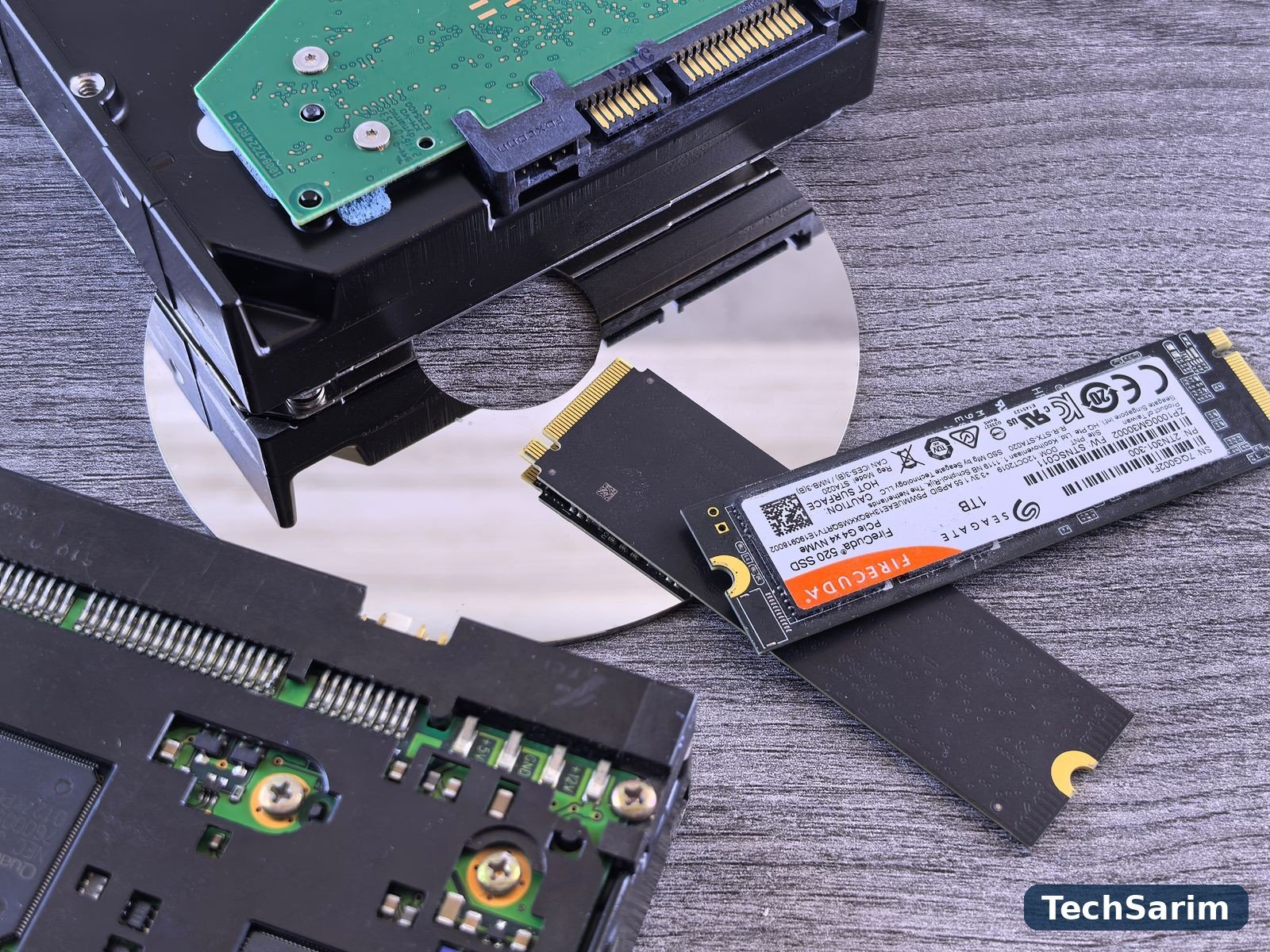
Every computer contains an argument that was settled years ago and a question that never quite goes away. The settled argument: your main drive — the one Windows or macOS lives on, the one your programs launch from — should be a solid-state drive. That debate ended so completely that finding a new laptop with a mechanical boot drive is now a genuine challenge. The question that survives is everything else. The second drive. The backup drive. The NAS in the cupboard. The game library that keeps outgrowing its home. For all of those, the old spinning disk is still on the shelf, still cheaper per terabyte by a wide margin, and still — in specific jobs — the right answer.
This comparison, part of our Software & Computer Technology coverage, is written to answer the question job by job rather than crown a single winner. First, how each technology actually works, because the mechanics explain everything else. Then the three honest battlegrounds — speed, durability and lifespan, and price per terabyte — with typical real-world figures rather than the numbers printed largest on the box. Finally, the verdicts that matter: gaming, laptop upgrades, NAS and backup, where the correct choice genuinely changes depending on the work.
One framing note before the table. “SSD” in this article covers two quite different products wearing one name: the SATA SSD, shaped like a small laptop hard drive and limited by an interface designed in the spinning-disk era, and the NVMe SSD, a stick of chips that talks to the processor over PCI Express and is several times faster again. Where the distinction matters, this guide makes it. Where it doesn’t, both beat the hard drive so comfortably that the difference is a rounding error in your day.
SSD vs HDD at a glance
| SSD | HDD | |
|---|---|---|
| How it stores data | NAND flash memory chips — no moving parts | Magnetic platters spun by a motor, read by a moving arm |
| Sequential speed (typical) | ~500–550 MB/s (SATA); ~3,500 MB/s (NVMe Gen3); ~5,000–7,400 MB/s (NVMe Gen4) | ~80–160 MB/s, fastest desktop models a little above that |
| Random access | Effectively instant; tens of thousands of small operations per second and up | A physical arm must move and the disk must spin — thousands of times slower at small files |
| Shock and drops | No mechanism to break; commonly rated to survive drops that would kill a hard drive | Fragile while running; a knocked-over external drive can be a dead drive |
| Noise | Silent | Audible spinning and seeking; some drives click and hum noticeably |
| Power and heat | Low; kind to laptop batteries | Higher; a 3.5-inch drive is a small heater with a motor |
| Capacities | Commonly 250GB–4TB; 8TB exists at a price | Commonly 1TB–16TB+; the cheapest way to buy terabytes |
| Price per TB (rough, street) | Roughly $50–80 (SATA) and $60–100+ (NVMe), fluctuating with the flash market | Roughly $10–20 at larger capacities |
| How it usually fails | Suddenly and electronically, sometimes with SMART warnings, sometimes without | Often gradually, with noises and errors — but head crashes can be instant |
| Best at | Operating systems, programs, games, anything you wait for | Bulk storage, archives, backups, media libraries, NAS capacity |
The table is the short version. Everything below is the reasoning — and the exceptions, because the exceptions are where money gets wasted.
How an HDD works: precision engineering from another era
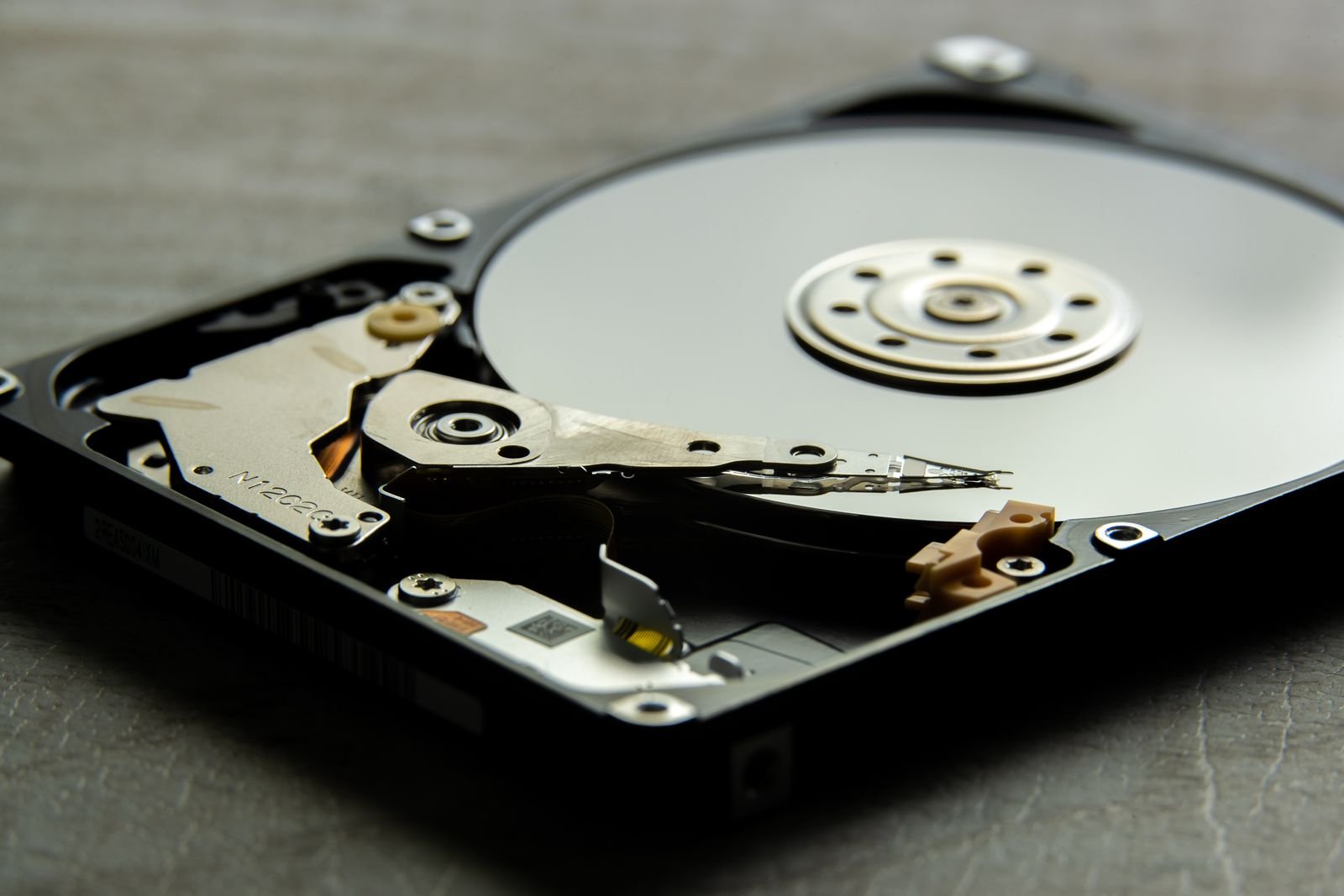
A hard disk drive is, mechanically speaking, absurd: a stack of glass or aluminium platters coated in magnetic material, spinning at 5,400 or 7,200 revolutions per minute, while a tiny arm flies a read/write head above the surface on a cushion of air thinner than a fingerprint. Your data lives as magnetic patterns in tracks on those platters. To fetch a file, the arm must physically swing to the right track and wait for the right sector to rotate underneath it — a process measured in milliseconds, which sounds fast until you learn that everything else in your computer is measured in nanoseconds and microseconds.
That single mechanical fact explains the hard drive’s entire personality. Reading one large file in a straight line — a film, a disk image — is the pattern it was born for, and a modern desktop HDD streaming sequentially at 150 MB/s or so is doing respectable work. But an operating system never reads in straight lines. Booting Windows means fetching thousands of small files scattered across the disk, and each fetch costs the arm a journey. This is why a hard-drive PC feels slow in a way that has almost nothing to do with its processor or memory: the CPU spends its life waiting at the window while the arm commutes.
Give the technology its due, though. The HDD is one of the most refined machines ever mass-produced, refined over nearly seventy years, and its party trick is capacity: those platters hold terabytes for the price of a pizza per terabyte, in a format every computer since the 1980s understands. The mechanism is also honest about its health more often than its rival — a drive that begins clicking, retrying and throwing errors is frequently (not always) a drive warning you, weeks in advance, that it intends to die.
How an SSD works: storage with nothing to spin
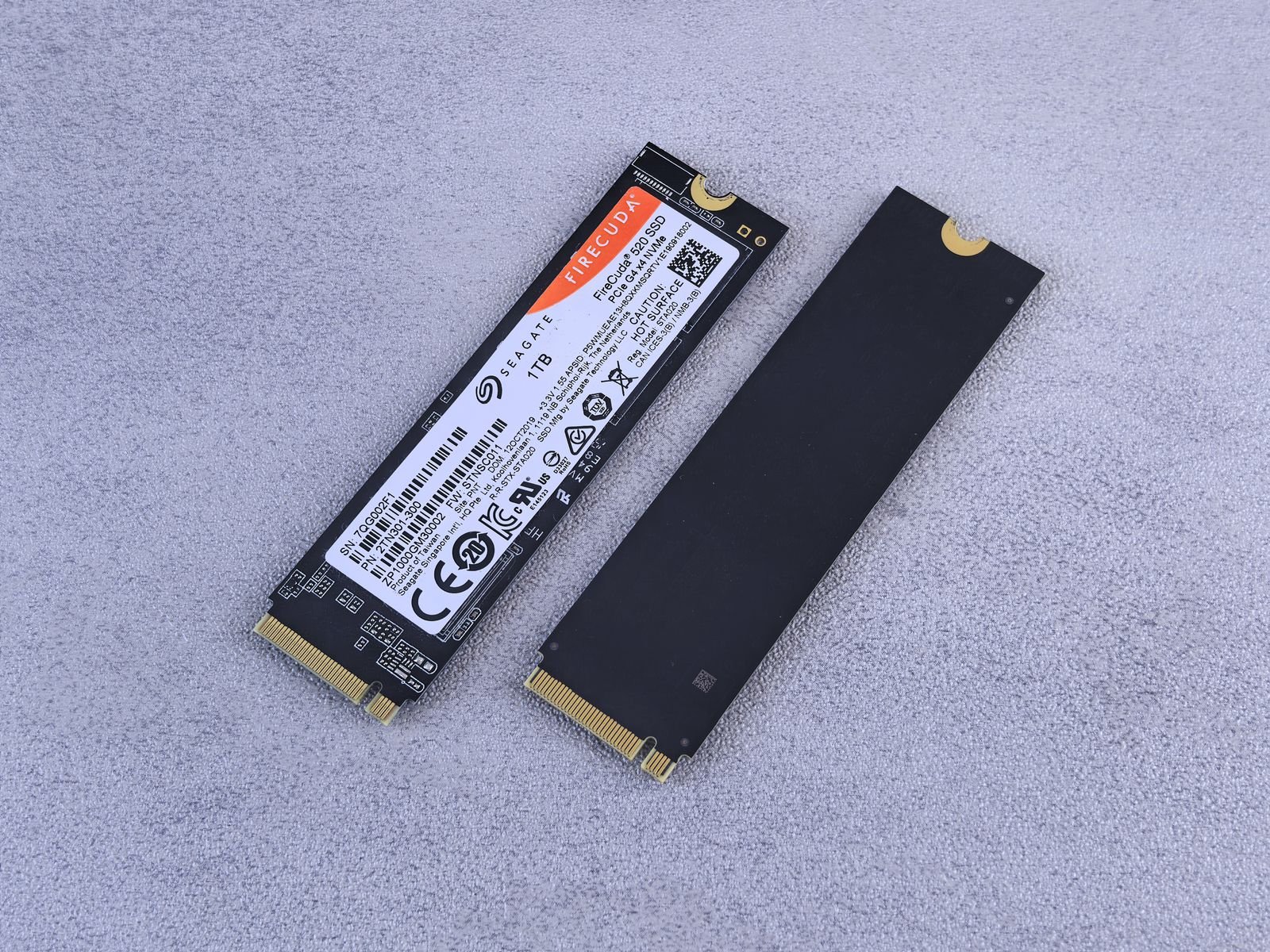
A solid-state drive stores data as electrical charges trapped in NAND flash memory cells — the same fundamental technology as a USB stick or a phone’s storage, engineered to a much higher standard. A controller chip acts as traffic manager, spreading writes evenly across the cells (a process called wear levelling), collecting garbage, and presenting the whole array to your computer as one fast drive. There is no arm, no platter, no waiting for rotation. Any cell is as reachable as any other, which is why the random-access row of the table above isn’t a close contest: it is a rout.
The two interfaces decide how much of that speed you actually get. A SATA SSD uses the same connector and protocol as a hard drive, and the interface itself caps out around 550 MB/s in practice — roughly four times a hard drive’s sequential speed, with the random-access advantage fully intact, which is why even a SATA SSD transforms an old laptop. An NVMe SSD skips the disk-era protocol entirely and rides the PCI Express bus: typical Gen3 drives read at up to around 3,500 MB/s, Gen4 drives commonly in the 5,000–7,400 MB/s range, and the fastest Gen5 models advertise figures beyond 12,000 MB/s. Treat those summit numbers the way you’d treat a car’s top speed — real, measurable, and rarely the thing that decides your journey — a point the speed section returns to.
Your phone settled this argument years ago, by the way. Every smartphone stores everything on flash, not because phones are luxurious but because a spinning disk in a dropped, shaken, pocketed device would be a warranty disaster — and yet that flash still fills up, which is why our guide to how to free up storage on Android exists. The PC world simply took longer to arrive at the same answer for its main drives, held back by one thing only: price per terabyte, and we will get there.
Speed: the gap is not subtle
Start with the number people quote, sequential speed — reading one big file end to end. A typical hard drive manages somewhere around 80–160 MB/s depending on model, platter density and where on the disk the data sits (the outer tracks are faster than the inner ones; your drive literally slows down as it fills from the outside in). A SATA SSD sits near 500–550 MB/s. NVMe drives multiply from there. On this measure alone the SSD is three to fifty times faster, and copying a 50GB game folder makes the point without any benchmarking software.
But sequential speed is the least of it. The gap that changes your day is responsiveness: how quickly the drive answers thousands of small, scattered requests. An HDD performing random reads delivers on the order of a hundred operations per second, because each one costs a mechanical journey. Even a modest SSD delivers tens of thousands; a good NVMe drive, hundreds of thousands under the right conditions. This is the difference between a PC that boots to a usable desktop in something like ten to fifteen seconds and one that needs the better part of a minute and still stutters when you open the browser; between a game that streams its world invisibly and one that hitches as textures arrive late; between an antivirus scan you never notice and one that benches the machine for lunch.
Two honest caveats, so the figures stay useful rather than becoming marketing. First, the jump from HDD to any SSD is a cliff; the jump from SATA SSD to NVMe is a step; and the jump from Gen3 to Gen4 to Gen5 NVMe is, for most everyday workloads, a gentle slope — boot times and application launches barely move, because they were never bottlenecked on peak sequential throughput in the first place. Buy NVMe because your motherboard supports it and the price difference is small, not because a benchmark graph promised you a new life. Second, cheap SSDs without their own DRAM cache can sag badly during long, heavy writes — copying hundreds of gigabytes can slow a bargain drive to hard-drive-like speeds once its fast cache fills. For a boot drive used normally you’ll never see it; for a drive you intend to fill with video footage weekly, it matters, and it is the kind of detail spec sheets mumble.
Durability and lifespan: different ways to die
Drop both drives off a desk while they’re working and the experiment ends quickly. The HDD’s flying head meets the platter — a head crash — and the data in that neighbourhood is gone, possibly along with the drive. Operating shock tolerance for hard drives is measured in tens of Gs; SSDs, with nothing to crash, are commonly rated in the thousands for short shocks and routinely survive the drops that murder external hard drives. In a laptop, a desktop that gets bumped, or any drive that travels, this alone justifies flash. In a stationary NAS that never moves, it barely matters.
Lifespan is subtler, because the two technologies wear out by opposite mechanisms. An HDD wears mechanically: motors, bearings and heads age, and the risk rises with years and power-on hours — many drives run a decade, plenty die within three to five years of service, and the honest summary is that mechanical death is a lottery with gradually worsening odds. An SSD wears by writing: each NAND cell tolerates a limited number of program/erase cycles, so drives carry a TBW (terabytes written) endurance rating. That sounds alarming until you do the arithmetic — a typical 1TB consumer SSD might be rated in the region of 600 TBW, which for a normal user writing even a heavy 30GB a day is over fifty years of writes. For almost everyone, the SSD’s electronics or simple old age will end its life long before its NAND wears out. The exceptions are genuinely write-brutal workloads: constant video surveillance recording, heavy cache and scratch duty, Chia-style plotting back in its day. Those are exactly the workloads where — hold the thought — a hard drive or a specialist endurance SSD earns its keep.
Three failure-honesty points, because this is where buying decisions go wrong. Neither drive is a backup. SSDs can fail suddenly and completely, and because the failure is electronic and the data is scrambled by encryption and wear-levelling, recovery is harder and pricier than from a dead HDD, whose platters a lab can often still read. Cold storage favours the disk. An SSD left unpowered for years can slowly lose charge and therefore data — consumer drives are specified to retain data for roughly a year unpowered at the end of their rated life — while a healthy HDD on a shelf generally holds its magnetism far longer. For archives you rarely touch, spinning rust in a drawer beats flash in a drawer. And SMART warnings are hints, not promises, on both technologies: plenty of drives of each kind die with a clean health report. The only durable strategy against all of this is redundancy, which brings us neatly to price — because redundancy means buying terabytes twice.
Price per terabyte: where the HDD fights back
Here is the HDD’s entire modern case, and it is a strong one. At the time of writing, street prices very roughly break down like this: hard drives at larger capacities cost somewhere around $10–20 per terabyte, with big external backup drives often at the friendly end of that range. SATA SSDs run roughly $50–80 per terabyte; NVMe drives roughly $60–100 and up, with the newest generations and largest capacities commanding premiums. Flash prices also swing with the memory market — they have halved and doubled within a couple of years before now — so read any per-terabyte figure, including these, as a weather report rather than a climate.
Translated into drives: a 4TB hard drive is a routine, inexpensive purchase; a 4TB SSD is a deliberate one; an 8TB SSD is a statement. Flip the capacities around and the reverse is true at the small end — a 500GB or 1TB SSD is so affordable that buying a small hard drive for anything except bulk makes no sense at all. The crossover logic that follows from this has been stable for years and shows no sign of changing soon: buy your speed in gigabytes and your capacity in terabytes. The drive you wait on should be flash and need not be huge; the drive you fill should be magnetic and can be enormous.
There is one more economic wrinkle worth knowing: cost per terabyte improves with size on both technologies, but the HDD’s advantage grows with capacity. At 1TB the price gap between the technologies is a modest multiple; at 12TB the SSD option, where it exists at all in consumer form, costs several times more. This is why data centres — the most cost-obsessed buyers on Earth — still purchase mountains of hard drives for bulk tiers while serving everything hot from flash. Your home setup is allowed the same hybrid logic, and the next section applies it job by job.
Which drive for which job
Your main PC or laptop drive: SSD, no debate left
If a computer still boots from a hard drive, replacing that one part is the most effective upgrade in all of consumer computing — our full walkthrough of how to speed up a slow laptop puts the SSD swap at the top of its fifteen fixes for exactly this reason. A 2.5-inch SATA SSD drops into nearly any laptop or desktop of the last fifteen years and changes every interaction: booting, launching, updating, searching. If your machine has an M.2 slot, an NVMe drive of the generation the slot supports is the cleaner buy. Size guidance, honestly: 500GB is the sensible floor now, 1TB is the comfortable choice, and if the machine must hold everything with no second drive, budget for the SSD you need rather than the HDD you can afford — then move the archives elsewhere.
Gaming: SSD for the library you play, HDD for the library you keep
Modern games are built assuming flash. Current consoles are SSD-only machines, PC titles increasingly list an SSD as a requirement rather than a recommendation, and technologies like DirectStorage exist specifically to feed game worlds from fast storage without the stutters that hard drives produce when a world streams in faster than an arm can swing. Install the games you are actually playing on the SSD. But game installs now routinely exceed 100GB, and few hobbies fill storage faster — which is where the HDD earns a roster spot as the cold library: finished games, someday-replays and the backlog can live on a big cheap disk and be copied across when wanted, since even a “slow” HDD transfers a game far faster than most internet connections re-download it. One warning: do not judge this arrangement by an old game that loads fine from the HDD. Newer titles are the ones that assume flash, and the trend only moves one direction.
A NAS or home server: HDD for capacity, SSD for the busy work
A NAS is where the hard drive remains the default, and rightly: it sits still (shock is a non-issue), it runs around the clock (choose drives rated for NAS duty, and prefer CMR over SMR recording for RAID arrays — SMR drives can slow painfully during rebuilds), and its whole purpose is terabytes — media libraries, backups of every machine in the house, shared files. Price per terabyte decides, and it decides for spinning disks in banks of 4, 8, 12TB and beyond. The SSD’s role in a NAS is surgical: a small flash cache in front of the array, or a fast pool for the genuinely busy things — virtual machines, containers, photo libraries being actively browsed and searched, the working set rather than the archive. Many home servers honestly need neither and run beautifully on HDDs alone; add flash when you’ve identified the thing that feels slow, not before.
Backup and external storage: the HDD’s home turf
Backup is a capacity job with a patience budget, and that is the hard drive’s exact job description. An external HDD remains the cheapest way to hold a full image of your PC plus years of photos, and the backup software that fills it — File History and its friends, which we cover in our roundup of the best free PC software — does not care whether the destination is fast; it cares that it is big and present. Portable SSDs have carved out one honest exception: if the backup drive travels — in a laptop bag, between home and office, anywhere it might get dropped or knocked — flash’s shock resistance is worth real money, because a backup drive that dies in your bag is a story you only tell once. And remember the cold-storage point from the durability section: the copy of your photos that lives in a drawer, plugged in twice a year, belongs on a hard drive.
Frequently asked questions
Is an SSD always better than an HDD? No — it is always faster, which is not the same thing. For an operating system, programs and games, faster is the whole job and the SSD wins outright. For bulk storage, archives and backup capacity, the HDD delivers three to six times the terabytes per dollar and loses nothing that matters, because you were never waiting on it in the first place.
Can I use an SSD and an HDD in the same computer? Yes, and it is the arrangement this guide recommends for most desktops: a modest SSD (500GB–1TB) for Windows and programs, a large HDD (4TB and up) for media, downloads, game overflow and backups. Most desktops have room and connectors for both. Laptops increasingly offer only one bay, which is why the laptop answer is a bigger SSD.
How long does an SSD last compared with an HDD? Long enough that other things usually decide. A consumer SSD’s write endurance (often hundreds of TBW on a 1TB drive) translates to decades of ordinary use; its realistic lifespan is set by electronics and age, commonly five to ten years or more. HDDs commonly last three to five-plus years in service, with mechanical wear making failure odds climb with age. Either can die in week one — which is why lifespan questions should always end in a backup, not a brand preference.
Is a 512GB SSD better than a 1TB HDD in a new laptop? For almost everyone, yes. The SSD machine will feel dramatically faster at every moment of every day; the HDD machine offers double the space on a machine too slow to enjoy filling. The honest exception is a buyer who genuinely needs the local capacity — a large media library that must live on the laptop — and even then, a 1TB SSD plus an external HDD usually beats both options.
Why is my SSD not as fast as the box promised? Usually one of four reasons: it is a SATA drive in an NVMe conversation (or in a slot wired for fewer PCIe lanes than the drive wants); the benchmark figure is a sequential peak your real workload never requests; the drive is nearly full, which slows many SSDs noticeably; or it is a DRAM-less budget model sagging under sustained writes. None of these mean it is broken — and all of them still leave it far ahead of any hard drive.
Are hard drives obsolete? No — they have retired from one job and kept several others. As boot drives and in laptops, yes, effectively finished. As the world’s bulk storage — in NAS boxes, backup drives, CCTV recorders and the cold tiers of the data centres behind your cloud accounts — hard drives ship in enormous quantities every year, because nothing else sells a terabyte that cheaply. Obsolete is a strange word for the technology still storing most of the world’s data.
The bottom line
Buy by the job, not by the headline:
- Operating system, programs, the games you’re playing: SSD — NVMe if your machine supports it, SATA if it doesn’t; 500GB minimum, 1TB comfortable. This is the settled question.
- A slow old laptop: a SATA SSD before any other upgrade, and it isn’t close.
- Bulk storage, media libraries, NAS capacity: HDD, sized generously, NAS-rated if it runs all day — and CMR for RAID.
- Backup: the biggest external HDD your budget likes — unless it travels with you, in which case a portable SSD’s shock resistance is the rare premium that pays for itself.
- The strongest setup of all: both — flash where you wait, rust where you store, and a backup of anything you’d miss, because the one prediction this comparison can make with confidence is that either technology can die on a Tuesday.
The argument, in the end, was never really SSD or HDD. It was about matching a seventy-year-old mechanical marvel and its silent electronic successor to the work each does best — speed where you wait, capacity where you store, and no data you care about living on only one of them.
[…] SSD stores on chips — nothing to spin, nothing to wait for. We compared the two in depth in our SSD vs HDD explainer; the short version is that the argument ended years ago. A new laptop whose main drive is […]