

Search the Play Store for “antivirus” and you will be buried: hundreds of apps, most of them shouting about viruses found, threats blocked and phones in mortal danger. Here is the sentence almost none of them want printed, and the one this guide — part of our Cybersecurity & Internet coverage — is built around: a modern Android phone, kept updated and fed apps only from the Play Store, already carries serious built-in protection, and for many people a third-party antivirus adds little. That does not make this a short article. It makes it an honest one. There are people who genuinely benefit from an extra layer, there are free apps that earn their place by adding things Google does not, and there is a large, grubby category of fake scanners and ad machines that are worse than the risk they claim to fix. Sort those three groups out and you will know exactly what your phone needs — which, for the record, never involves paying for protection out of panic.
Everything below is free. Where a paid tier exists, we say what it actually adds, in shape rather than price, because the point of this guide is that the free versions of the reputable apps are the story — and because the upsell screens inside them will try hard to convince you otherwise.
What your phone already does for free
Android was designed in a world that assumed hostile apps would exist, and its defences are architectural, not decorative. Four of them matter most, and you already have all four.
Google Play Protect is the built-in scanner, and it is more substantial than its quiet presence suggests. It scans apps before and after installation — including, by default, apps installed from outside the Play Store — checks them against Google’s constantly updated picture of harmful behaviour, and can disable or prompt you to remove an app it judges dangerous. Google describes the current state of the service on its Google Play Protect help page, and the honest summary is that for the standard threat — a bad app arriving from the Play Store itself — Play Protect is the first and usually the only responder. It is not flawless; things occasionally slip through, and we will come back to that. But any article that discusses Android antivirus without starting here is selling something.
Sandboxing is the quiet giant. Every Android app runs in its own sealed compartment with its own storage, unable to read another app’s data or wander the system at will. This is why Android malware, when it does land, usually has to trick you into granting it powers — it cannot simply take them the way old desktop viruses took over a PC. The permission prompts you tap through are not bureaucratic decoration; they are the walls of the sandbox being opened, one deliberate door at a time.
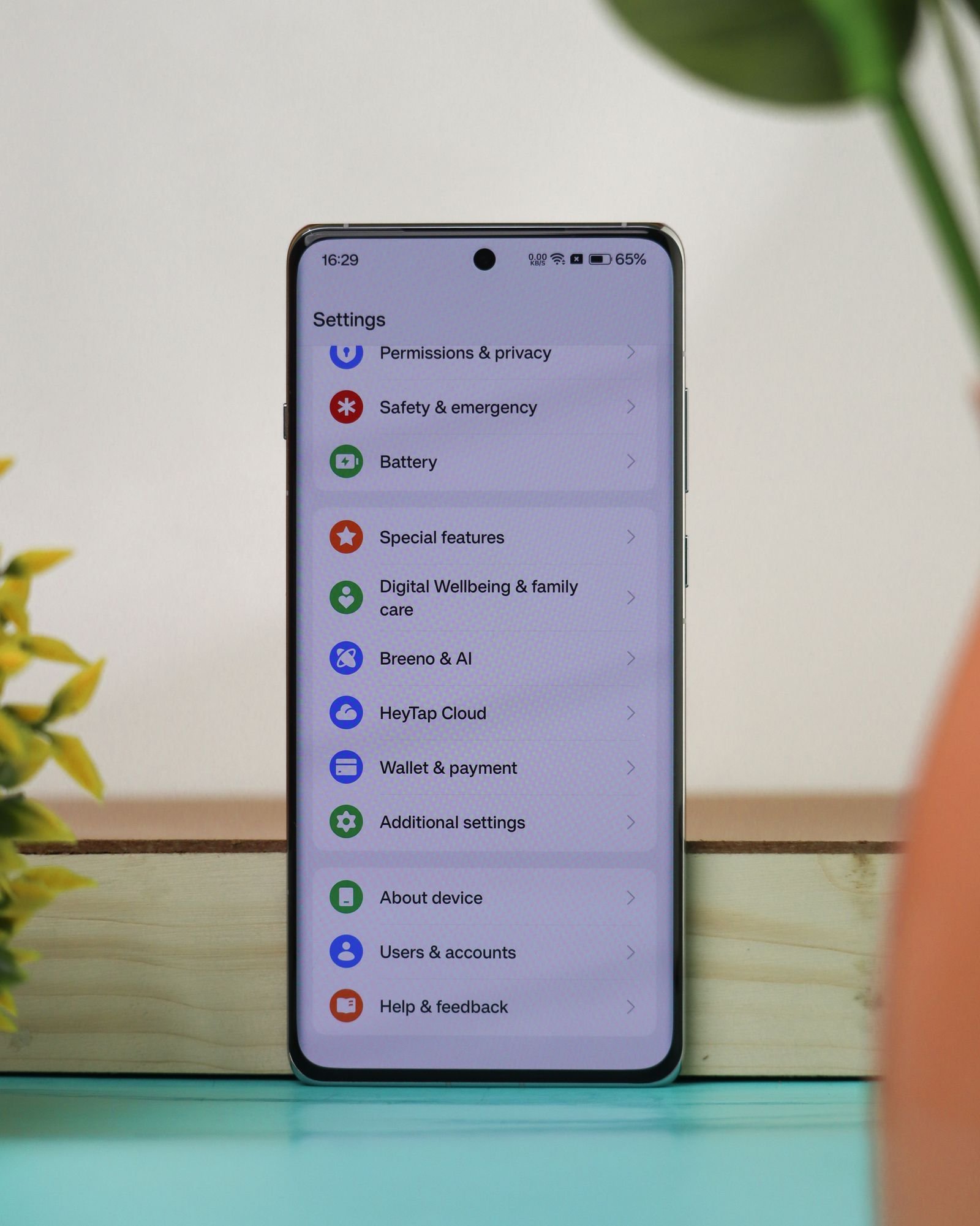
Permissions are therefore your real control panel. Modern Android asks for location, microphone, camera, contacts and files individually, offers “only this time” and approximate-location options, automatically revokes permissions from apps you stop using, and shows a privacy dashboard of what has accessed what. A flashlight app holding your contacts and microphone is not a puzzle — it is a verdict, and no antivirus will deliver it more clearly than the permissions screen itself.
Updates and verified boot finish the picture. Monthly security patches close the holes that serious malware actually exploits, and verified boot checks at startup that the system itself has not been tampered with. Hold those four together — scanning, sandboxing, permissions, patches — and you understand why the honest starting point is that Android’s floor is far higher than the antivirus marketing implies. It is the same principle we applied on the desktop in our guide to the best antivirus software for PC: know what the system already does before shopping for more of it.
Who genuinely needs a third-party app
“Most people don’t need one” is not the same as “nobody does”. A third-party antivirus earns its space on a phone when the owner’s behaviour or circumstances push them outside the safe pattern the built-ins assume. See whether you recognise yourself:
You install apps from outside the Play Store. Sideloading is sometimes legitimate — an employer’s internal app, a respected open-source store, a manufacturer’s own channel — but every sideloaded app steps around Google’s store-level review, leaving on-device scanning as the main line of defence. That is precisely the gap a good dedicated scanner fills best.
The phone belongs to someone who taps first and thinks later. A teenager chasing a “free” game mod, a parent who believes every message that says their account is suspended — the threat model here is human, and the extra layer that checks links and warns before a known-bad site loads is aimed exactly at them.
The phone is old and out of support. A handset that stopped receiving security patches years ago keeps every hole it has ever had. A scanner cannot patch the system, but it can watch the app layer more actively, which on an abandonware phone is better than the nothing that is otherwise on duty.
You bank, work or hold sensitive data on the phone, and want anti-theft and link-checking in one place. The extra tools bundled with the better security apps — locating, locking and wiping a lost phone, checking links inside messaging apps, auditing which apps hold risky permissions — are convenience and coverage Play Protect does not bundle the same way.
If none of those sound like you — current phone, Play Store only, permissions kept tidy — the honest recommendation is to keep Play Protect on, spend your effort on the updates section below, and read the rest of this article mainly for the section on fakes, so you can recognise them on other people’s phones.
What a good free app actually adds
Strip away the theatre and a reputable free Android antivirus adds four real things on top of the built-ins.
A second scanning engine, with its own detections. Independent test houses such as AV-TEST regularly put the major Android security apps through malware-detection trials, and the reputable names consistently perform at or near the top of those tests — a different engine, updated on a different schedule, will occasionally catch what Play Protect missed, and vice versa. Two locks from two locksmiths are not paranoia; they are redundancy.
Web and link protection. The commonest way bad apps reach phones is a link — in a text, an email, a messaging app — leading to a phishing page or a direct download. Several free apps check links and downloads against their own blocklists and warn before the page or file opens. On the desktop this is standard antivirus behaviour; on Android it is one of the clearest genuine additions.
An app privacy audit. The better apps present, in one screen, which of your apps hold sensitive permissions or behave unusually — effectively doing permissions hygiene for people who will never open the settings themselves. If you liked the clarity of that idea in our guide to how to protect your online privacy, this is the mobile version of the same audit.
Anti-theft tools. Find, ring, lock and wipe a lost phone; sometimes photograph whoever is holding it or alert you to a SIM change. Google’s own Find My Device covers much of this, and you should set that up regardless — the bundled versions are a bonus, not a reason to choose an app on their own.
What a good app does not add, despite the marketing: it cannot make an out-of-support phone safe, cannot stop you handing your bank password to a convincing fake page (though link-checking helps), and cannot compensate for granting every permission an app asks for. Judge every candidate against those limits.
The free antivirus apps at a glance
| App | Real-time scanning | Web / link protection | Anti-theft tools | Privacy audit | Free-tier character | Best for |
|---|---|---|---|---|---|---|
| Google Play Protect (built in) | Yes — all installs | Basic (in Chrome and Play Store) | Via Find My Device | Permissions dashboard in Settings | No ads, no upsell, already on | Everyone — the baseline, not an option to skip |
| Bitdefender Antivirus Free | Yes | Limited in free tier | No | Basic | Remarkably clean: scanning is the product | Set-and-forget protection with zero nagging |
| Avast One / AVG AntiVirus Free | Yes | Yes | Partly | Yes | Feature-rich, with regular upgrade prompts | People who want the full toolkit and can ignore upsells |
| Sophos Intercept X for Mobile | Yes | Yes | Limited | Yes | No ads, no paid tier pushing | The enthusiast’s pick: powerful and genuinely free |
| Malwarebytes Free | On-demand in free tier | Limited | No | Basic | Free tier is a cleaner/second opinion, real-time is paid | A second scanner for when something already smells wrong |
The table is deliberately blunt about the free tiers’ shapes, because that shape — what is actually free versus what is a shop window — is where these apps differ most.
The picks, honestly assessed
Bitdefender Antivirus Free — the quiet professional. Bitdefender’s free Android app does one job and does it with unusual discipline: real-time scanning of installed and newly arriving apps using the company’s well-regarded detection engine, with minimal battery impact and — almost unheard of in this category — no advertising and no carnival of upgrade banners. What it leaves out is equally clear: the web protection, anti-theft and app-privacy tools live in the paid suite. As pure scanning laid over Play Protect, it is the easiest recommendation in this article for the sideloaders and family-phone managers described above. It appears once, scans, and shuts up. More security apps should be embarrassed by how good that feels.
Avast One and AVG AntiVirus Free — the full toolkit, with a salesperson inside. These two are corporate siblings sharing an engine, and their free tiers are the most generous here: real-time scanning, web protection, anti-theft elements and privacy reporting in one place. The honest cost is attention. Expect regular prompts steering you towards the paid tier, presented with the urgency of warnings even when they are, functionally, advertisements. The protection itself is reputable and test-verified; the experience requires an owner calm enough to distinguish “your subscription could be better” from “your phone is in danger”. For a tech-confident user who wants everything in one app, a reasonable trade. For the relative who panics at pop-ups, choose Bitdefender or Sophos instead — an antivirus that frightens its owner weekly is a harm in itself.
Sophos Intercept X for Mobile — the enthusiast’s favourite, and genuinely free. Sophos aims this app at businesses managing fleets, and the spillover is to your benefit: a full-featured scanner with web filtering, an app privacy advisor, and malware detection that consistently performs strongly in independent testing — with no ads and no paid tier being dangled, because the business model lives elsewhere. The interface is plainer and slightly more technical than Avast’s, and setup asks a little more of you. For a reader of a site like this one, that is usually a bargain worth taking: maximum substance, minimum theatre. It is also a useful exhibit when recommending protection for family phones you administer yourself.
Malwarebytes Free — the second opinion, not the bodyguard. On Android, Malwarebytes’ free tier is primarily an on-demand scanner and remediation tool: you open it, it sweeps, it cleans what it finds. Continuous real-time protection sits in the paid tier, which makes the free app a different tool from the three above — less a guard, more a doctor you consult when the phone starts behaving oddly: unexplained battery drain, pop-ups outside the browser, apps you do not remember installing. Used that way, it is excellent, and its heritage in cleaning up machines that other tools had already failed is real. Just do not install the free tier believing something is standing watch; in free mode, it is not.
And the baseline, once more: whichever app you choose, it sits alongside Play Protect, never instead of it. Leave Play Protect on. An app that suggests disabling Google’s scanner so it can work “without interference” has told you something important about itself, and you should believe it.
The dark side: fake antivirus and the cleaner swamp
Now the section that matters most, because the largest security risk in the Play Store’s antivirus category is the antivirus category. Independent researchers have repeatedly tested the long tail of free “antivirus” apps and found dozens that detect little or nothing — some merely checking an app’s name against a list, some flagging harmless apps to look busy, some doing essentially no scanning at all while displaying reassuring shields. Worse than the useless are the actively harmful: apps stuffed with aggressive advertising, apps requesting accessibility access, location, contacts and SMS permissions no scanner needs, and “cleaner” and “booster” apps whose junk-file theatre exists to keep you opening them so the ads keep loading. A few have, over the years, turned out to be delivery vehicles for the very malware they claimed to fight.
Learn the smell of them. The tells are consistent: a name built from buzzwords rather than a company you can look up; promises of impossible things (“speeds up your phone 300%”, “repairs viruses”); five-star reviews that read like they were written by the developer’s cousins; a permissions list longer than a banking app’s; scare counters on the icon or in notifications — 17 threats! — that resolve, miraculously, into an ad or a subscription screen. Real security software is boring, specific about what it does, and published by a company with a reputation it cannot afford to burn.
The rule that protects you from the entire swamp: only install security apps from established security companies, from within the Play Store, and treat any app that arrives via a pop-up, a text message link or a “your phone is infected” web page as the infection it is warning you about. A web page cannot scan your phone. It can only lie about having done so.
Setting it up properly: ten minutes, once
Whichever route you chose — built-ins only, or built-ins plus one good app — the protection only counts if it is actually switched on and configured. This is the one-time setup that turns the theory above into a working state, in the order to do it.
Check Play Protect is on and scanning. Open the Play Store, tap your profile picture, then Play Protect. It should say it is on and show the result of the last scan; run a scan now for a clean baseline. In its settings, make sure the option to send unknown apps to Google for better detection is enabled — that setting is what lets Play Protect scrutinise sideloaded apps rather than only store ones, and on a phone that sideloads it is the single most valuable toggle in this entire article.
Turn on Find My Device and a real lock screen. Anti-theft begins before the theft. Confirm Find My Device is active under your Google account settings, and that the phone locks with a PIN, pattern or fingerprint you would not be embarrassed by — a phone protected by “1234” and good antivirus is a locked house with the key under the mat.
Set apps to auto-update, and audit permissions while you wait. In the Play Store settings, allow auto-updates over Wi-Fi. Then open Settings, find the privacy or permissions section, and do one pass: location, microphone and camera are the three worth reading line by line. Remove anything that makes you frown — the audit a good app automates, done once by hand, is genuinely most of the benefit.
If you installed a scanner, give it its first full scan and then leave it alone. Run the complete scan once so the baseline is clean, accept the battery-optimisation exemption only if the app explains why it needs to stay awake (real-time scanners legitimately do), and then judge the app over the following week by one measure: silence. A good security app, correctly set up, should be nearly invisible — present in the app drawer, absent from your notifications, and forgotten until the day it earns its keep.
Sideloading: the risk is real, and it is your choice
Since several recommendations above turn on it, sideloading deserves its own honest paragraph rather than a scare headline. Installing apps from outside the Play Store is not inherently reckless — developers distribute directly, open-source stores exist, and some regions and employers require it. What sideloading removes is one specific layer: Google’s store-side review of the app before it reaches you. What remains is everything on the device — sandboxing, permissions, Play Protect’s scanning of non-store apps (keep the “improve harmful app detection” option on), and whatever dedicated scanner you have installed.
If you sideload, behave like it: obtain the file from the developer’s own site and nowhere else, be doubly suspicious of “mod” and “premium unlocked” versions of paid apps — a category that functions, in practice, as malware distribution with a marketing department — and understand that a game cheat promising free currency is asking to be handed the keys by the one person the sandbox cannot overrule: you.
The fix that matters more than any app: keep the phone updated
If this article were ranked by impact rather than by its title, this section would come first. The serious compromises of Android phones — the ones used against journalists, executives and ordinary people alike — overwhelmingly exploit known system vulnerabilities for which a patch already existed on phones that had installed it. An antivirus watches the app layer; a security patch closes the hole in the wall. They are not substitutes, and if forced to choose, choose the patch.
So: turn on automatic system updates, install the monthly security patch when it arrives rather than at the end of the month, keep your apps updated through the Play Store (app updates patch app holes, which are the everyday ones), and treat the end of your phone’s support window as a genuine security event. When the patches stop, the honest options are a reputable scanner plus careful behaviour as a holding measure, or a new phone. If a replacement is on the cards, our roundup of the best Android apps will at least make sure the new handset starts life with the right software on it.
Frequently asked questions
Do I really need antivirus on Android if I only use the Play Store? For most people, no — not a third-party one. Play Protect, sandboxing, tidy permissions and current patches cover the realistic risk well. Add a free scanner if you sideload, manage phones for less careful family members, or your handset no longer receives patches.
Can an Android phone get viruses like a PC? It can get malware — spyware, banking trojans, adware, stalkerware — but the delivery is different. Android’s sandbox means malware almost always needs you to install it and grant it permissions, which is why fake apps and phishing links, not drive-by infections, are the everyday threat.
Which free antivirus is best overall? For most readers, Bitdefender Antivirus Free: strong scanning, no ads, no nagging. For a full free toolkit, Sophos Intercept X. For a phone that already seems infected, run Malwarebytes Free as the clean-up second opinion.
Why do some antivirus apps ask for accessibility or SMS permissions? Sometimes for a stated feature — link checking, call blocking, anti-theft. Often for no good reason. A scanner needs to see installed apps and storage; it rarely needs to read your messages or control your screen. If the explanation is not obvious and specific, the answer is no.
Will an antivirus slow my phone or drain the battery? The reputable ones are built to be light, and in ordinary use the cost is small. The noisy free “cleaner” apps are usually the real battery problem — ironically, often the ones promising to fix it.
Is Google Play Protect enough on its own? It is a solid, always-updated baseline, and independent testing over the years has generally placed it a step behind the best dedicated engines at catching fresh malware — which is the entire argument for layering one good free scanner on top when your risk profile justifies it, and for not bothering when it doesn’t.
The bottom line
The best free antivirus for Android depends, honestly, on whose phone it is. Play Store only, phone in support, permissions in order? You already own the essentials — keep Play Protect on, patch promptly, and spend your vigilance on links and permissions instead. Sideload, run the family helpdesk, or nurse an old handset? Add Bitdefender Antivirus Free for silent, serious scanning, or Sophos Intercept X if you want the full free toolkit without the ads. Keep Malwarebytes Free in mind as the cleaner to call when a phone already misbehaves. And hold the line that protects against the biggest threat in the category itself: a security app from a name you cannot verify, arriving with alarms and asking for everything, is not the cure. It is the disease, wearing a shield icon.