
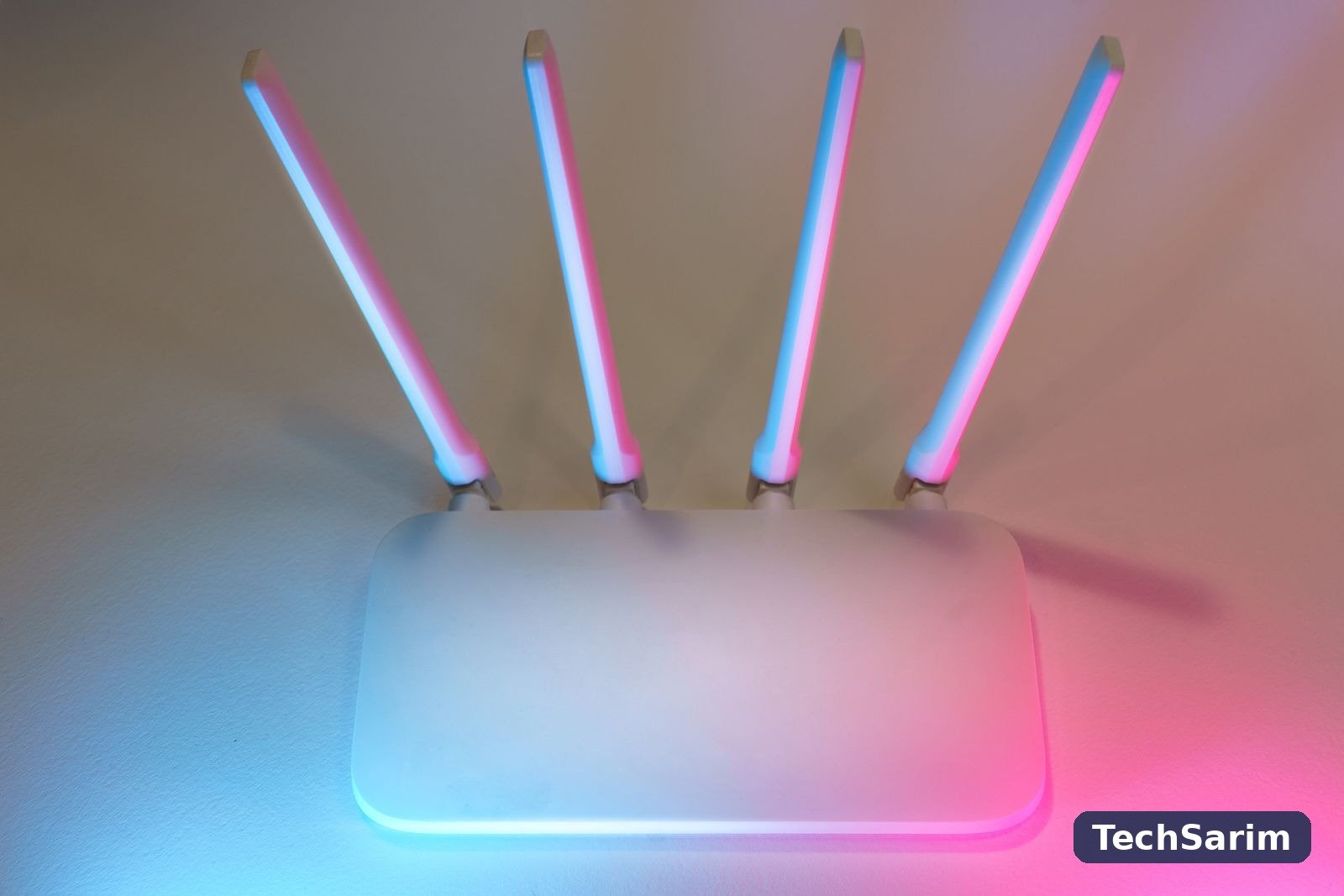

Every device in your home reaches the internet through one small box, and almost everything about that box is still set the way it left the factory. The network name announces the provider. The WiFi password is the one printed on the sticker. The settings page that controls it all still answers to a password the whole internet knows. None of this makes headlines, because home routers rarely get attacked in ways their owners ever notice — they get quietly recruited, borrowed or walked through. This guide, part of our Cybersecurity & Internet coverage, walks through the handful of router settings that genuinely change your security, in the order worth doing them, with the honest limits of each stated plainly.
Start with what “secure” realistically means here. You are not defending against an intelligence agency, and no setting on a home router would help if you were. You are defending against three ordinary threats: automated scans that try factory passwords on every router they can reach, opportunists within WiFi range — a neighbour, someone parked outside — testing whether your network is the soft one on the street, and the slow accumulation of gadgets in your home, some of them cheaply made and rarely updated, any one of which can become a foothold. Every step below closes one of those doors. Most take minutes, all of them are free, and the whole job fits inside one evening.
The home WiFi security checklist at a glance
| Step | What it does | Time it takes | Priority |
|---|---|---|---|
| Change the router admin password | Closes the settings page to anyone who knows the factory default — which is everyone | ~5 minutes | Essential |
| Set encryption to WPA3 or WPA2-AES | Keeps the traffic itself encrypted and the network locked to people with the password | ~5 minutes | Essential |
| Choose a strong WiFi password and a quieter network name | Ends dictionary attacks and stops your network advertising who and where you are | ~10 minutes | Essential |
| Update the firmware | Patches the known holes in the router’s own software | ~10 minutes | Essential |
| Turn off WPS, remote management and UPnP | Removes three convenience features that attackers actively look for | ~5 minutes | High |
| Put guests and gadgets on a guest network | Keeps visitors and cheap smart devices away from your computers and files | ~15 minutes | High |
| Consider filtered DNS | Blocks known malicious and phishing sites for every device at once | ~10 minutes | Optional layer |
| Learn your device list | Lets you spot a stranger on the network when you check | ~5 minutes | Ongoing habit |
Nothing here needs new hardware unless your router is genuinely finished — a possibility the firmware section deals with honestly. Nothing needs expertise beyond reading menus slowly. What it needs is completion: the half-secured router, like the half-secured account, is the commonest failure of all.
Step one: change the router admin password
Your router has two passwords, and confusing them is where most home security quietly fails. The WiFi password lets devices join the network. The admin password opens the router’s settings — the page where the WiFi password can be read, changed, or the whole network reconfigured. That admin password, on a router nobody has ever configured, is a factory default: often “admin”, sometimes printed on the same sticker as everything else, and in every case published in manuals and databases anyone can search. Automated scans try these defaults on routers around the clock, because it works often enough to be worth it.
So this is step one, before anything clever. Open the admin page — the address is usually on the router’s sticker (192.168.0.1 and 192.168.1.1 are the common ones) or inside the provider’s app — sign in with the default, and change the admin password to something long, unique and used nowhere else. Then store it properly: this is precisely the kind of credential the tools in our guide to the best password managers exist for, because a router password you cannot remember in two years is a router you will factory-reset in a panic. Write it on paper kept at home as a backup if you must; a sheet of paper in a drawer is not reachable from the internet, which is the entire point.
While you are in there, note the exact model name and hardware version, usually on the same page or the sticker. You will need both for the firmware step below, and knowing your model is what turns generic advice — including this article — into the right menu choices for your box.

Step two: WPA3 if you have it, WPA2-AES if you don’t — and nothing older, ever
Encryption is what stops your traffic being readable by anyone in range and what makes the password a real lock rather than a formality. The generations, in plain terms: WEP, from the 1990s, can be cracked in minutes with free tools and should be treated as no security at all. WPA, the first attempt at fixing it, is also broken in practice. WPA2, specifically in its AES mode, remains genuinely sound when paired with a strong password — most of the world’s home networks run on it without incident. WPA3 is the current standard and improves on WPA2 in the ways that matter at home: it makes each password guess harder to test offline, and it protects traffic recorded today from being decrypted later if the password ever leaks. The full technical history is set out in the overview of Wi-Fi Protected Access if you want it; the practical instruction fits in one sentence.
Set your router to WPA3 if it offers it, or to the mixed “WPA2/WPA3” mode if some of your devices are old — smart plugs and elderly printers are the usual stragglers that cannot speak WPA3 yet. One wrinkle worth knowing about that mixed mode: the router accepts both standards, so the network’s real strength for any given connection is the weaker of the two — which is fine as a bridge while old gadgets retire, but a reason to revisit the setting in a year and switch to WPA3-only once nothing at home still needs the old handshake. If WPA2 is the best the router has, choose WPA2-AES (it may be labelled WPA2-PSK or WPA2-Personal) and do not lose sleep over it: a strong password on WPA2-AES is a sound lock, and the upgrade to WPA3 is a reason to prefer it in your next router, not a reason to panic about this one. What is not acceptable, at any point, is a network still running WEP or original WPA, or a router offering TKIP as the cipher — those belong to another era, and if your router cannot do better, it has told you something the firmware section will confirm.
One more honest note: encryption protects your traffic between your device and the router. It does not hide what you do from your provider, anonymise you, or secure the websites themselves — which is why this article sits alongside, not instead of, the wider habits covered elsewhere in this category.
Step three: a WiFi password worth having, and a name that says less
With real encryption switched on, the password becomes the lock — and locks get attacked the way locks do, by trying the obvious keys first. Attackers do not guess passwords letter by letter; they run lists of millions of real passwords from previous breaches, plus every variation on team names, streets and birthdays. A WiFi password survives that by being long and unguessable rather than short and complicated: four or five unrelated words strung together, or a generated string from your password manager, beats a pet’s name with a zero in it by an enormous margin. Change the one on the sticker even if it looks random — it was printed in a factory run, stored in provider systems, and photographed by everyone who ever installed or repaired your connection.
The network name (the SSID) deserves thirty seconds too. The default name advertises your provider and often your router model — useful information you are broadcasting to the street for free. Rename it to something neutral that identifies the house to your family without identifying the family to everyone else: not your surname, not your address, not “Flat 4B”. This is not a strong security measure and this article will not pretend otherwise — anyone determined can learn plenty anyway — but there is no prize for volunteering the information, and a renamed network is also simply easier to spot in a list when guests ask.
Changing either of these means every device at home has to join again once. Annoying for an evening, irrelevant for the years after — and it has a useful side effect, covered later: it evicts everything currently connected, including anything you never invited.
Step four: update the firmware — and accept when the router is finished
A router is a small computer, and like any computer it ships with bugs, some of which become publicly known security holes. Firmware updates are how those holes get closed. US guidance on home networks, including CISA’s advice on securing wireless networks, puts updating the router’s software near the top of the list for exactly this reason — a patched hole is one the automated scans cannot use, and automated scans are most of the threat.
In the admin page or app, look for a firmware or software update section and check for updates. Better, if offered, turn on automatic updates: the single most reliable security setting is the one that does not depend on you remembering it exists. If your router came from your internet provider, updates may be pushed by them without any option to manage — check anyway, because “may” is doing real work in that sentence, and a quick look at the version date tells you whether anything has arrived lately.
Then the honest part. Manufacturers support routers for a limited number of years, after which no updates come at any price. A router that has had no firmware update in several years, or whose maker has ended support for the model, is not a router with old software — it is a router with permanently open holes, and no setting in this article fixes that. If yours is in that position, replacing it is not upselling; it is the security measure, and a current mid-range router with WPA3 and automatic updates costs less than most people expect. Everything else in this guide still applies to the new box, in the same order.
Step five: switch off WPS, remote management and UPnP
Three features ship turned on for convenience and are worth turning off for safety.
WPS (WiFi Protected Setup) is the push-button or PIN method for joining devices without typing the password. Its PIN mode has a known design flaw that lets an attacker work the PIN out in two halves, reducing it to a few hours of automated trying — within range of your home, undetectable by you. Turn WPS off entirely; typing a password once per device is not a burden worth a back door.
Remote management (sometimes called web access from WAN) makes the router’s admin page reachable from the internet. There is almost no home situation that needs it and a great deal of automated scanning that looks for it. Off. Manage your router from inside your own network, full stop — and if your provider’s app manages it remotely through their own systems, that is their secured channel, not this setting.
UPnP lets devices at home automatically open ports through the router so outside traffic can reach them. Convenient for games consoles; also exactly the mechanism by which compromised gadgets quietly make themselves reachable from the internet. Turning it off breaks little for most households — most modern apps and consoles cope — and if something you own genuinely stops working, you will know the cause and can make a deliberate exception rather than an accidental one.
Step six: give guests and gadgets a network of their own
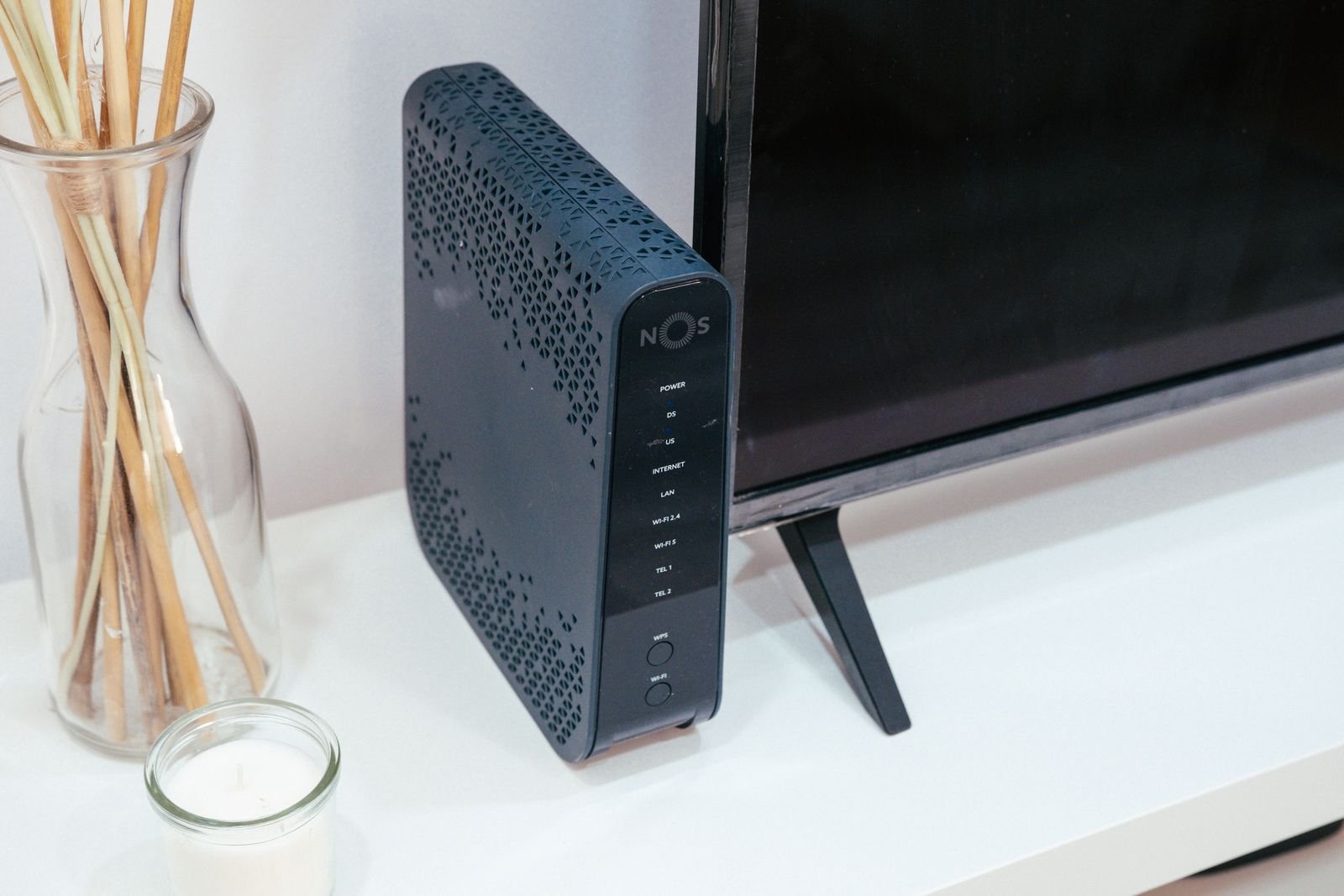
A modern home network holds two very different populations. In one: your laptops, phones and storage, holding your files, your banking, your life. In the other: a growing crowd of guests’ phones and cheap connected gadgets — smart bulbs, plugs, cameras, speakers, a TV from a brand you cannot pronounce — many of them built down to a price, updated rarely, and impossible to inspect. Those two populations do not need to be able to talk to each other, and on a flat, default network, they can.
Almost every router made in the last decade offers a guest network: a second network name with its own password. Turn it on and use it for both audiences it suits. Visitors get internet access without getting the password to your real network — the one you would otherwise have to change after every guest leaves, and never do. And your smart gadgets can live there permanently: most routers’ guest networks keep their users separated from the main network, so a compromised bulb can reach the internet it needs and nothing in your house it doesn’t.
Two honest caveats. A few gadgets genuinely need to talk to your phone to work — some speakers and printers behave badly in isolation — so move devices over in a quiet hour and check the essentials still function before declaring victory. And guest-network isolation varies by brand; if yours offers a specific “IoT network” or “device isolation” setting, that is the same idea in a better suit, and it is the one to use.
The gadgets earn this quarantine for a specific reason. A striking share of cheap connected devices ship with their own default passwords — sometimes a standard one printed in a manual, sometimes one the owner is never prompted to change — and the big waves of router-and-camera botnets that make the news are built almost entirely from devices nobody ever configured. Your laptop gets patches and prompts; your smart bulb gets neither, and it sits on the same network as the laptop unless you put it somewhere else. The guest network is that somewhere else: the bulb can still be switched on from your phone through its maker’s cloud, but the path from a hijacked bulb to your files is closed by the router itself, which is the only bouncer in the house that never sleeps.
The optional layer: filtered DNS
Every device on your network asks a DNS service, usually your provider’s, to translate site names into addresses. Pointing the router at a reputable filtering DNS service instead — several well-known free ones exist — makes the router refuse, for every device at once, to resolve domains currently known for malware, phishing and scams. It is the only setting in this article that protects devices you cannot install anything on: the smart TV, the relative’s ancient tablet, the gadget with no settings at all.
Its limits deserve equal clarity. Filtering only stops known bad domains, works on names rather than content, and can be walked around by anything using its own encrypted DNS — which includes most modern browsers, by design. It is a net, not a wall. Treat it the way the broader guide to how to protect your online privacy treats every layer: worth having precisely because no single layer, this one included, has to be perfect to be useful.
Know what’s connected: the device list habit
Your router keeps a list of everything currently connected, in the admin page or app, usually labelled “connected devices” or “client list”. Learn where yours is, and look at it when you finish this guide: you should be able to account for every entry — phones, laptops, the TV, the printer, the mysterious string of letters that turns out to be the smart plug in the kitchen. Device names are often unhelpful and MAC addresses, the hardware identifiers beside them, can now be randomised by phones for privacy, so expect one or two puzzles rather than a perfect roll call; the makers’ names in the list usually give the game away. A practical method for the stubborn entries: turn off or unplug your own devices in groups — phones first, then the TV and streaming boxes, then the gadgets — and watch which entries vanish. What remains after everything you own is off the network is, by definition, not yours.
If something is on the list that you cannot account for after honest effort, act rather than fret: change the WiFi password (step three), which disconnects everything, then reconnect your own devices one by one. Whatever was freeloading — a neighbour who got the password years ago is the commonest real-world answer — is outside, and stays outside unless someone hands the new password over. Repeat the glance at the list every few months, the way you would check any lock you actually rely on.
Placement myths, briefly
Security folklore loves the router’s physical position, so let us be brief and honest. Hiding the network name (turning off SSID broadcast) does not hide the network — the traffic is still visible to anyone listening, your devices start shouting the name wherever they go instead, and you have bought inconvenience at the price of nothing. MAC filtering does not keep determined people out either; allowed addresses are broadcast in plain sight and can be copied in seconds. Neither feature is a lock, and neither substitutes for step two’s encryption and step three’s password.
Where the router sits is a real question — just a coverage question rather than a security one. High, central and out of the cupboard beats low, cornered and buried, and if dead zones are your actual problem, that is the subject of our guide to how to fix slow WiFi, where placement earns its keep honestly. The one overlap with security: a router placed centrally also leaks a little less of your signal a little less far down the street. Take it as a bonus, not a strategy.
Frequently asked questions
Will changing all these settings break my internet? No — every step here is a standard setting with a switch or a field, reversible from the same screen. The one real disruption is changing the WiFi password or name, after which each device needs to join once with the new details. Do the work when the house is awake and the sticker is within reach, not at midnight before a workday.
My router only offers WPA2. Am I unsafe? No. WPA2 in AES mode, with a long unique password, remains a sound lock in 2026, and most real-world home compromises arrive through factory admin passwords and unpatched firmware — steps one and four — not through breaking WPA2. Just make sure it is not running the older TKIP cipher, and put WPA3 on the list for your next router.
Should I change my WiFi password regularly? Not on a schedule. Routers are not office systems: a long, unique password that has never been shared widely does not expire by calendar. Change it when you have a reason — a device you cannot account for, a guest list that got out of hand, a lodger moving out — not because a month has passed.
Does a guest network slow things down? Not noticeably for home use. The guest network shares the same hardware and connection, and a houseful of visitors streaming will use bandwidth whatever network they join. The separation it gives you costs nothing you will feel.
My provider manages my router. Does any of this apply? Most of it. Provider apps increasingly expose exactly these controls — password changes, guest networks, update status, WPS — because providers would also prefer you secure. Anything the app will not let you touch, a call to the provider usually resolves; anything they flatly manage, such as firmware, becomes a question worth asking them directly: when did this model last receive an update?
Is a VPN a substitute for securing the router? No, and the two are often confused. A VPN protects traffic on its way across the internet; it does nothing about the neighbour joining your network, the gadget phoning home, or the scanner trying your router’s factory password. Secure the box first — it is the thing everything else stands on.
The bottom line
Home WiFi security is not a product you buy; it is an evening you spend once, in the right order. Change the admin password, because the factory one is public knowledge. Set WPA3, or WPA2-AES, because anything older is not a lock. Give the network a long password and a quieter name. Update the firmware — or accept the verdict if none is coming. Switch off WPS, remote management and UPnP, the three conveniences attackers actively hunt. Move guests and gadgets onto their own network, add filtered DNS if you want the extra net, and learn what your device list is supposed to look like. Then stop: a router secured this way has no remaining easy doors, which is all any of us can ask of a small box in the corner — and considerably more than most houses on your street have done.